Skipped Products, Errors & System Diagnostics
After each feed generation, the module shows you exactly which products were left out and why — so you can fix catalog issues before they affect your Facebook or Instagram campaigns.
Available since v2.4.8
Overview
When the module generates your product feed it inspects every active product and applies a series of checks. Products that fail a check are not silently dropped — they are recorded in a report file (feeds/errors.txt) alongside the reason they were excluded. The Back Office then surfaces this data in dedicated panels so you can act on it without guessing.
Three conditional panels can appear in the module configuration page after a generation run:
- Skipped — products that were deliberately excluded because of a data quality rule (missing image, no description, excluded by ID, etc.)
- Errors — products that triggered a PHP-level warning, notice, or fatal error during processing
- System Diagnostics — a focused panel that appears when a severe error was caught mid-generation; it pinpoints the exact product and error message so you can investigate immediately
None of these panels appear if your last generation completed cleanly, in which case you see a confirmation message instead.
When Each Panel Appears
Skipped panel
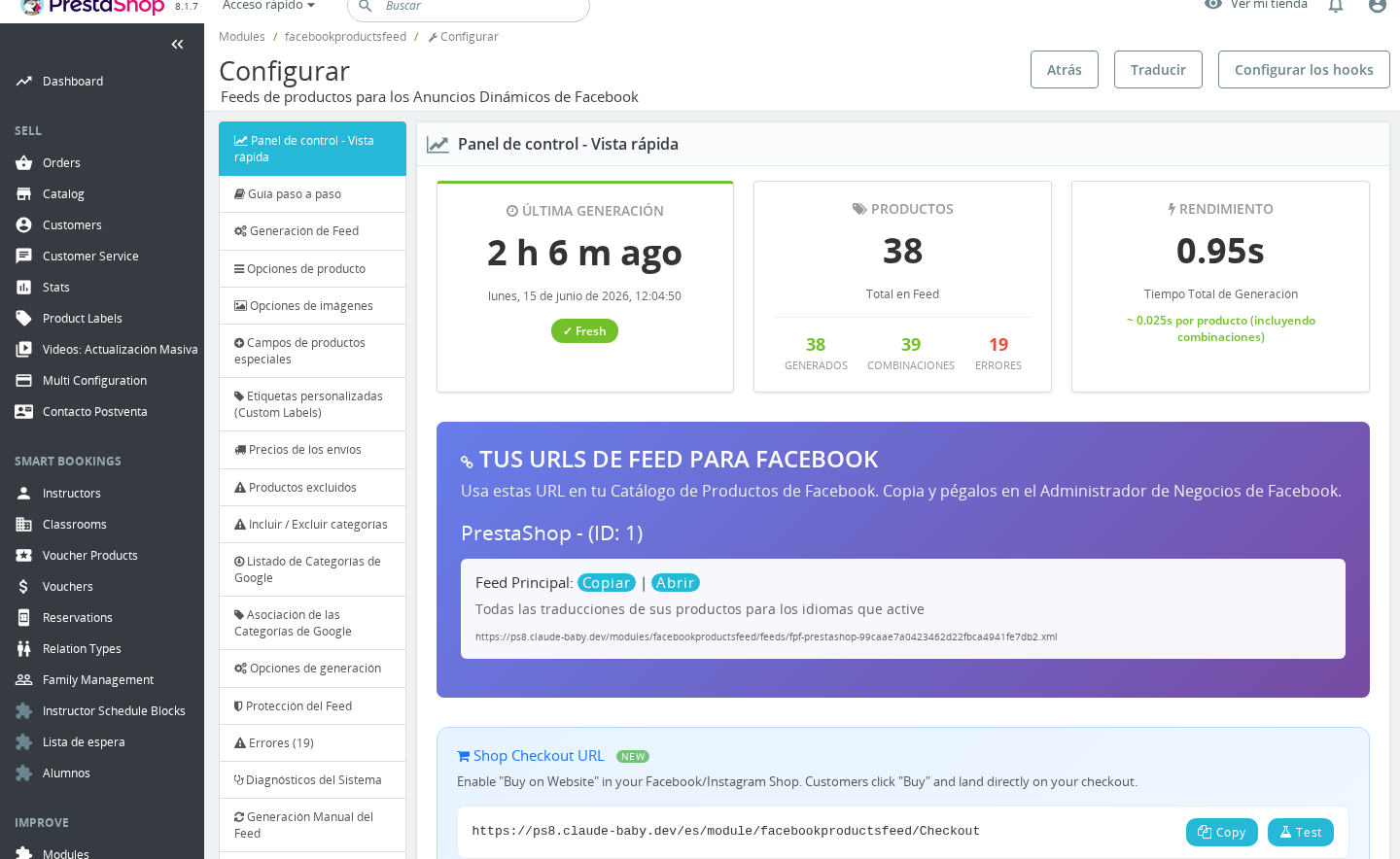
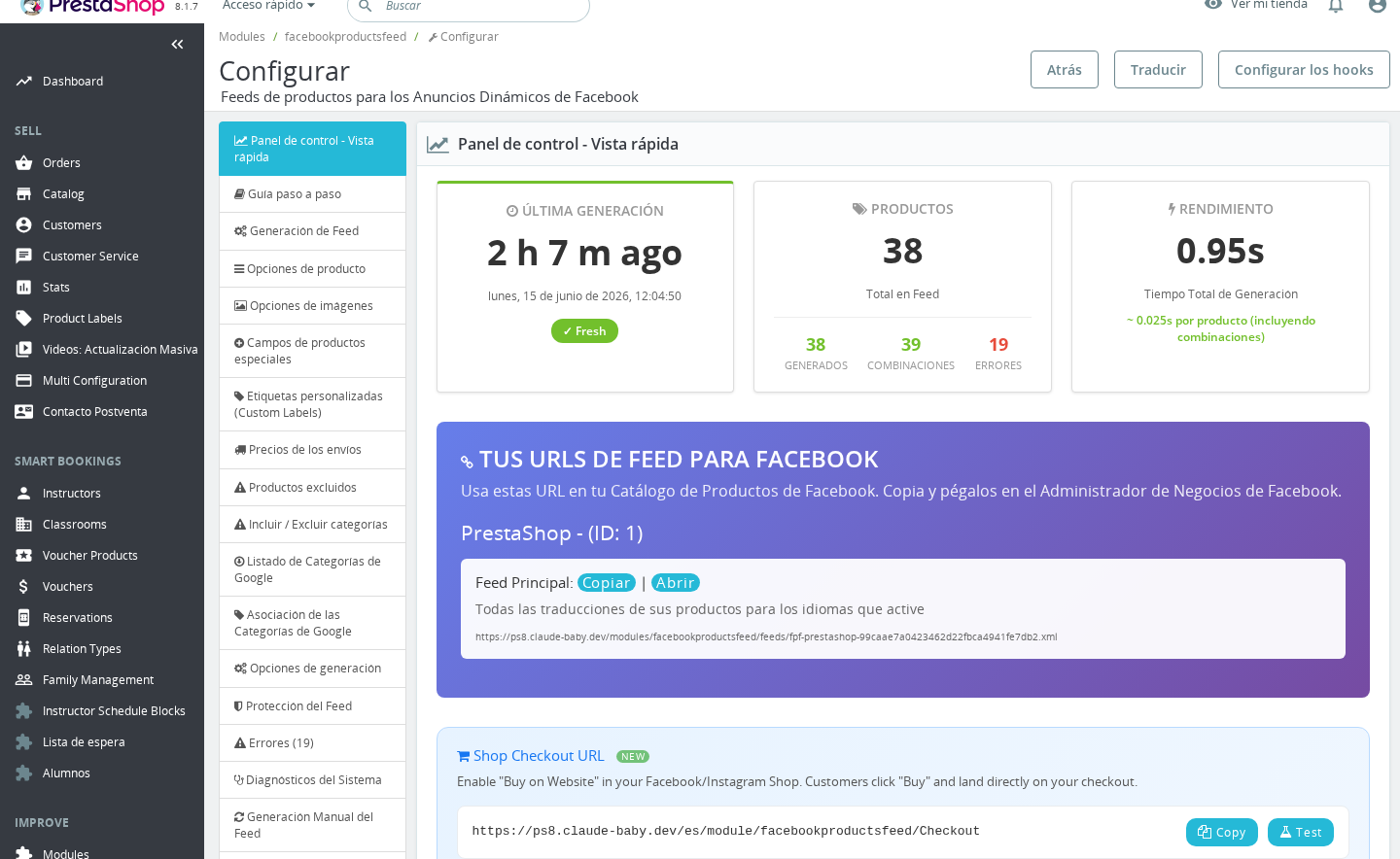
The Skipped tab appears in the navigation sidebar when at least one product was excluded during the most recent generation. The tab label shows the total count, for example Skipped (17). Clicking the count in the Generation Statistics table jumps you directly to this panel.
Skipped products are expected in most stores — a product with no image or a hidden product should not reach Facebook. The panel helps you decide whether the skipped count represents a configuration choice or a genuine data problem.
Errors panel
The Errors tab appears when one or more products triggered a PHP-level error (notice, warning, or fatal) during processing. This is distinct from a skip: a skip is a deliberate exclusion based on a data rule, while an error means something unexpected happened while the module tried to read or process the product data.
The tab label also shows the count: Errors (3). In the Generation Statistics table the errors column is always a clickable link pointing to this panel, even when the count is zero, so you can always verify the error state after a run.
System Diagnostics panel
The System Diagnostics panel appears only when a severe error was intercepted by the module's error capture system during the most recent generation. This is a single-product diagnostic: it shows the product ID, the combination ID (if applicable), the shop, the error severity, the PHP file and line number where the error occurred, and a timestamp.
This panel is intentionally distinct from the Errors panel. It is designed for the rare case where a single product causes a crash-level problem that could interrupt the entire generation cycle. The panel gives you enough information to find the problematic product in your Back Office and either fix it or exclude it.
How to Read the Reports
Skipped and Errors panels
Both panels organize results in the same way:
- Shop — if you have multiple shops, reports are grouped by shop name
- Feed type — within each shop, results are split by feed type: Main Feed or Language feed
- Error/skip category — within each feed type, products are grouped by the reason they were excluded. Each category has a heading and an explanation, plus a suggested fix
Each product entry shows a thumbnail image, the product name, and a direct link to edit the product in your Back Office. Up to 250 products are shown per category — if a category has more than 250 affected products, only the first 250 are listed to avoid slowing down the page.
The skip and error categories you may encounter are:
| Category | What it means |
|---|---|
| Images | The product has no images or the image file could not be found on disk |
| Image | The product has no image at all — not even a cover image |
| Products without images | The product has fewer images than the minimum set in your Image Position Start option |
| Product Description | Both the short description and the long description are empty |
| Empty Product Name | The product has no name in the active language |
| Invalid Identifier | The product has no EAN, UPC, MPN, or brand — Facebook requires at least one identifier |
| Products without stock | The product is out of stock and the "Generate Out of Stock products" option is disabled |
| Products Excluded by ID | You manually excluded this product using the Product Exclude feature |
| Products Excluded by Category | You manually excluded the product's category using the Category Exclude feature |
| Products with hidden visibility | The product's visibility is set to hidden in the product edit page |
Each category in the panel includes a suggested fix directly below the heading. For example, the Invalid Identifier section explains how to enable the "Allow products without EAN, UPC or Manufacturer" option and assign a global brand name.
System Diagnostics panel
The System Diagnostics panel shows a single error record. You will see:
- Product ID and a direct link to edit that product
- Combination ID (shown as 0 if the error was on the base product, not a combination)
- Shop ID
- Error severity — one of: Fatal Error, Warning, Notice, Parse Error, User Error, Core Error, Compile Error
- File and line where the error occurred
- Timestamp of the error
This panel captures errors that happen inside PHP during product processing. It does not indicate a problem with the module itself — it most commonly points to corrupted product data, a third-party module that modifies product objects in an unexpected way, or a server configuration issue.
Common Skip and Error Reasons
Most stores will see skipped products — this is normal. The most common skip reasons are:
- No images: Products that have never had an image uploaded, or products whose image thumbnails have not been regenerated after a size change. Go to Design > Images > Regenerate Thumbnails (PrestaShop 1.6: Preferences > Images), select the Products type, and regenerate without deleting existing images.
- No identifier: Facebook's product catalog policy requires an EAN, UPC, MPN, or brand on each item. If your products do not use standard barcodes, enable Allow products without EAN, UPC or Manufacturer in the Product Options tab and enter a default brand name in the field below it.
- Out of stock: If you do not want out-of-stock products in your Facebook catalog, this is expected behavior. If you do want them included, enable Generate Out of Stock products in the Product Options tab.
- Hidden visibility: Products set to "hidden" in PrestaShop are intentionally excluded. Review each product's Options > Visibility setting if you want them included.
- Excluded manually: Products or categories you have excluded using the Products Exclude or Included / Excluded Categories features will always appear here. Check those panels if you see unexpected exclusions.
How to Clear the Reports
Clearing Skipped and Errors reports
The Skipped and Errors panels are rebuilt from scratch on every generation. To clear them, run a new feed generation — once the new generation completes successfully the old report is replaced. There is no manual "clear" button for these panels.
If the feeds/errors.txt file is not writable, the module will attempt to recover the report data from a database fallback. In that case a warning appears at the top of the page asking you to fix the file permissions. Set the file at modules/facebookproductsfeed/feeds/errors.txt to writable (mode 666) to restore normal reporting.
Clearing the System Diagnostics record
The System Diagnostics panel has a Clear Error button. Clicking it removes the stored error record immediately — no page reload is needed. The panel disappears from the navigation sidebar after clearing.
The error record is also cleared automatically at the start of each new generation cycle, so running a new generation will replace or remove it without manual intervention.
If the same product keeps appearing in System Diagnostics after multiple generation runs, that product is consistently causing a PHP error. Edit the product in your Back Office to fix its data, or exclude it using the Products Exclude feature until you can investigate further.
Important Notes
- Report limit: Each skip/error category shows a maximum of 250 products to prevent slow page loads. If you have more than 250 products affected by the same issue, fix the most common underlying cause first and regenerate to see the full picture.
- Country feeds excluded: The skip count in the Generation Statistics table shows
---for country-specific feeds. Skip and error tracking applies to the Main Feed and Language feeds only. - Multi-shop: Reports are organized per shop. If you manage multiple shops, each shop's skipped and error products are listed separately under their own shop tab within the panel.
- File permissions: If
feeds/errors.txtcannot be written, the module saves the report data in the database as a fallback. This is less reliable for large catalogs — fix the file permissions as soon as you see the warning. - Maintenance mode: Feed generation (and therefore report generation) is blocked when your shop is in Maintenance mode. No new reports will be created until you take your shop out of maintenance.
Troubleshooting
| Problem | Solution |
|---|---|
| Skipped or Errors panel does not appear after generation | Check that the generation completed fully. If a previous generation is stuck, refresh the page — the module auto-detects a completed progress file and clears the generating lock. Then run a new generation. |
| "Product Skipped & Errors report couldn't be saved" warning | The feeds/errors.txt file is not writable. Set permissions to 666 on that file via FTP or your hosting file manager. |
| System Diagnostics keeps showing the same product after every generation | The product has corrupted or incompatible data that triggers a PHP error. Open the product in your Back Office, check all fields (especially custom fields added by other modules), and fix or exclude it. |
| Errors panel is empty but stats table shows error count | The report data may be from a previous generation cycle that has since been overwritten. Run a new generation to refresh the panel. |
| More than 250 products listed as skipped | The panel caps display at 250 per category. Address the root cause for the most common skip reason (for example, enable out-of-stock products or fix image thumbnails), regenerate, and check again. |
Frequently Asked Questions
Every product shows as skipped with "Invalid Identifier" — what does this mean?
Facebook requires each product to have at least one of: EAN barcode, UPC barcode, MPN (manufacturer part number), or a brand name. If your products do not use these, go to the Product Options tab, enable Allow products without EAN, UPC or Manufacturer, and enter your store's brand name in the field that appears. After saving and regenerating, those products will no longer be skipped for this reason.
I see the same product appearing in both Skipped and Errors — is that possible?
Yes. A product can be skipped for a data quality reason (for example, no image) and simultaneously trigger a PHP notice while the module tries to read its data. Fix the data issue first and regenerate — often resolving the skip reason also resolves the underlying error.
The Skipped panel appeared once but now it's gone — did I lose the data?
The panel is only shown when the most recent generation produced skipped products. If you ran a new generation that completed without skips, the panel is correctly absent. The previous report data is overwritten on each run.
Can I export the list of skipped or errored product IDs?
The Back Office panels do not offer a direct export. The raw report data is stored in feeds/errors.txt in JSON format, which you can download via FTP and open in any text editor or spreadsheet tool if you need the full list.
The System Diagnostics panel appeared but I cleared it — will it come back?
It will only reappear if the next generation run encounters another PHP-level error on a product. Clearing the record does not prevent future errors; it only removes the current stored record. If you want to prevent the error from recurring, edit or exclude the product that caused it.
Why does the errors column in the statistics table always show a link, even when the count is zero?
The link is always present so you can quickly navigate to the Errors panel to verify its state after any generation. A zero count means the last generation completed without product errors — the link is still useful for confirmation.