Product Special Fields (Size, Color, Material Mapping)
Map your store's product attributes and features to the standard g:size, g:color, and g:material XML fields that Facebook and Instagram require for apparel and fashion catalogues.
Available since v1.1.0
Overview
Facebook's product catalogue recognises specific XML fields — g:size, g:color, and g:material — for filtering, dynamic ads, and shopping surfaces. These fields need to map to your PrestaShop data, but every store organises that data differently: some use attribute groups (for products with combinations), others use product features (for simple products), and many use a mix of both.
The Product Special Fields section lets you tell the module exactly which attribute group or feature in your store corresponds to each standard field. Once mapped, the feed automatically outputs the correct values for every product and combination.
There is also an option to include any remaining combination attributes as <additional_variant_attribute> elements, which gives Facebook richer data about variants without requiring you to map every attribute manually.
Configuration
- Go to Modules > Module Manager, find Facebook & Instagram Product Catalogue Feed Pro, and click Configure.
- Click the Product Special Fields tab.
- The panel shows three tag fields — Product Size, Product Color, and Product Material — plus the Additional Variable Fields toggle.
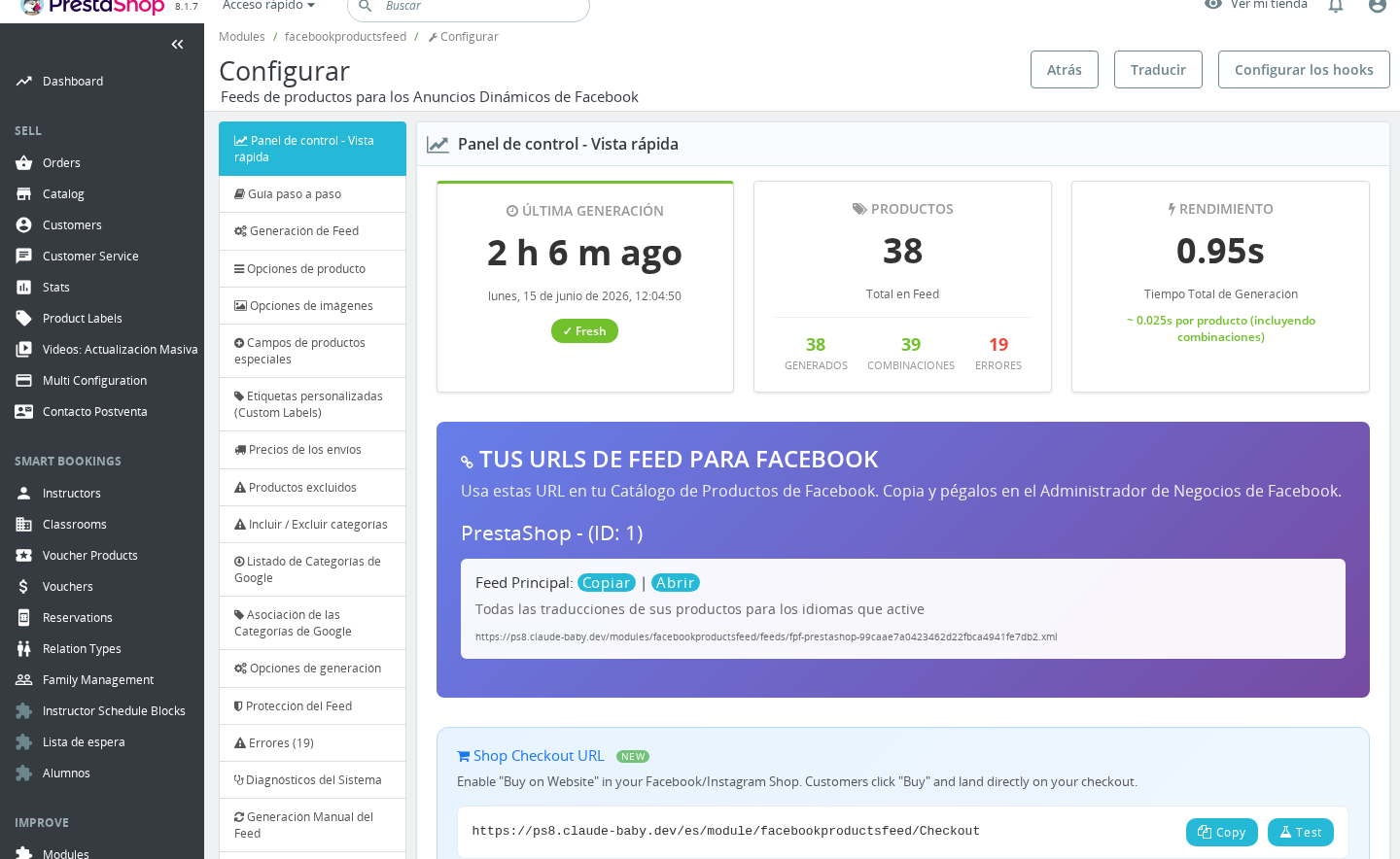
Assigning sources to Size, Color, and Material
Each of the three fields shows a tag-widget input. Click anywhere in the widget to see a dropdown listing all attribute groups and product features available in your store. Select the entry that holds the relevant data.
| Field | What to assign | Resulting XML element |
|---|---|---|
| Product Size | The attribute group or feature that stores size values (e.g., "Size", "Shoe Size") | <g:size> |
| Product Color | The attribute group or feature that stores colour values (e.g., "Color", "Colour") | <g:color> |
| Product Material | The attribute group or feature that stores material values (e.g., "Material", "Fabric") | <g:material> |
You can assign more than one source to a single field. If a product has a value for the first source, that value is used; if not, the module tries the second source, and so on. This is useful when some products use an attribute group and others use a feature for the same concept.
After making your selections, click Save Configuration at the bottom of the section.
How it Works
Attribute groups vs. features
PrestaShop stores product variation data in two places:
- Attribute groups (e.g., Size, Color, Shoe Size) power combinations. A "T-Shirt" in sizes S, M, L uses an attribute group. Each combination carries a distinct attribute group value.
- Product features (e.g., Material, Country of Origin) are flat metadata fields attached to the product itself, not to individual combinations.
When generating the feed, the module checks each product against your mappings:
- For an attribute group source, it looks up the current combination's value for that group and outputs it.
- For a feature source, it reads the feature value from the product record itself.
The first source that returns a non-empty value wins. If neither source finds data for a given product, the XML element is simply omitted for that product — Facebook accepts items without these fields; they are required only for certain product categories.
Additional Variable Fields
| Field | Values | Default | Description |
|---|---|---|---|
| Generate the additional Variable fields? | Enabled / Disabled | Enabled | When on, all combination attributes that are NOT already mapped to Size, Color, or Material are output as <additional_variant_attribute> elements in the feed. |
When this option is enabled, the module takes every attribute group present in a combination and excludes the ones you have already assigned to Size, Color, or Material. The remaining attributes are each written as:
<additional_variant_attribute>
  <label>Fabric Weight</label>
  <value>300gsm</value>
</additional_variant_attribute>
This is particularly useful for stores with many variation dimensions (e.g., style, fit, leg length) that do not have a direct counterpart in the standard Facebook fields. Disabling this option produces a smaller, simpler feed — appropriate if you have already mapped all relevant attributes to the standard fields.
This option applies to the main full feed and the per-language feed. It does not apply to country-mode feeds (country-based price overrides).
Syntax Reference
The tag-widget stores values internally as a comma-separated list with type prefixes. You will not normally need to edit these directly, but understanding the format helps when troubleshooting:
| Prefix | Meaning | Example |
|---|---|---|
a:<id> | Attribute group with the given ID | a:3 (attribute group ID 3) |
f:<id> | Product feature with the given ID | f:7 (feature ID 7) |
Multiple sources are separated by commas: a:3,f:7 means "try attribute group 3 first, then feature 7".
You can look up your attribute group IDs in Catalog > Attributes & Features > Attributes and feature IDs in Catalog > Attributes & Features > Features within the Back Office.
Usage Examples
Example: Standard apparel store
Your store sells T-shirts with Size and Color combinations. In PrestaShop, these are attribute groups named "Size" (ID 1) and "Color" (ID 3). Assign "Size" to Product Size and "Color" to Product Color. Leave Material blank if you do not track fabric data. The feed will output <g:size>M</g:size> and <g:color>Blue</g:color> per combination, and Facebook can filter ads by these values.
Example: Mixed catalogue with both features and attributes
You sell shoes (combinations by size) and accessories (simple products with a "Material" feature). Assign your shoe-size attribute group to Product Size, and your "Material" feature to Product Material. For shoes, the feed reads size from the combination. For accessories, it reads material from the feature. Both product types work with a single configuration.
Example: Suppressing redundant additional variables
You have already mapped Color, Size, and Material. Your products also have a "Pattern" attribute, but you do not want it in the feed. Leave Additional Variable Fields disabled — no <additional_variant_attribute> elements will appear. If you later decide Pattern is useful for Facebook filtering, re-enable the toggle and it will appear automatically for all combinations that have a Pattern value.
Important Notes
- If a product has no value for any source you assigned to a field, that XML element is omitted. The feed remains valid — Facebook only requires Size, Color, and Gender for apparel items.
- Attribute group sources work only for products with combinations. If a simple product has no combinations, attribute group sources return nothing; use a feature source instead for simple products.
- The Additional Variable Fields option outputs attribute groups that are not in your Size/Color/Material mapping. If none are excluded, all attribute groups appear as additional variables.
- These settings are per-shop. In a multi-shop setup, go to each shop's context to configure mappings independently.
- After changing mappings, regenerate your feed manually from the Manual Feed Generation tab so Facebook picks up the updated structure on its next import.
Troubleshooting
| Problem | Solution |
|---|---|
g:size or g:color is missing from the feed | Verify the attribute group or feature is assigned in the tag widget. Check that the products actually have values for that group/feature. Simple products need a feature source, not an attribute group source. |
| The wrong value appears for a combination | You may have assigned the feature source ahead of the attribute group source for a field. The first source wins — reorder the tags so the attribute group tag appears first. |
<additional_variant_attribute> elements are not appearing | Check that Generate the additional Variable fields? is set to Enabled and that the product has combination attributes not already mapped to Size, Color, or Material. |
| After saving, the tags appear blank on reload | This can happen if the IDs no longer exist in your store (e.g., an attribute group was deleted). Open the tag widget and re-assign from the dropdown. |
| Facebook reports missing required attributes for clothing | Size, Color, and Gender are required for apparel in some locales. Ensure Size and Color are mapped. Gender is configured separately under the Gender tab within Product Special Fields. |
Frequently Asked Questions
Can I assign the same attribute group to both Color and Size?
You can, though it would not make practical sense — the same value would appear in both <g:color> and <g:size> for every combination. Use distinct attribute groups or features for each field.
Do I need to map all three fields (Size, Color, Material)?
No. Map only the fields that apply to your products. Facebook requires Size and Color only for apparel and footwear categories. Material is always optional. Unmapped fields are simply not output in the feed.
My store has combinations, but the size values are stored as a product feature, not an attribute group. Will it work?
Yes. Assign the feature source (prefixed f:) to the Product Size field. The module reads features on both simple products and products with combinations. Note that a feature holds a single value per product, so all combinations of that product will show the same size value.
What is the difference between assigning two sources to a field versus enabling Additional Variable Fields?
Multiple sources on a single field (e.g., a:1,f:7) are fallbacks — the module tries each in order and outputs the first non-empty result for the standard <g:size> field. Additional Variable Fields outputs all remaining attribute groups (those not in any of the three standard mappings) as separate <additional_variant_attribute> elements. They serve different purposes and can both be active at the same time.
How do I find the numeric IDs for my attribute groups and features?
In the Back Office, go to Catalog > Attributes & Features. The ID column is visible in the list view. Alternatively, when you open the tag widget in Product Special Fields, each entry in the dropdown already has the correct a: or f: prefix applied — you do not need to look up IDs manually when using the widget.