Shipping Prices — Master Toggle & Carriers
Add accurate delivery costs to every product in your Facebook and Instagram catalogue feed so shoppers see the real price before they click through to your store.
Available since v1.1.0
Overview
Facebook's catalogue format supports a shipping field that tells the platform how much it costs to deliver each product to each country. When this data is present, Facebook and Instagram can display estimated delivery costs directly in product ads and shop listings — reducing sticker-shock at checkout and improving conversion.
The module calculates shipping prices by reading your PrestaShop carrier configurations: delivery zones, weight and price ranges, and free-shipping thresholds. For each product in the feed it looks up which carriers can deliver it and at what cost, then generates one shipping entry per carrier per destination country (or state, for markets like the US).
You control the process at two levels. The master toggle switches shipping generation on or off for the entire feed. The per-carrier settings let you include or exclude individual carriers, choose between automatic price calculation and a fixed flat rate, and set a display name that Facebook sees.
Enabling Shipping in the Feed
- Go to Modules > Module Manager, find Facebook & Instagram Product Catalogue Feed Pro, and click Configure.
- Click the Shipping Prices tab.
- Set Generate Shipping Prices? to Yes.
- Click Save.
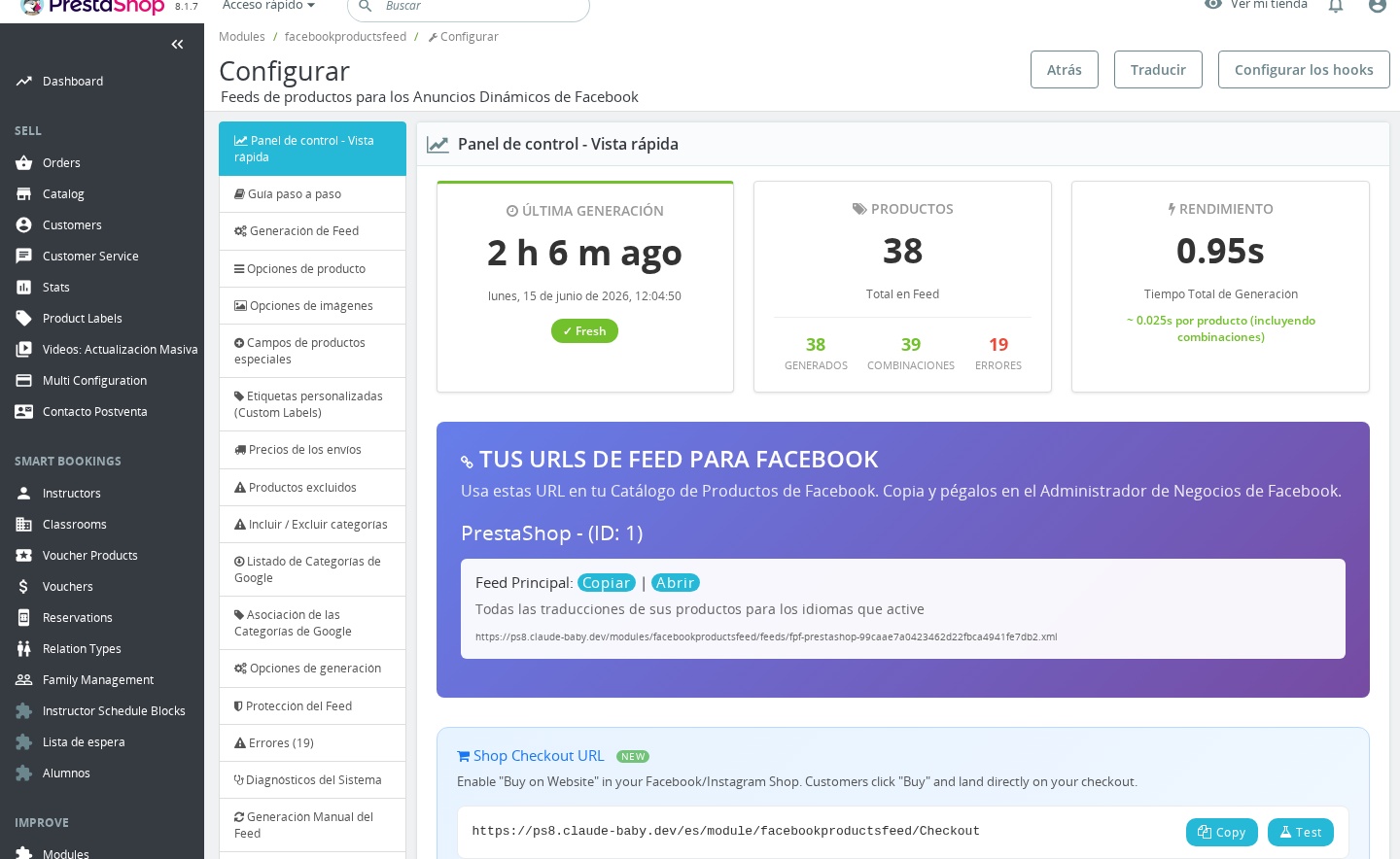
With the master toggle on, the Shipping Carriers sub-tab becomes active. No shipping data is written to the feed until you also enable at least one carrier there.
Turning off the master toggle removes all
shippingfields from the feed output immediately on the next generation. Facebook will no longer display shipping costs for your products.
Per-Carrier Configuration
Open the Shipping Carriers sub-tab inside the Shipping Prices section. Each active, non-deleted carrier in your PrestaShop installation appears as its own block.
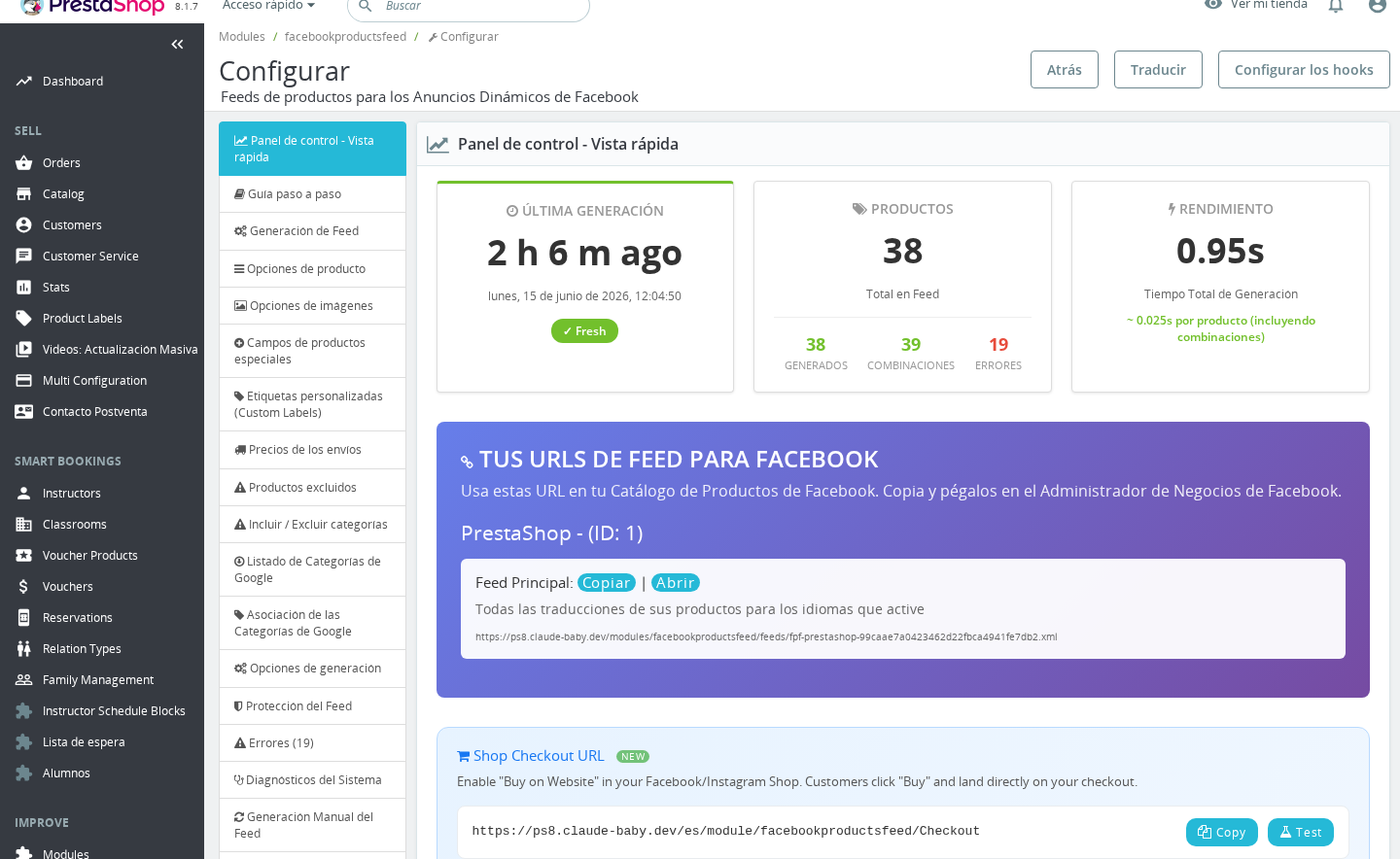
| Field | Values | Default | Description |
|---|---|---|---|
| Add the prices for this carrier? | Yes / No | No | Include this carrier in the feed. Only carriers set to Yes contribute shipping entries to the output. |
| Force a flat price for this carrier? | Yes / No | No | When Yes, use a single fixed price for all products and destinations instead of calculating from your carrier's ranges. |
| Fixed Price for Carrier deliveries | Numeric (e.g. 4.99) | empty | The flat delivery cost to apply when the flat-price option is on. Must be zero or positive. Leave blank to use 0.0 (free). |
| Use an alias for this carrier? | Text | empty | A custom service name that Facebook sees in the feed instead of your internal carrier name. Leave blank to use the carrier's PrestaShop name. |
Save after configuring each carrier. All carrier settings are saved in a single form submission for the Shipping Carriers section.
Auto vs Fixed Price
Automatic Price Calculation
When Force a flat price for this carrier? is set to No, the module calculates the delivery cost per product using your carrier's PrestaShop range tables — the same tables that determine what customers pay at checkout.
The calculation works as follows:
- For weight-based carriers, the module uses the product's weight to find the matching weight range and reads the zone price for each destination country.
- For price-based carriers, the module uses the product's price to find the matching price range and reads the zone price.
- If the order qualifies for free delivery (based on PrestaShop's global free-shipping weight or free-shipping price thresholds), the module outputs
0.0for that carrier and destination. - If a carrier is marked as always-free in PrestaShop, it outputs
0.0for all destinations.
This mode produces the most accurate shipping data in the feed but requires that your carrier range tables and zone prices are fully configured in PrestaShop. If a product's weight or price falls outside all defined ranges and the carrier's "out of range" behaviour is set to block delivery, no shipping entry is written for that carrier/product combination.
Fixed (Flat Rate) Price
When Force a flat price for this carrier? is set to Yes, the module ignores range tables entirely and applies the value you enter in Fixed Price for Carrier deliveries to every product, across all enabled destination countries.
Use this mode when:
- You charge the same amount regardless of product weight or price.
- Your carrier ranges in PrestaShop are incomplete or not yet configured.
- You want to simplify the feed output and avoid calculation edge cases.
Enter the price as a plain number (e.g. 5.99). The currency is taken from the feed's default currency setting. A value of 0 or an empty field outputs free delivery (0.0).
The flat price must be zero or a positive number. The module will show an error and refuse to save negative values.
Carrier Alias
By default the module sends your carrier's PrestaShop name to Facebook (for example "My Carrier" or "Colissimo"). If you want Facebook to show a different name — such as "Standard Shipping", "Express", or "Free Delivery" — enter it in the Use an alias for this carrier? field.
This is useful when:
- Your internal carrier names are operational codes not meaningful to shoppers.
- You manage multiple carriers under one commercial service name.
- You want consistent naming across multiple PrestaShop shops feeding the same Facebook catalogue.
Leave the field blank to use the PrestaShop carrier name unchanged.
Usage Examples
Example: Standard carrier with automatic pricing
You have a carrier called "Standard Post" configured with weight ranges: 0–2 kg = €3.99, 2–5 kg = €5.99, 5+ kg = €8.99. Set Add the prices for this carrier? to Yes and leave Force a flat price set to No. The module reads each product's weight and inserts the matching price. A 1.5 kg product gets €3.99, a 3 kg product gets €5.99.
Example: Express carrier with a flat rate
You offer an express courier at a flat €9.90 regardless of product size. Set Add the prices for this carrier? to Yes, Force a flat price for this carrier? to Yes, and Fixed Price for Carrier deliveries to 9.90. Set Use an alias for this carrier? to Express Delivery. Every product in the feed will show Express Delivery: €9.90 for all enabled destination countries.
Example: Suppressing an internal carrier
You have a "Click and Collect" carrier in PrestaShop that does not apply to Facebook shoppers. Leave Add the prices for this carrier? set to No for that carrier. It will not appear in the feed at all.
Important Notes
- Only active, non-deleted carriers in PrestaShop appear in the Shipping Carriers list. If you add a new carrier after configuring this section, return here and enable it explicitly.
- Carrier settings are stored per carrier reference (
id_reference), not per carrier ID. If you delete and recreate a carrier in PrestaShop it will get a new reference and its feed settings will reset to defaults. - Shipping entries in the feed are generated per enabled destination country. Countries are configured in the Shipping Countries sub-tab within the same Shipping Prices section.
- The currency in all shipping output matches the feed's active currency for the shop/language combination being generated.
- Free-shipping thresholds set in Shipping > Preferences in PrestaShop (free shipping above price X or above weight Y) are respected automatically in auto-calculation mode. Products that qualify for free shipping will show
0.0for that carrier. - For US destinations configured in State Mode, the module generates one shipping entry per state rather than one per country. This increases feed size but is required by Facebook for US state-level shipping accuracy.
Troubleshooting
| Problem | Solution |
|---|---|
No shipping field appears in the feed | Check that the master toggle Generate Shipping Prices? is set to Yes, and that at least one carrier has Add the prices for this carrier? set to Yes. Regenerate the feed after saving. |
| Shipping shows the wrong price | Verify your carrier's delivery ranges in Shipping > Carriers in PrestaShop. For auto-calculation, the ranges and zone prices must be fully filled in. Alternatively, switch the carrier to flat-rate mode and enter the correct price manually. |
| Error: "Carrier flat price not updated. The carrier shipping must be a positive value" | The fixed price field contains a negative number. Enter 0 for free shipping or a positive decimal for a paid rate. |
| A carrier I expect to see is not listed | The carrier may be inactive or deleted in PrestaShop. Go to Shipping > Carriers and confirm the carrier is enabled. |
| Products have no shipping entry for some destination countries | The carrier may not have a zone that covers those countries, or the product's weight/price falls outside the carrier's configured ranges with the carrier set to block out-of-range deliveries. |
Frequently Asked Questions
Do I need to enable every carrier, or just one?
You only need to enable the carriers that are relevant for Facebook shoppers. If you have internal or click-and-collect carriers, leave them disabled. Facebook will show the shipping options you include — there is no minimum.
What happens to free-shipping products when I use auto-calculation?
The module checks PrestaShop's global free-shipping thresholds (free above a certain price or weight) and any carrier marked as always-free. When a product qualifies, the feed outputs 0.0 for that carrier and destination, which Facebook interprets as free delivery.
Can I show "Free Shipping" as the carrier name in ads?
Yes. Enter Free Shipping (or any text you prefer) in the Use an alias for this carrier? field for the relevant carrier. That label is what Facebook and Instagram display to shoppers.
Will adding shipping data slow down feed generation?
Auto-calculation adds a small amount of processing per product because the module evaluates each carrier's ranges and zones. For stores with many carriers and many enabled destination countries this can increase generation time. If performance is a concern, consider using flat-rate mode for some carriers to reduce per-product computation.
My fixed price keeps reverting. What is happening?
The fixed price field only saves when Force a flat price for this carrier? is set to Yes. If the toggle is No, the field is ignored and the value may not persist visibly after a page reload. Switch the toggle to Yes first, then enter the price and save.
The carrier alias I set is not showing in the feed. Why?
The alias only takes effect on the next feed generation after you save. If you already have a generated feed file, regenerate it manually from the Manual Feed Generation tab.