Pricing, Tax & Stock
Controls how prices appear in your product catalogue feed — whether taxes are included, how discounts are presented, and which products appear based on stock availability.
Available since v1.0.0
Overview
Facebook and Instagram require prices in your feed to match exactly what a customer sees on your store at checkout. Getting this wrong leads to catalogue disapprovals or mismatched ad prices. These settings let you align the feed with your store's pricing rules: tax-inclusive or tax-exclusive prices, the correct handling of discounts and sale prices, and whether out-of-stock products are included at all.
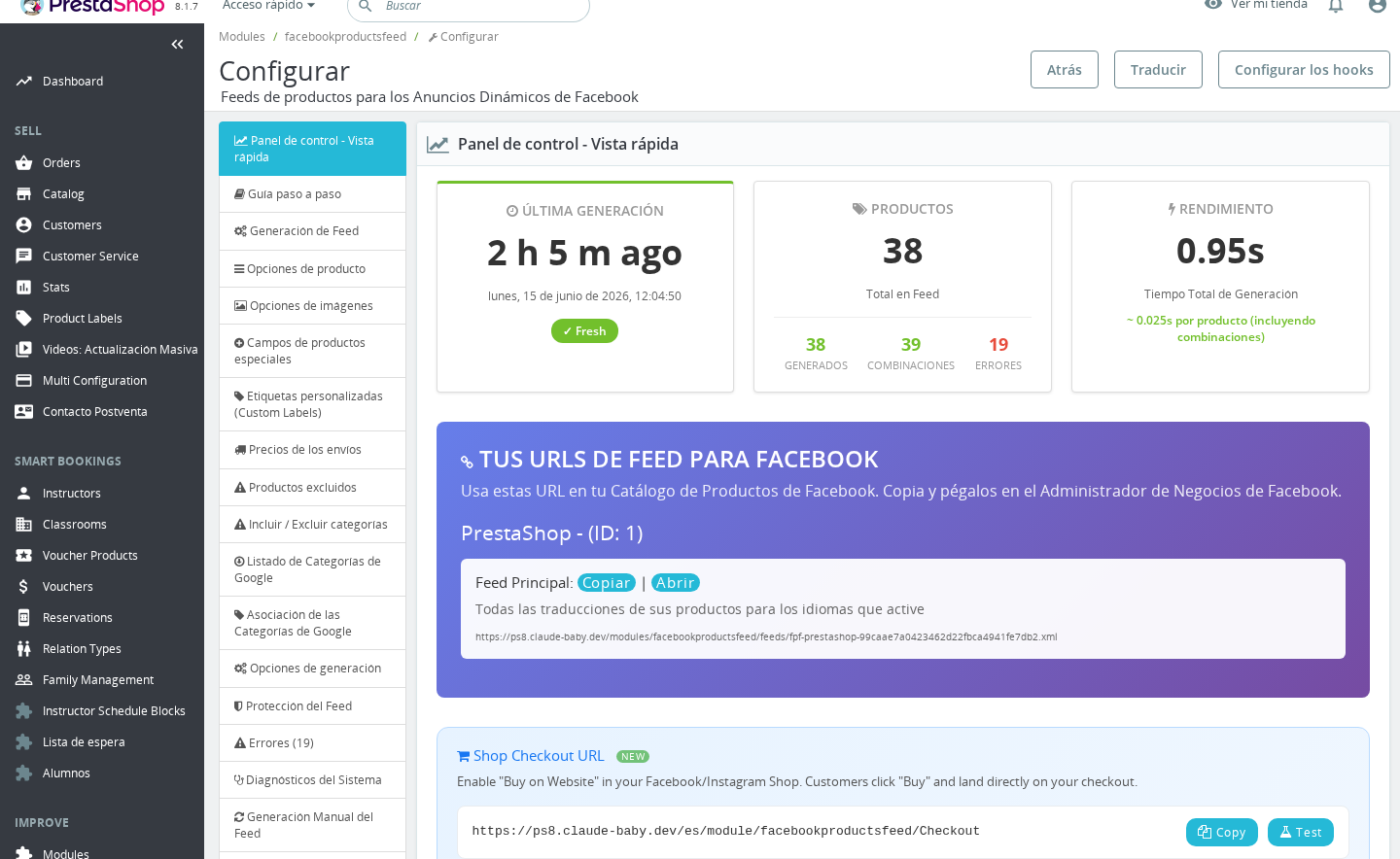
The settings in this section are found under the Product Options tab in the module configuration page.
Settings
Out-of-Stock Products
| Field | Values | Default | Description |
|---|---|---|---|
| Generate Out of Stock products | Yes / No | Yes | When enabled, products with zero stock are included in the feed marked as out of stock. When disabled, those products are omitted entirely. |
When a product is out of stock but your PrestaShop store allows orders on out-of-stock items (the "Allow orders" setting on the product page), the module respects that setting: the product appears in the feed as in stock with a quantity of 1 so Facebook can display and serve ads for it.
Facebook recommends keeping this option enabled for better ad performance — the catalogue stays complete and Facebook's algorithm can continue optimising delivery even while items are temporarily unavailable. The trade-off is that generating out-of-stock products increases generation time for large catalogues. If you have a large catalogue and you rarely restock products, disabling this option speeds up feed generation considerably.
Tax Inclusion
| Field | Values | Default | Description |
|---|---|---|---|
| Display Prices with Tax? | Yes / No | Yes | When enabled, prices in the feed include VAT or other taxes. When disabled, prices are exported tax-exclusive (net prices). |
The correct setting depends on the country where your customers are purchasing:
- European markets (France, Germany, Spain, Italy, etc.): Prices shown to consumers must include VAT. Enable this option so the feed price matches what the customer sees on product pages.
- United States and other markets where prices are shown pre-tax: Disable this option so the feed shows the net price, which is what customers expect to see before tax is added at checkout.
- Multi-country feeds: Each country feed uses the same tax setting. If you sell to both tax-inclusive and tax-exclusive markets simultaneously, set this based on your primary market or the market where price mismatch is most likely to cause catalogue disapprovals.
If Facebook rejects products with a "price mismatch" warning, the first thing to check is whether this setting aligns with what your storefront displays to customers in that country.
Purchase Price
| Field | Values | Default | Description |
|---|---|---|---|
| Generate Purchase Price? | Yes / No | No | When enabled, the wholesale/purchase price from your product data is added to the feed as a purchase_price field. |
This field is used by Facebook for margin-based campaign features. It exposes your cost price in the feed URL, so the module description recommends enabling feed protection (HTTP Basic Auth or a secret key) whenever you turn this on.
If a product combination has no wholesale price set, the module falls back to the parent product's wholesale price automatically.
Discount and Sale Price Handling
By default, when a product has an active special price or discount, the feed exports two separate price fields:
price— the original price before the discount (shown with a strikethrough in ads)sale_price— the discounted price the customer actually pays
This lets Facebook display the original and discounted price side-by-side in ads, which can improve click-through rates.
The two settings below change this default behaviour.
Force discounted price as the main price
| Field | Values | Default | Description |
|---|---|---|---|
| Force discounted price as the main price? | Yes / No | No | When enabled, the discounted price is written to the price field and no separate sale_price is generated. The discount is not visible as a separate tag in ads. |
Enable this only if you do not want Facebook to display the original price at all. The consequence is that you lose the ability to show a strikethrough or a "was / now" presentation in your ads.
Force discounts from a customer group
| Field | Values | Default | Description |
|---|---|---|---|
| Force discounts from a customer group? | Yes / No | No | When enabled, prices in the feed are calculated as if the buyer belongs to the selected customer group, picking up any group-specific discounts or prices. |
| Feed Customer Group | Dropdown of your customer groups | General public (group 3) | The customer group whose prices are used when the option above is enabled. |
This is useful when you have negotiated prices for a specific group (for example, a "Wholesale" or "Registered" group) and you want the feed to reflect those lower prices rather than the default public price. When this option is disabled, the module uses customer group 1 (default guests) for price calculation.
Disable Force discounts from a customer group before changing the Feed Customer Group selector — the selector has no effect when the toggle is off.
Price Calculation Precision
This setting is found under the Generation Options tab, not Product Options, but it directly affects the prices written to the feed.
| Field | Values | Default | Description |
|---|---|---|---|
| Precision in price calculations | 2 – 6 (integer) | Same as your shop's decimal setting | Number of decimal places used during the internal price calculation step, before the final price is rounded to your shop's display precision. |
The price calculation runs at this higher internal precision, then rounds down to however many decimal places your store is configured to display (set under International > Localization in PrestaShop). Increasing this value can resolve small rounding differences between the price your customers see and the price in the feed.
Start at the default (usually 2) and increase by 1 at a time, regenerating the feed after each change, until the prices match your storefront.
Usage Examples
Example: EU store selling fashion items
Your store is based in France, prices include 20% VAT, and you run frequent sales. Enable Display Prices with Tax so prices in the feed match the VAT-inclusive prices on product pages. Leave Force discounted price as the main price disabled so sale items appear with the original price crossed out and the sale price highlighted — this typically increases ad engagement. Set Generate Out of Stock products to Yes so sold-out sizes are still shown in the catalogue with out of stock availability, allowing Facebook to resume serving ads the moment you restock.
Example: US store with a loyalty customer group
Your store sells to general public at full price, but registered members get 15% off everything. You want your Facebook ads to show the member price to attract sign-ups. Enable Force discounts from a customer group and select your "Members" group from the Feed Customer Group dropdown. The feed will use member prices as the price field. Disable Display Prices with Tax since US prices are displayed pre-tax.
Example: Resolving a price mismatch rejection
Facebook flags several products with a price mismatch error. Your store shows prices with two decimal places, but the feed occasionally exports 29.99 as 29.98. Go to Generation Options and increase Precision in price calculations from 2 to 4. Regenerate the feed and recheck. If the mismatch persists, increase to 6.
Important Notes
- The FPF_TAX setting applies to every feed the module generates, including language-specific and country-specific overrides. There is no per-country tax setting — if you need different tax treatment per country, you would need separate shops.
- Out-of-stock combinations (size/colour variants) follow the same logic as simple products: they are included or excluded based on the Generate Out of Stock products toggle, with the exception that if your PrestaShop store allows orders on out-of-stock combinations, those combinations always appear as
in stock. - The Purchase Price field in the feed reads directly from the wholesale price field on the product/combination in your catalogue. If that field is empty (zero), nothing is output for that product.
- Price calculation precision is a generation-time setting. Changing it has no effect until you regenerate the feed.
Troubleshooting
| Problem | Solution |
|---|---|
| Facebook rejects products with "price mismatch" | Check that Display Prices with Tax matches what your storefront shows (tax-inclusive for EU, tax-exclusive for US). Also try increasing Precision in price calculations by 1–2 steps. |
| Sale prices are not appearing in ads | Ensure Force discounted price as the main price is disabled. Also verify the product has an active specific price in PrestaShop (check under Catalog > Products > [product] > Pricing). |
| Out-of-stock products still appear in the feed | This is by design when Generate Out of Stock products is enabled. Disable the option if you want those products excluded. If the product allows orders when out of stock, it will always appear regardless of this setting. |
| Customer group prices are not being applied | Confirm that Force discounts from a customer group is enabled (not just the customer group selector changed), and regenerate the feed. |
| Prices in the feed do not match the storefront | Verify the tax setting first, then check Precision in price calculations. Also confirm the correct currency is selected in Feed Generation for that feed. |
Frequently Asked Questions
Should I enable tax-inclusive prices if my store sells to multiple countries with different VAT rates?
The tax setting uses the tax rate associated with the country context when the feed is generated. For country-specific feeds (France, Germany, etc.) the module applies the correct tax rate for each country feed automatically — you just need to decide whether prices should be shown with or without tax based on local consumer expectations.
What happens if I enable "Force discounted price as the main price" and a product has no discount?
Nothing changes for products without an active discount. The setting only affects products that have a special price or promotional reduction configured in PrestaShop. For products at full price, price and sale_price are identical whether or not this option is enabled.
My wholesale prices are set on products, but the Purchase Price field is empty in the feed — why?
Check that the wholesale price field on the product is not zero. If it is zero, the module does not output the field. For combination products, make sure the wholesale price is set either on the combination itself or on the parent product (the module falls back to the parent if the combination's wholesale price is zero).
Can I show one customer group's prices to registered Facebook users and default prices to everyone else?
No — the feed uses a single price for all viewers. The Feed Customer Group setting applies to every product in the entire feed. You cannot segment prices within a single feed by audience type.
Does changing the price precision setting affect how prices are displayed on my store?
No. The precision setting only affects the internal calculation during feed generation. Your store's price display precision, set under PrestaShop's localisation settings, is unchanged.
I disabled out-of-stock generation but some out-of-stock products still appear — why?
If a product or combination has the "Allow orders when out of stock" option enabled in PrestaShop, the module treats it as available and always includes it. This mirrors your store's behaviour: if you allow customers to purchase it despite zero stock, Facebook should be able to show the ad for it too.