Manual Feed Generation
Trigger a complete feed rebuild on demand, without waiting for a scheduled cron job — useful when you want to verify your configuration, correct errors, or push updated product data to Facebook immediately.
Available since v1.0.0
Overview
The Manual Feed Generation tab gives you a single button that starts the feed generation process right now. This is the fastest way to confirm that your feed builds cleanly after changing any module setting, and it is the recommended first step when setting up the module for the first time.
Because large catalogues can take several minutes to process, the module launches generation as a background task. You do not have to keep the Back Office page open while it runs.
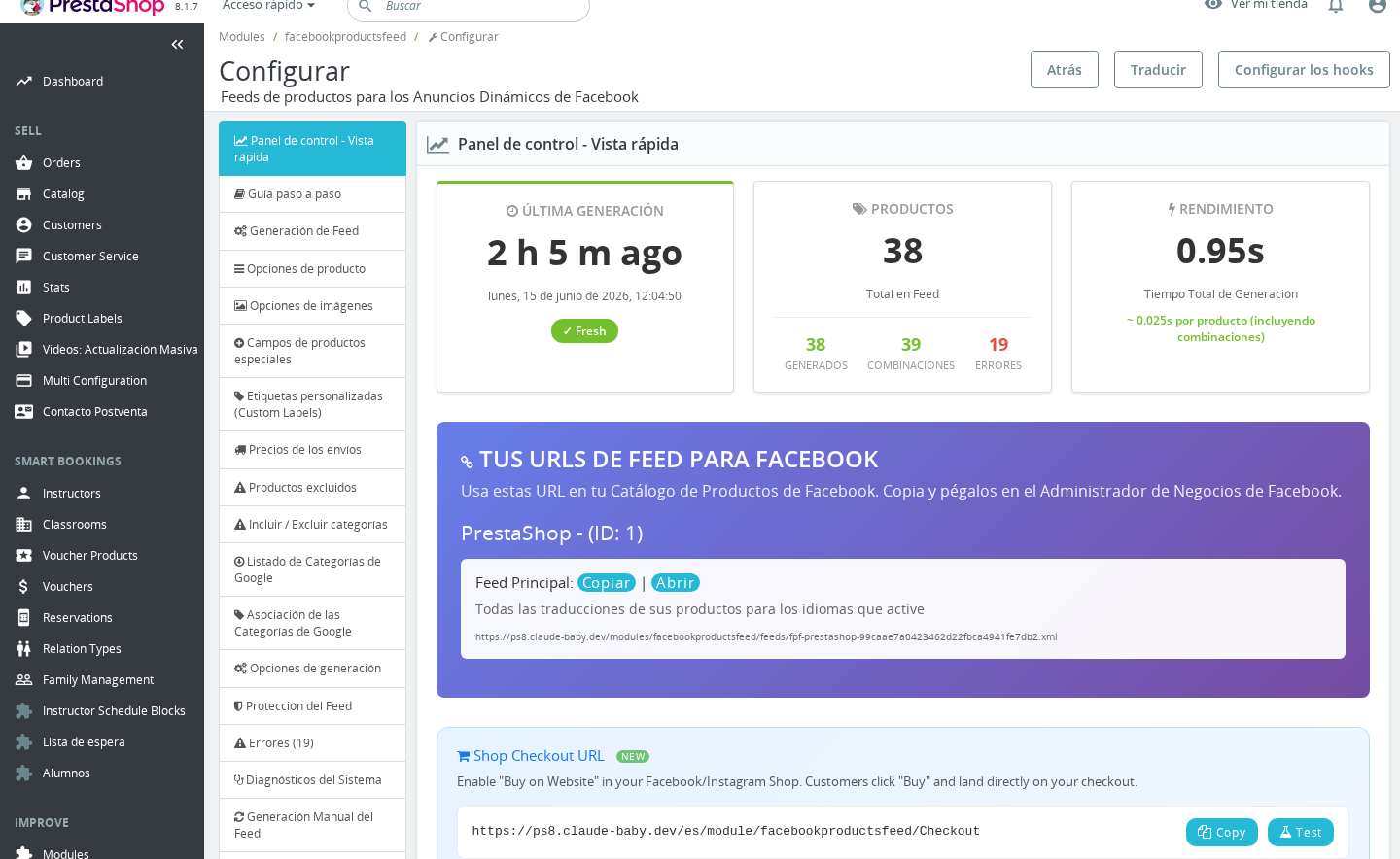
How to manually generate the feed
- Go to Modules > Module Manager, find Facebook & Instagram Product Catalogue Feed Pro, and click Configure.
- Click the Manual Feed Generation tab in the navigation bar.
- Click the Generate the Feed Now! button at the bottom of the panel.
- The page reloads and shows a message confirming that generation has started. A progress indicator appears while the feed is being built.
- Once generation finishes, the lock clears automatically and the Dashboard (Fast View) tab reflects the new feed data.
If you see a warning about maintenance mode, your shop is set to maintenance and the server's own IP address has not been added to the allowed-IP list. The module will display your server IP so you can copy it directly into Preferences > Maintenance before trying again.
What happens during generation
When you click Generate the Feed Now!, the module:
- Clears any errors recorded from the previous run.
- Sets the generation lock (
FPF_GENERATING = 1) and writes an initialprogress.jsonfile to thefeeds/folder. - Calls the feed generation URL via cURL, passing your secret key for authentication. If cURL is not available on the server, the module falls back to a direct HTTP request.
- The front-office controller (
GenerateFeed) processes your products in cycles — the number of products per cycle is controlled by the Cycle Items setting in the Product Options tab. - As each cycle completes,
progress.jsonis updated with the count of completed feeds versus total feeds. - When all feeds have been written, the lock is released automatically (see below).
The generated feed files are saved to the feeds/ folder inside the module directory. Facebook and Instagram read the feed from the public URL shown in the Feed Generation tab.
The generation lock and auto-reset
The module uses a global flag (FPF_GENERATING) to signal that generation is in progress. This prevents duplicate runs from starting at the same time — for example, if a cron job fires while you are manually generating.
Auto-reset: Every time the configuration page loads, the module checks progress.json. If the file records that all feeds have been completed (completed_feeds >= total_feeds) and the run is no longer in a starting state, the lock is cleared automatically. You do not need to take any action.
This auto-reset prevents a stuck lock from blocking future generation in cases where the generation process finished but was not able to clear the flag itself — for instance, after a server timeout or an interrupted cURL call.
Forcing Facebook to update immediately
After generating the feed on your store, Facebook will pick it up on its own scheduled refresh interval. If you need Facebook to read the updated feed right away — for example, while correcting catalogue errors — you can force a manual fetch:
- Open Facebook Ads Manager.
- Navigate to Catalogues and select your catalogue.
- Click Product Data Sources and select your data source.
- Click the Configuration menu at the top of the data source page.
- Scroll down and click Fetch Now (also labelled Refresh in some regions).
- After a few seconds, Facebook begins pulling the latest version of your feed.
Important notes
- First-time setup: After configuring the module for the first time, always use Manual Feed Generation before activating the cron job. This confirms the feed builds without errors before automated runs begin.
- Settings changes: When you save new settings, the module may show a notice that the changes will not take effect until the feed is regenerated. Use the Manual Feed Generation tab to apply them immediately, or wait for the next cron run.
- Max Products limit: If you have set a value in Generation Options > Max Products Generation (for testing), that limit applies to manual generation as well. Remember to reset it to
0when you are done testing. - Debug generation: Similarly, if Debug Product Feed Generation is set to specific product IDs, manual generation will only process those products. The Back Office shows a warning banner when either of these debug options is active.
- Multi-shop: The lock flag (
FPF_GENERATING) is stored as a global value and applies across all shops. If generation is running for one shop context, the lock is shared.
Troubleshooting
| Problem | Solution |
|---|---|
| Clicking Generate the Feed Now! shows a maintenance mode warning | Add your server's IP address (displayed in the warning) to Preferences > Maintenance > Maintenance IP. |
| The generation button is visible but nothing happens / page reloads with no confirmation | cURL may have failed silently. Check Generation Options > Curl Timeout — try disabling it if generation stops with no or few products processed. |
| The feed was generated but the Dashboard still shows old data | Reload the configuration page — the Dashboard refreshes its statistics on page load. |
| Feed generation appears to be stuck (lock never clears) | Reload the configuration page. The auto-reset logic reads progress.json on every load and clears the lock if generation already finished. |
| The feed URL returns a 404 after generation | The feeds/ folder may not be writable. Check directory permissions on modules/facebookproductsfeed/feeds/. |
Frequently Asked Questions
Do I need to keep the Back Office page open while the feed generates?
No. Once you click Generate the Feed Now!, the module launches generation as a background task. You can close the tab and the process will continue running on the server.
How long does generation take?
It depends on your hosting speed and the size of your catalogue. A small catalogue of a few hundred products typically takes a few seconds. A large catalogue with thousands of products and combinations can take several minutes. The cycle-based generation is designed to handle large catalogues without hitting server time limits.
Can I run manual generation and a cron job at the same time?
The module's generation lock prevents two runs from executing simultaneously. If manual generation is already in progress when a cron job fires, the cron job will see the lock and skip that cycle.
Will manual generation overwrite the feed that Facebook is already using?
Yes. Manual generation produces a fresh feed file in the feeds/ folder, replacing the previous one. Facebook reads the same URL, so the next time it fetches your feed it will see the new version — or immediately if you use the Fetch Now option in Facebook Ads Manager.
My settings have changed but the feed still looks the same in Facebook. What should I do?
First regenerate the feed manually so your store produces the updated file. Then go to Facebook Ads Manager and trigger a manual Fetch Now on your data source. Facebook caches catalogue data between scheduled refreshes, so regenerating on your store alone is not enough.