Shop Checkout URL (Facebook/Instagram Shops)
When a customer clicks Buy on your Facebook or Instagram Shop, the module automatically fills their PrestaShop cart and redirects them to your checkout — no extra configuration required beyond pasting one URL into Meta Commerce Manager.
Available since v2.5.0
Overview
Facebook and Instagram Shops can send buyers directly to your website when they tap the Buy button on a product. To use this, Meta requires you to provide a "checkout URL" — an endpoint on your store that understands which products to add to the cart.
This module provides that endpoint. It lives at a clean, friendly URL on your domain (e.g. https://yourstore.com/facebook-checkout). When Meta redirects a buyer to it, the module reads the product list from the URL parameters, adds the correct products and quantities to a fresh cart, applies any coupon code if one was passed, and then sends the customer straight to your PrestaShop checkout page.
The module uses the same product identifier format that your feed uses — numeric IDs, SKU references, or combinations — so there is nothing extra to configure once your feed is working.
How to get the URL
-
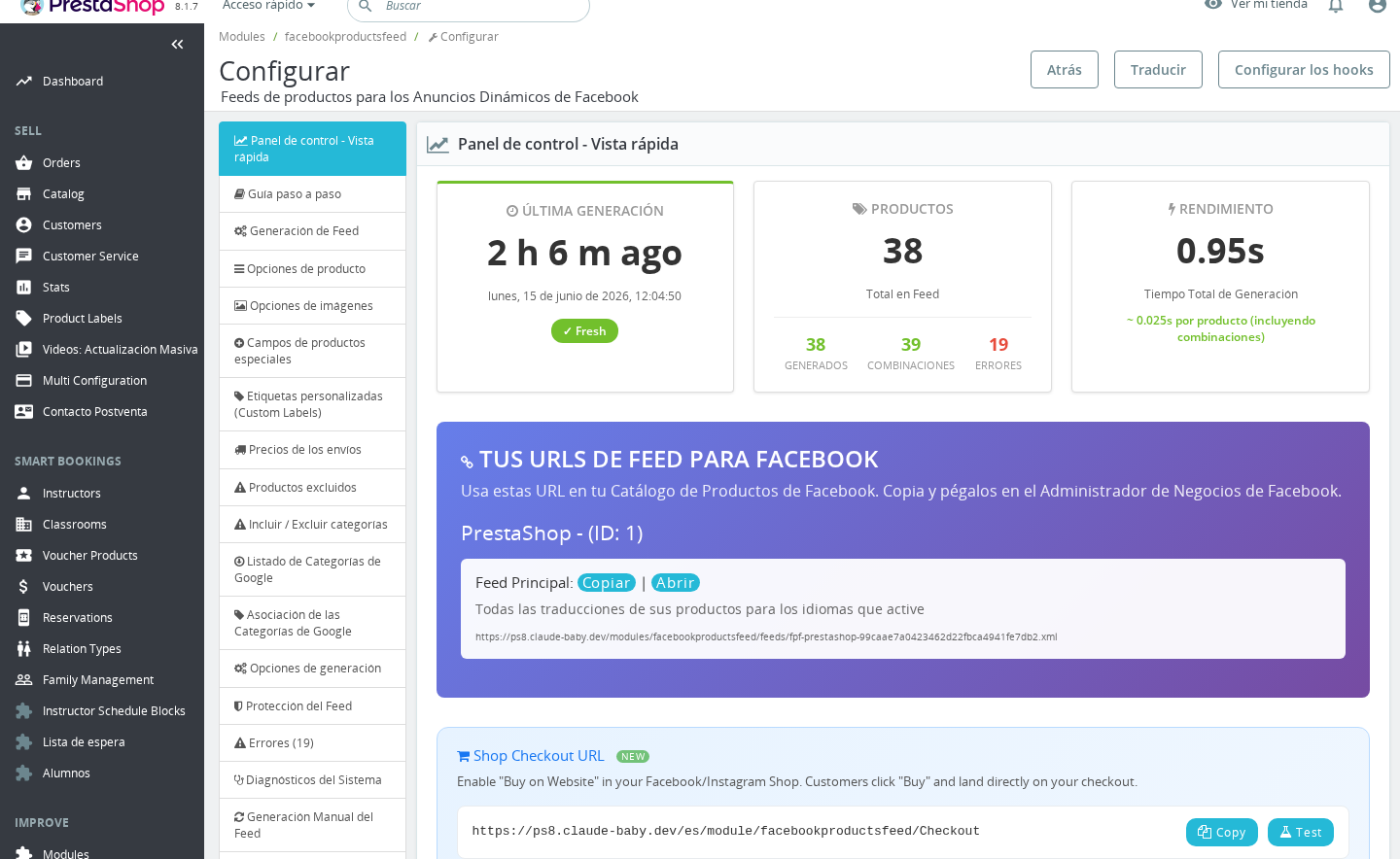
Go to Modules > Module Manager, find Facebook & Instagram Product Catalogue Feed Pro, and click Configure.
-
Click the Shop Checkout URL tab.
-
Your checkout URL is shown in the Copy your Checkout URL section. It looks like:
https://yourstore.com/facebook-checkout -
Click Copy next to the URL to copy it to your clipboard.
How to set it up in Meta Commerce Manager
- Open Meta Commerce Manager and select your shop.
- Go to Settings > Checkout.
- Select Checkout on another website.
- Paste your checkout URL into the field Meta provides.
- Save.
From this point on, every time a buyer clicks Buy on one of your products on Facebook or Instagram, Meta appends the product and quantity to your URL and redirects the customer to your store.
How Facebook uses the URL
Meta never sends a JSON payload to your server. Instead, it redirects the buyer's browser to your checkout URL with product information appended as query parameters:
https://yourstore.com/facebook-checkout?products=CONTENT_ID:QUANTITY,CONTENT_ID:QUANTITY
If a coupon code is associated with the purchase, Meta can also append it:
https://yourstore.com/facebook-checkout?products=123:2,456:1&coupon=SAVE10
The CONTENT_ID values match exactly what was exported in your product feed — the same numeric IDs, SKU references, or combination identifiers your feed uses. The module resolves them back to PrestaShop product IDs automatically.
What the module does with the request
When a buyer lands on your checkout URL:
- Parses the products parameter — splits the comma-separated list and reads each
CONTENT_ID:QUANTITYpair. - Resolves product IDs — maps each content ID back to the correct PrestaShop product and, where applicable, combination (variant), using the same ID format your feed is configured to use (numeric ID or SKU reference).
- Validates stock — checks that each product is active and in stock. If a requested quantity exceeds available stock, the quantity is adjusted down. Fully out-of-stock products that do not allow backorders are skipped.
- Clears the cart — any products already in the buyer's cart are removed before the Facebook products are added, so the cart reflects exactly what was chosen on Facebook.
- Applies a coupon — if a
couponparameter is present, the module attempts to apply the matching cart rule. Invalid or expired coupons are silently ignored (as Meta expects). - Redirects to checkout — the buyer is sent to your PrestaShop order page. UTM parameters,
fbclid, andcart_originare preserved in the redirect so your analytics continue to track the Facebook source.
If all products fail (e.g. all out of stock), the buyer is redirected to your homepage. If some products succeed and some fail, they are sent to the cart page so they can review what was added.
Testing the checkout before going live
The Shop Checkout URL tab includes a built-in test tool so you can verify the full flow works with real products from your catalog before you connect it to Meta.
- In the Test Your Checkout section, click Generate Test URL.
- The module picks up to three random active products from your catalog and builds a valid test URL.
- Click Open Test Page to follow the URL.
- A debug page loads showing which products were matched, what was added to the cart, and any errors encountered — without actually redirecting you to checkout yet.
- From the debug page you can click Continue to Checkout to run the full flow.
Use this test tool any time you change your product identifier settings (prefix, suffix, ID type) to confirm the checkout still maps products correctly.
Important Notes
Product identifier matching. The checkout URL uses the same ID format as your feed. If your feed is configured to use SKU references (the Product Main Identifier setting in the Product Options tab), the checkout URL resolves by SKU. If a product has no reference, it falls back to numeric ID. This happens automatically — you do not need to configure anything separately for the checkout.
Combinations and variants. Products with size/color combinations are fully supported. The content ID in the URL encodes both the product ID and the combination ID (separated by the combination prefix configured in your feed settings). The correct variant is added to the cart.
Up to 50 products per request. Meta can send up to 50 products in a single checkout redirect. The module enforces this limit as a security measure.
SSL required. The checkout URL always uses HTTPS. Meta Commerce Manager will not accept a plain HTTP URL, and the module forces SSL on this endpoint.
Guest checkout. Buyers do not need to be logged in. The module creates a guest cart when no session exists.
Friendly URL. The checkout URL uses the clean path /facebook-checkout rather than a long query string. This is registered automatically via the moduleRoutes hook — no server configuration is needed.
Multi-shop. Each shop has its own checkout URL. The module generates and displays the URL for the currently active shop in the Back Office context. Make sure you copy the URL for the correct shop.
Troubleshooting
| Problem | Solution |
|---|---|
| Meta says the checkout URL is invalid | Make sure the URL uses HTTPS and is publicly accessible. Test it in an incognito browser window. |
| Buyer lands on the homepage instead of checkout | One or more products could not be matched or were out of stock. Use the test tool to identify which products are failing. |
| Buyer lands on the cart page, not checkout | At least one product was added but others failed. This is the expected partial-success behavior. Review stock levels for the missing products. |
| Products appear wrong (wrong variant, wrong item) | Your feed's product identifier settings (prefix, suffix, combination separator, ID type) may have changed since the catalog was submitted to Meta. Re-check the Technical Information section on the Shop Checkout URL tab to see the current ID format. |
| Coupon is not applied | The coupon may be expired, not yet active, or restricted to specific customer groups. Invalid coupons are silently ignored — check the coupon's validity in Catalog > Discounts. |
| The URL returns a 404 | Clear your PrestaShop cache after installing or updating the module (the friendly URL route needs to be registered). In the Back Office go to Shop Parameters > Traffic & SEO and click Save to regenerate routes, then clear cache. |
Frequently Asked Questions
Do I need to configure anything after pasting the URL into Meta?
No. The module reads your existing feed settings (product ID type, prefix, suffix, combination separator) and uses them automatically. If your feed is generating correctly, the checkout URL will work with the same products.
What happens if a product is out of stock when a buyer clicks Buy?
Products that are out of stock and do not allow backorders are skipped. If at least one product in the order is in stock, the buyer is sent to the cart page to review what was added. If nothing could be added, they are redirected to your homepage.
Can I use this with product combinations (sizes, colors)?
Yes. Combinations are fully supported. The content ID in the URL includes both the product ID and the combination ID, matching the format used in your feed. The exact variant the customer selected on Facebook is added to the cart.
Does this work for guest customers, or do they need an account?
It works for both. Guests get a new cart created automatically. If the buyer is already logged in to your store, their existing session is used.
Will my analytics and UTM tracking still work?
Yes. The module preserves utm_source, utm_medium, utm_campaign, utm_content, utm_term, and fbclid parameters through the redirect to your checkout page. It also appends from_facebook=1 so you can identify Facebook-originated orders in your analytics.
Can Meta pass a coupon code automatically?
Yes. If Meta appends a coupon parameter to the redirect URL (e.g. from a promotion you set up in Commerce Manager), the module applies it to the cart automatically. Invalid or expired coupons are silently ignored.
Does each shop in a multi-shop setup get its own URL?
Yes. Switch to the relevant shop context in the Back Office before copying the URL. Each shop resolves products against its own catalog and stock.