Dashboard — Fast View
The Dashboard – Fast View gives you an at-a-glance snapshot of your feed's health every time you open the module: when it last ran, how many products it exported, and how fast it generated.
Available since v2.5.0
Overview
Once you have generated your feed at least once, the Dashboard – Fast View panel (#fcp) appears at the very top of the module configuration page, before all other settings. Until you run the first generation, the step-by-step guide is shown first and the dashboard stays hidden.
The panel has three sections:
- Status cards — three compact cards showing last-generation freshness, product counts, and performance timing.
- Feed URLs — the actual XML feed URLs you paste into Meta Business Manager, each with a one-click copy button and an open link to preview the file in your browser.
- Generation statistics table — a per-feed breakdown of every feed generated (shop, type, locale, timing, and error counts).
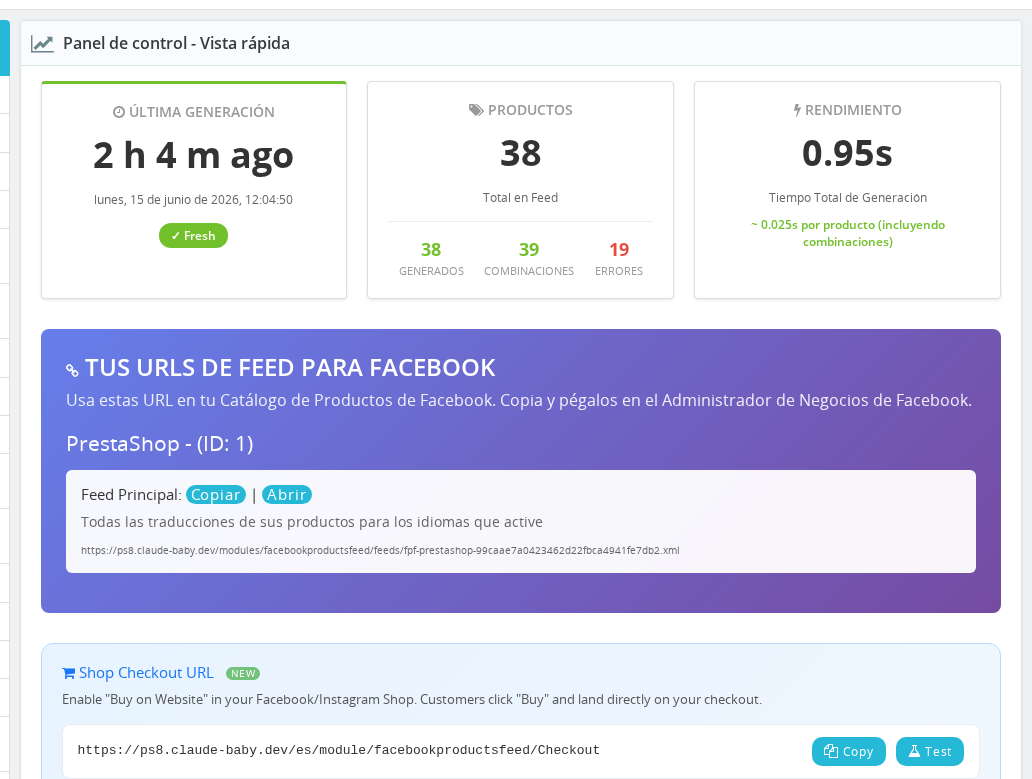
What the Dashboard Shows
Last Generation Card
Shows how long ago the most recent feed generation completed, expressed in human-readable form: "Just now", "3 minutes ago", "2 h 14 m ago", "3 days ago", and so on. Below the elapsed time the card shows the full formatted date and time of that run.
A color-coded status badge tells you whether your feed is current:
| Badge color | Condition | Meaning |
|---|---|---|
| Green — Fresh | Less than 24 hours ago | Feed is up to date; Facebook has current data |
| Yellow — Update Recommended | 24–48 hours ago | Your feed is aging; run a new generation soon |
| Red — Outdated | More than 48 hours ago | Facebook may be showing stale prices or out-of-stock products |
The timestamp is stored as a Unix timestamp in the global configuration key FPF_LAST_UPDATED. It is set each time a feed generation completes, regardless of which shop or language was exported.
Products Card
Shows the total number of products processed during the last generation. The large number at the top is the Total — the count of product rows the module attempted to export across all feeds. Below that, smaller metrics break down the outcome:
| Metric | What it counts |
|---|---|
| Success | Products successfully written to the feed XML |
| Combinations | Individual combination rows added (only shown when combinations are enabled and at least one was exported) |
| Errors | Products that failed to process; clicking the number jumps to the Errors report |
| Skipped | Products excluded by your filters (out of stock, hidden, etc.); clicking the number jumps to the Skipped report |
These counts are read from stats.txt inside the module's feeds/ directory, which the feed generator writes at the end of each generation cycle.
Performance Card
Shows the total wall-clock time (in seconds, to two decimal places) that the last complete generation took, sourced from the global configuration key FPF_FEED_GENERATION_TIME. When at least one product was exported, the card also displays the average time per product — useful for estimating how long a generation will take after you add more products or enable combinations.
Feed URLs
Below the status cards, the panel lists every XML feed URL your store has generated, grouped by shop. Each URL is displayed in full and has two actions:
- copy — copies the URL to your clipboard with one click; the button text briefly changes to confirm the copy succeeded.
- open — opens the URL in a new browser tab so you can verify the feed content before pasting it into Meta Business Manager.
Three feed types can appear per shop, depending on your configuration:
| Feed type | Label | When it appears |
|---|---|---|
| Main Feed | Main Feed | Always, after first generation |
| Language Feed | Languages Feed | When you have enabled at least one additional language |
| Country Feed | Countries Feed | When you have enabled at least one country override |
If no feeds are listed, the dashboard shows a warning: "Feed URLs Not Available — You need to generate the Feeds at least once." Generate the feed using the Manual Feed Generation section and then return here.
Generation Statistics Table
Below the feed URLs the panel shows a table — one row per feed type per shop — with the following columns:
| Column | Description |
|---|---|
| Shop ID | The internal PrestaShop shop ID |
| Name | The shop name |
| Type | Feed type: Main Feed, Language, or Country |
| Locale | Language or country identifier for that feed row |
| Time | Generation time for that specific feed, in seconds |
| Total | Total products attempted |
| Success | Products successfully exported |
| Combis | Combination rows added |
| Skip | Products skipped (clickable for Main Feed rows with skipped items) |
| Errors | Products that errored (clickable; links to the error detail report) |
The statistics are read from feeds/stats.txt in the module directory. This file is updated each time a generation cycle finishes.
How Values Are Calculated
Last Generation timestamp (FPF_LAST_UPDATED): Written as a Unix timestamp when any feed generation completes. The dashboard converts it to a human-readable "time ago" string using an interval-aware formatter: minutes when under an hour, hours and minutes up to 24 hours, days and hours up to 7 days, and total days beyond that.
First Generated flag (FPF_FIRST_GENERATED): Set to 1 the first time any feed generation succeeds. The module uses this flag to decide whether to show the dashboard before or after the step-by-step guide.
Generation time (FPF_FEED_GENERATION_TIME): Stored as a float. The performance card displays it to two decimal places, and divides it by the total product count to compute the per-product average.
Product counts: Aggregated from feeds/stats.txt at page load time. The dashboard sums the totalp, current, errors, skipped, and added_combi fields across all feed rows in that file.
Notes
- The dashboard is read-only. None of the values here can be edited; they reflect the outcome of the most recent generation.
- All timestamps and generation times shown in the dashboard are global — they reflect the last generation across all shops, not per-shop values. The per-shop breakdown is in the statistics table.
- If you run the module in multi-shop mode, the statistics table will have one row per shop per feed type. The status cards still aggregate across all shops.
- The feed URLs include a security hash derived from
_COOKIE_KEY_. If you change your PrestaShop secret key, existing feed URLs will change and you will need to update them in Meta Business Manager. - The Shop Checkout URL section (shown between the feed URLs and the statistics table when the checkout feature is configured) also has a copy button and a Test button; these are covered in the Shop Checkout URL guide.
Troubleshooting
| Problem | Solution |
|---|---|
| Dashboard does not appear at the top of the page | The feed has not been generated yet. Use Manual Feed Generation to run the first generation, then reload the page. |
| Last Generation badge shows Outdated | Your cron job is not running or has stopped. Check the Automatic Generation (Cron Jobs) section and verify the cron entry on your server. |
| Feed URLs section is empty | At least one generation must complete successfully before URLs appear. If generation fails partway through, the URL section may still be blank. |
| Statistics table is missing | feeds/stats.txt was not written during generation. Check that the feeds/ directory is writable by the web server. |
| Products card shows 0 for all metrics | A previous generation may have been interrupted. Run a new full generation to rebuild stats.txt. |
Frequently Asked Questions
How often should I regenerate my feed to keep the dashboard green?
Generate your feed at least once every 24 hours to keep the status badge green. For stores with frequent stock changes or price updates, every 1–6 hours is recommended. Set up a cron job to automate this.
What does it mean when the dashboard shows a red Outdated badge?
Your feed has not been regenerated in over 48 hours. Facebook's copy of your catalog may show outdated prices, unavailable products, or missing new arrivals. Run a new generation as soon as possible.
Why does the Total in the Products card not match the number of products in my store?
The Total counts only products the module attempted to include based on your current filter settings — products excluded by category, availability, or other rules are counted separately as Skipped. Products that encountered an error during processing are counted under Errors.
Can I have more than three feed URLs per shop?
No. Each shop can have at most one Main Feed, one Languages Feed, and one Countries Feed. The Languages Feed consolidates all enabled languages into a single file; the Countries Feed consolidates all enabled country overrides into a single file.
The feed URL changed after a server migration — why?
Feed URLs contain a hash derived from your PrestaShop _COOKIE_KEY_. If that key changed during migration (for example, a fresh PrestaShop install), the URLs will differ. Copy the new URLs from the dashboard and update your catalog data source in Meta Business Manager.
What is the first-generated flag and when does it reset?
The flag (FPF_FIRST_GENERATED) is set to 1 the first time any feed generation completes successfully. It controls whether the step-by-step guide or the dashboard is shown first. It is never reset automatically — if you need to reset it (for example, after reinstalling the module), you can do so by reinstalling or clearing the configuration from the database.