Product Exclusions
Keep specific products out of your Facebook and Instagram catalogue feed without unpublishing them from your store or changing their category.
Available since v1.6.0
Overview
Some products are not suitable for advertising — internal bundles, digital gift cards, samples, replacement parts, or items you only sell to specific customers. The Products Exclude tab lets you list those product IDs once, and the feed generator automatically skips them on every generation cycle.
Exclusions are checked at the product level, before any other feed logic runs. An excluded product never appears in the feed file, regardless of whether it is in stock, visible, or assigned to an included category.
How to Exclude Products
- Go to Modules > Module Manager, find Facebook & Instagram Product Catalogue Feed Pro, and click Configure.
- Click the Products Exclude tab.
- In the Exclude Products by ID field, type the product IDs you want to exclude.
- Click Save.
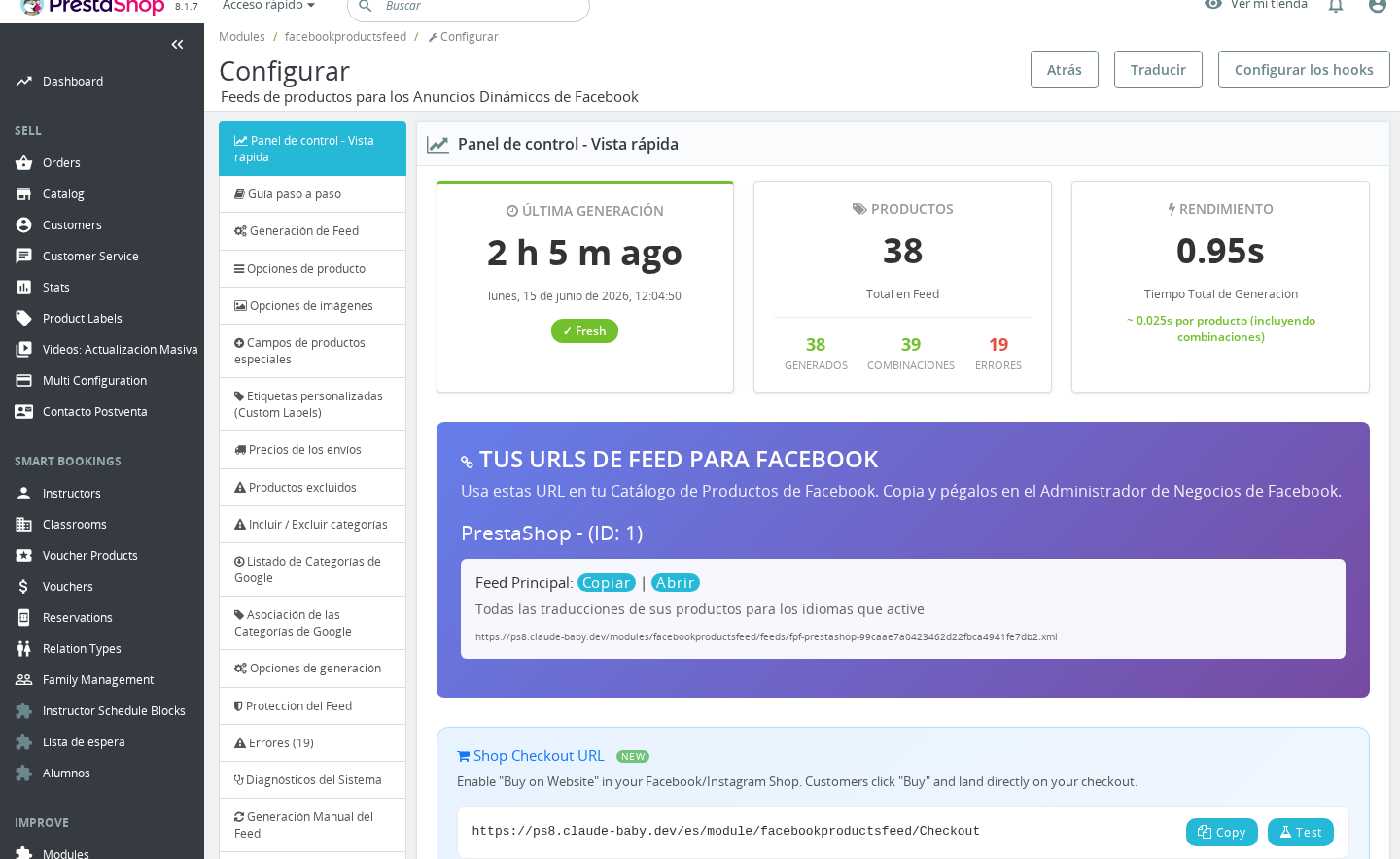
The next time the feed is generated — whether manually, via cron, or automatically — the listed products will not appear in the output.
Field Reference
| Field | Description |
|---|---|
| Exclude Products by ID | A comma-separated list of product IDs to exclude from the feed. Leave empty to include all products. |
Format
Enter product IDs separated by commas. Spaces between IDs are ignored, so both of the following are valid:
42,87,153
42, 87, 153
To find a product's ID, go to Catalog > Products in your Back Office. The ID is shown in the leftmost column of the product list.
Tip: You can copy a block of IDs directly from a spreadsheet or report and paste them into the field — extra spaces around the commas are stripped automatically.
Important Notes
- Exclusions apply globally across all shops and languages. If your store runs multiple shops, a product excluded here is excluded from every shop's feed.
- Exclusions are checked by
id_product. Combinations of an excluded product are also skipped — you cannot exclude individual combinations while keeping others via this field. - Category exclusions are separate. The Included / Excluded Categories tab controls category-level filtering. A product can be excluded both here and via its category — the first matching rule stops processing.
- Visibility is checked first. Products with their visibility set to No one are always skipped, even without a manual exclusion entry.
- Regenerate the feed after saving. Changes take effect on the next generation. If you use cached feeds or cron jobs, trigger a manual generation from the Manual Feed Generation tab to see the change immediately.
Troubleshooting
| Problem | Solution |
|---|---|
| Excluded product still appears in the feed | The cached feed file has not been regenerated yet. Go to the Manual Feed Generation tab and trigger a new generation. |
| All products are missing from the feed | Check the exclusion list for accidental entries — a stray comma at the end of the list can produce an empty ID that matches unexpectedly. Remove any trailing commas and save. |
| Unsure which ID to use for a product | Open Catalog > Products, enable the ID column if hidden, and note the number in the leftmost column. The URL when editing a product (id_product=N) also shows the ID. |
Frequently Asked Questions
Can I exclude a product from one language feed but keep it in another?
No. The exclusion list applies to all generated feeds for the shop. Language-specific filtering is not supported at the product level.
Does excluding a product here affect how it appears in my store?
No. This setting only affects the feed file sent to Facebook and Instagram. The product remains published and visible to your customers.
How many product IDs can I enter?
There is no enforced limit. For very large exclusion lists (hundreds of products), consider whether excluding entire categories via the Included / Excluded Categories tab would be more practical to maintain.
If I remove a product from the exclusion list, will it appear in the feed automatically?
It will appear on the next feed generation after you save. Remove the ID from the list, save, then regenerate the feed.