Common Use Cases
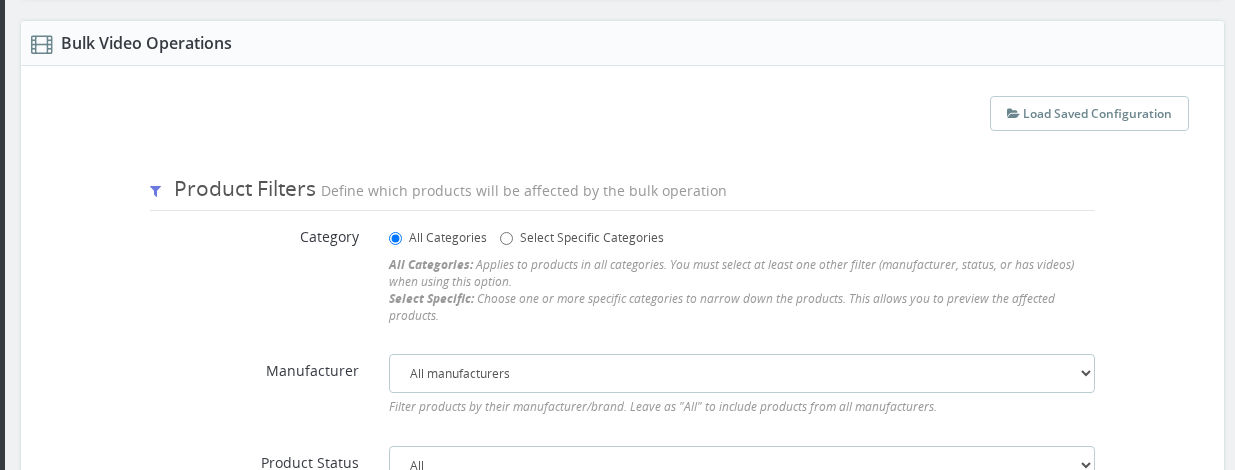
These practical examples show how to combine filters and actions to handle the most common video management scenarios in PrestaShop — from adding promotional videos to a collection to cleaning up inactive products.
📋 Overview
Practical examples showing how to use Mass Video Management for common scenarios.
Start with straightforward use cases (1-3) before attempting complex multi-step operations. Each example builds on concepts from the previous ones.
Use Case 1: Add Promo Video to Collection
Scenario: Add promotional video to all products in "Summer 2024" collection.
Steps:
- 1. Set Filters
- 2. Configure Action
- 3. Execute
Category: Summer 2024
Active: Active Only
Has Videos: All
Action: Add Video
URL: https://youtube.com/watch?v=summer2024promo
Title: Summer Collection 2024
Position: 0 (first position)
Registered Only: No
- Click "Preview Affected Products"
- Verify the product list
- Click "Execute Bulk Operation"
- Confirm
- Check 2-3 products to verify
Result: All active Summer 2024 products have the promotional video as their first video.
Use Case 2: Move Videos to Last Position
Scenario: Move all videos to the last position to prioritize product photos.
Filters:
  Category: (Your categories)
  Active: Active Only
  Has Videos: With Videos

Action: Update Videos
  Position: -1 (last position)
  Title: (leave empty)
  Registered Only: (unchanged)

Result: All videos moved to last position
Use Case 3: Add Manufacturer Videos
Scenario: Add Nike brand video to all Nike products.
Filters:
  Manufacturer: Nike
  Active: Active Only

Action: Add Video
  URL: https://vimeo.com/nike-brand-story
  Title: Nike Brand Story
  Position: -1 (last - doesn't interfere with product demos)

Result: Brand video added to all Nike products
Use Case 4: Clean Up Inactive Products
Scenario: Remove videos from discontinued products.
Filters:
  Active: Inactive Only
  Has Videos: With Videos

Action: Remove Videos

Result: Videos removed from all inactive products
Remove is permanent! Double-check filters before executing.
Use Case 5: Make Videos Exclusive
Scenario: Restrict "Premium" category videos to registered customers only.
Filters:
  Category: Premium Products
  Active: Active Only
  Has Videos: With Videos

Action: Update Videos
  Registered Only: ☑ (checked)

Result: All Premium product videos now require login
Use Case 6: Fill Missing Videos
Scenario: Add demo video only to products without any videos.
Filters:
  Category: Electronics
  Active: Active Only
  Has Videos: Without Videos (key!)

Action: Add Video
  URL: https://youtube.com/watch?v=generic-demo
  Title: Product Demonstration
  Position: 0

Result: Only products without videos get the demo video
Use Case 7: Update Video Titles
Scenario: Rebrand video titles from "ABC Demo" to "XYZ Demo".
Filters:
  Category: (All or specific)
  Has Videos: With Videos

Action: Update Videos
  Title: XYZ Company Demo
  Position: (leave empty)

Result: All videos on selected products have new title
🎯 Use Case 8: Add Multiple Videos Sequentially
Scenario: Add three videos (intro, demo, review) to a category.
Run three separate operations:
- Operation 1
- Operation 2
- Operation 3
Filters: Category = Target Category
Action: Add
  URL: intro-video-url
  Position: 1
Execute
Filters: Same category
Action: Add
  URL: demo-video-url
  Position: 2
Execute
Filters: Same category
Action: Add
  URL: review-video-url
  Position: 3
Execute
Result: All products have three videos in order.
Tips for Success
Testing:
- Start with 2-3 products in a test category
- Verify results manually
- Scale to full category
- Verify sample products again
Safety:
- Always preview before executing
- For Remove operations, consider exporting data first
- Document what you've done
- Work during low-traffic hours for large operations
Quick Reference
| Goal | Filters | Action | Key Settings |
|---|---|---|---|
| Add to new collection | Category + Without Videos | Add | Position: 0 |
| Reorder videos | Category + With Videos | Update | Position: -1 |
| Manufacturer branding | Manufacturer + All | Add | Position: -1 |
| Clean inactive | Active: Inactive + With Videos | Remove | None |
| Exclusive content | Category + With Videos | Update | Registered: Yes |
| Fill missing | Category + Without Videos | Add | Position: 0 |
How do I add a promotional video to all products in a collection without adding duplicates?
Set the category filter to your collection, set Active to Active Only, set Has Videos to Without Videos, then use the Add action with your video URL and Position 0. The Without Videos filter ensures the video is only added to products that do not already have one.
How do I add a manufacturer brand video to all products from that brand?
Set the Manufacturer filter to the brand you want, use the Add action with the brand video URL, and set Position to -1 so the brand video appears at the end after any existing product-specific videos.
Can I add multiple different videos to a category in a single operation?
No, each operation adds one video. To add multiple videos, run separate Add operations with the same category filter and different video URLs, using sequential positions such as 1, 2, and 3.
How do I make all videos in a category visible only to registered customers?
Set the category filter, set Has Videos to With Videos, use the Update action, and check the Registered Only field. Leave Title and Position fields empty to keep their current values.
If you run into issues, check the troubleshooting guide.
Last updated: 2025-12-16