HTML5 & Custom Providers
Play self-hosted video files directly on your store and add support for any third-party video platform beyond YouTube and Vimeo.
Available since v3.0.0
Overview
Product Video supports two additional video sources that go beyond the built-in YouTube and Vimeo integrations:
HTML5 videos let you link directly to .mp4, .webm, or .ogg files hosted anywhere a browser can reach — your own server, a CDN, or any public file URL. The browser handles playback natively using its built-in <video> player, with no third-party JavaScript required.
Custom providers let you embed video from any platform or CDN that accepts an embed URL. You register the provider once — giving it a name, its domain, and a type (HTML5 file or iframe embed) — and from that point on the module recognises URLs from that domain and embeds them correctly on any product.
Both source types integrate fully with the module's display locations (image gallery, side panel, tabs, product listings) and with your existing permission controls, such as restricting playback to logged-in customers or specific customer groups.
Configuration
HTML5 Settings
Go to Modules > Module Manager > Product Video > Configure, then open the HTML5 Settings tab.
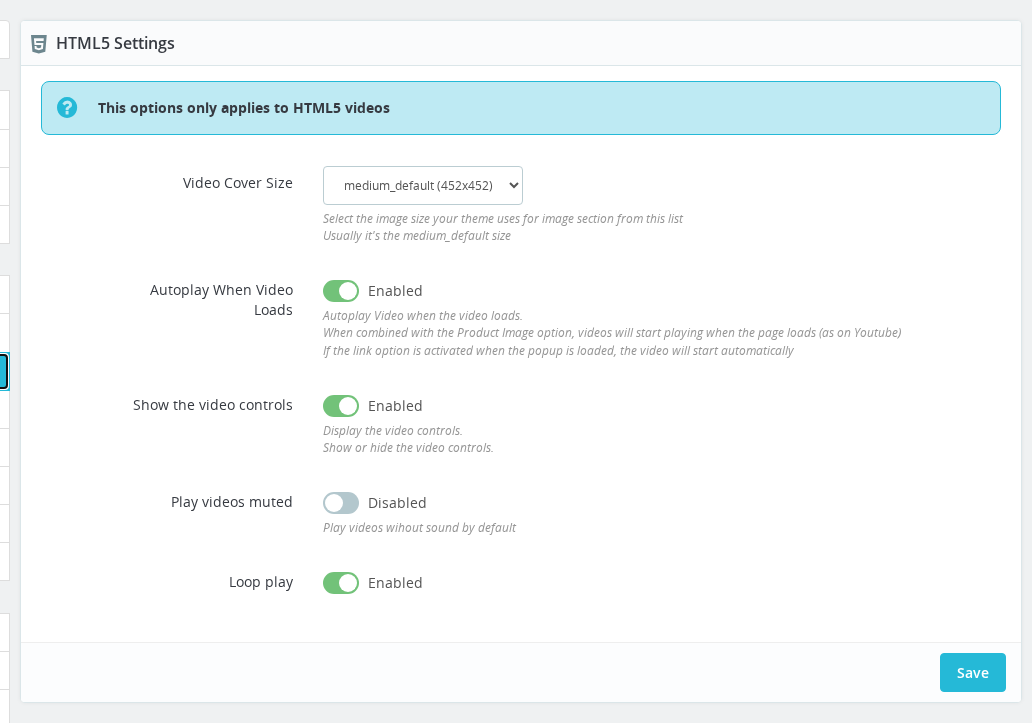
All settings on this tab apply only to HTML5 video files. YouTube and Vimeo are not affected.
| Field | Values | Default | Description |
|---|---|---|---|
| Video Cover Size | Any image size preset defined in your theme | medium | The product image size used as the poster frame shown before the video plays. Choose the size that matches your theme's main product image (often large or home_default). |
| Autoplay When Video Loads | Enabled / Disabled | Enabled | Starts playback automatically as soon as the player renders on the page. |
| Show the video controls | Enabled / Disabled | Enabled | Displays the browser's native control bar — play, pause, seek, volume, and fullscreen. |
| Play videos muted | Enabled / Disabled | Disabled | Plays without sound by default. Most browsers require muted audio for autoplay to work. |
| Loop play | Enabled / Disabled | Enabled | Restarts the video from the beginning when it finishes. |
If you enable Autoplay, you must also enable Play videos muted. Modern browsers block auto-playing audio unless the video is muted.
Custom Providers
Custom providers are managed from a dedicated Back Office page, separate from the main module configuration.
Go to Catalog > Video Providers in the Back Office sidebar. This page lists all registered providers, including the built-in YouTube and Vimeo entries.
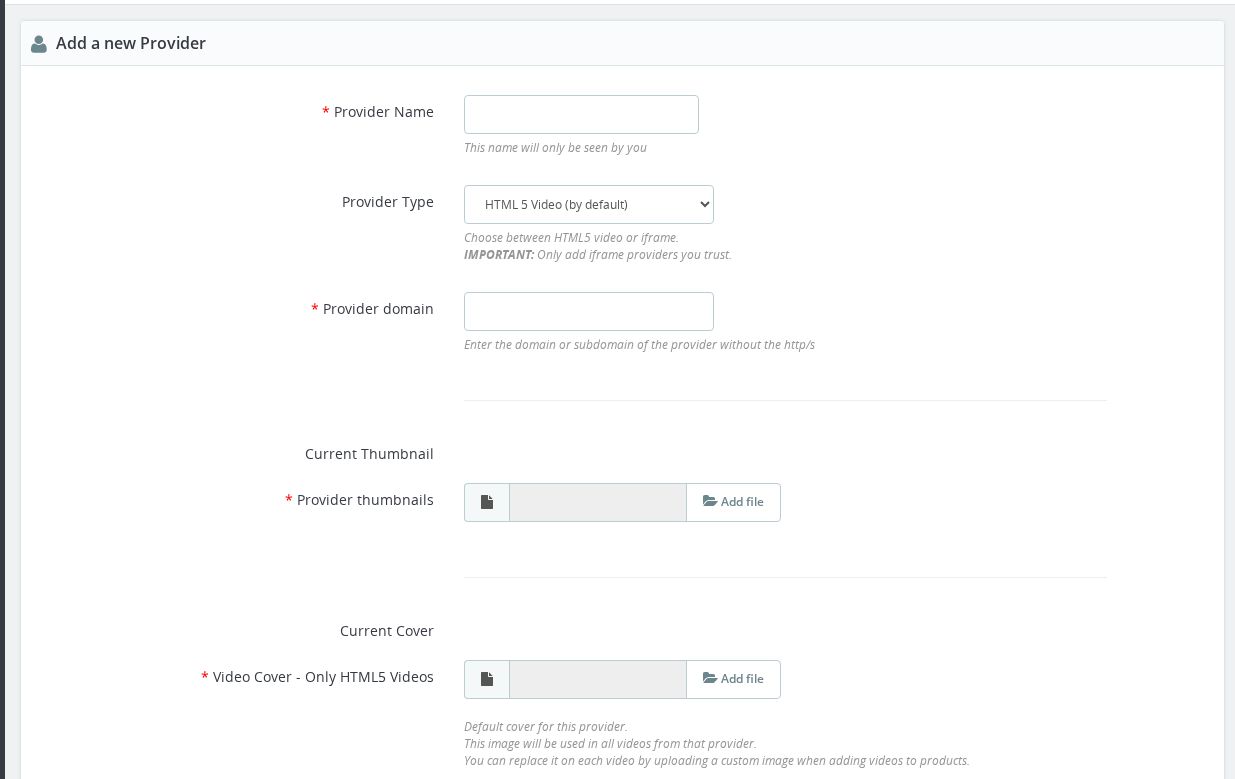
Click Add new provider to open the provider form.
| Field | Required | Description |
|---|---|---|
| Provider Name | Yes | A label you choose for your own reference — for example "Wistia", "Dailymotion", or "My CDN". Customers never see this name. |
| Provider Type | Yes | HTML 5 Video for direct video file URLs; Other iframe for platforms that use embed iframes. |
| Provider domain | Yes | The domain (without http:// or https://) of the platform — for example fast.wistia.net or cdn.mysite.com. When you add a video to a product, the module matches the URL against this domain to pick the right provider. |
| Provider thumbnail | Yes (on create) | A default thumbnail image used for all videos from this provider. You can replace it per-video when adding videos to individual products. |
| Video Cover | Yes for HTML5 type | A default cover (poster frame) image used before an HTML5 video plays. Only applies to HTML5-type providers. |
Only add iframe providers you trust. Iframe embeds from a registered provider are rendered without additional filtering.
After saving, you are returned to the provider detail page where you can update the images or edit the name and domain. The Provider Name and Provider domain fields are read-only for the built-in YouTube (ID 1) and Vimeo (ID 2) entries.
How It Works
HTML5 Video Playback
When a product has an HTML5 video assigned, the module renders a native <video> element with the URL as its source. The poster frame (the still image shown before play) is generated from the product's image using the Video Cover Size preset you configured. No third-party player script is loaded — playback is handled entirely by the browser.
The HTML5 settings (autoplay, controls, muted, loop) apply to every HTML5 video across your store, including videos assigned through custom providers set to the HTML5 type.
HTML5 videos can also generate Schema.org microdata for SEO. When a customer plays an HTML5 video, the module captures the video metadata and stores it for structured data output. This requires the HTML5 Videos Token found in the Microdata & SEO section of the module configuration.
Iframe Provider Embedding
For custom providers of the Other iframe type, the module wraps the video URL in an <iframe> tag using the standard video width and height you have configured. The URL you enter when assigning a video to a product must be the direct embed URL — not the URL of the page where the video appears.
For example, for Wistia you would use a URL like https://fast.wistia.net/embed/iframe/abc123, not the https://wistia.com/... watch page URL.
Domain Matching
When you assign a video URL to a product, the module compares the URL's domain against all registered provider domains. The first match determines which provider handles the embed. If no custom provider matches, the module falls back to checking for YouTube and Vimeo domains, then treats the URL as a plain HTML5 file.
Provider Images
Each provider can have two images:
- Thumbnail — used in the Back Office provider list and as a fallback video thumbnail for videos from that provider that have no individually uploaded thumbnail.
- Cover — used as the HTML5 video poster frame for HTML5-type providers, if no individual cover is uploaded for a specific video.
Images are stored in multiple sizes based on your store's configured image types, so they render correctly across all display sizes.
Usage Examples
Example: Adding Wistia as an iframe provider
Your marketing team uses Wistia for branded product demos. In Catalog > Video Providers, click Add new provider. Set Provider Name to "Wistia", Provider Type to "Other iframe", and Provider domain to fast.wistia.net. Upload a Wistia logo as the thumbnail. Save. Now when you add a video to a product and paste a Wistia embed URL, the module recognises it and renders the iframe automatically.
Example: Self-hosted MP4 files on a CDN
Your store sells software with tutorial videos stored on videos.yourcdn.com. Add a custom provider with Provider Type set to "HTML5 Video" and Provider domain set to videos.yourcdn.com. Upload a representative cover image. When you assign a video URL like https://videos.yourcdn.com/tutorial-product-1.mp4 to a product, the module renders a native <video> player using your HTML5 settings (autoplay, loop, controls, muted).
Example: Disabling autoplay for demo videos
You sell physical products with ambient background videos — you want them to loop silently without requiring a click. Go to HTML5 Settings and enable Autoplay When Video Loads, Play videos muted, and Loop play. Disable Show the video controls if you want a clean, control-free look. All HTML5 videos across your store will now play silently on load.
Important Notes
- Custom providers you add cannot be deleted if videos are still assigned to them on products. Remove the videos from products first, then delete the provider.
- The built-in YouTube (ID 1) and Vimeo (ID 2) provider entries cannot be edited or deleted. You can upload a custom thumbnail image to override their auto-generated thumbnails.
- Custom provider thumbnails are not auto-generated — you must upload an image when creating the provider, or individually when adding videos to products.
- HTML5 video autoplay behaviour depends on the customer's browser settings. Some browsers override muted autoplay. This is a browser policy, not a module limitation.
- CORS headers on your video CDN must allow your store's domain. If your CDN does not send the correct
Access-Control-Allow-Originheader, the video will not play cross-origin. This is a server configuration issue outside the module's control. - If your store runs in multi-shop mode, custom providers are shared across all shops — they are not scoped per shop.
Troubleshooting
| Problem | Solution |
|---|---|
| HTML5 video does not autoplay | Enable Play videos muted in HTML5 Settings. Browsers require muted audio for autoplay. |
| Cover image appears at the wrong size or is blurry | Change Video Cover Size to match the image size your theme uses for the main product image (usually large or home_default). |
| Custom provider video shows a blank or broken player | Verify the URL is the direct embed URL, not the video page URL. For iframe providers, the URL must be the embeddable endpoint your platform provides. |
| Custom provider video plays but has no thumbnail | Thumbnails for custom providers are not auto-generated. Upload a thumbnail image on the provider's edit page, or upload one per-video on the product edit page. |
| Video file on CDN does not play | Your CDN must send CORS headers allowing your store's domain. Contact your CDN provider to enable Access-Control-Allow-Origin for your store. |
| Provider domain field is greyed out | The built-in YouTube and Vimeo providers (IDs 1 and 2) have read-only fields. You cannot change their domain or name — only their thumbnail images. |
Frequently Asked Questions
Can I use custom providers alongside YouTube and Vimeo on the same product?
Yes. A single product can have videos from any combination of providers — YouTube, Vimeo, HTML5, and any custom providers you have registered. Each video is embedded using the rules of its own provider.
What URL should I paste when adding a video from an iframe provider to a product?
Use the direct embed URL — the one you would normally put inside an <iframe src="..."> tag. Do not use the URL of the page where you watch the video. Most platforms provide a dedicated "embed URL" or "share embed" option. For example, Wistia shows a fast.wistia.net/embed/... URL in its embed options.
Do HTML5 videos generate Schema.org structured data like YouTube and Vimeo?
Yes, but it requires an extra step. Enable microdata generation in the Microdata & SEO section and make sure the HTML5 Videos Token is set. The module captures video metadata when a customer plays the video and stores it for Schema.org output. YouTube and Vimeo metadata is fetched from their APIs; HTML5 metadata is captured via a front-end mechanism triggered on first play.
Will my customers on mobile see the HTML5 player controls?
The browser renders the controls using its native video UI, so the appearance depends on the customer's browser and device. On most mobile browsers, controls appear as an overlay over the video. You can hide the controls entirely by disabling Show the video controls in HTML5 Settings — useful for background or ambient videos.
How do I remove a custom provider I no longer need?
First remove all videos assigned to products that use that provider. Then go to Catalog > Video Providers, open the provider, and delete it. If videos from that provider are still assigned to products, the delete will fail.
Can I pre-fill the provider name from the domain automatically?
If you open the Add Provider form without typing a name but with a domain already in the domain field, the module auto-generates a provider name by stripping common suffixes (.com, .net, etc.) from the domain and capitalising it. You can edit the name at any time.