YouTube Settings
Control how every YouTube video behaves across your store — autoplay, muting, looping, player controls, related-video display, and visitor privacy.
Available since v3.0.0
Overview
The YouTube Settings panel applies globally to all YouTube videos in every display location: Image Gallery, Side Panel, Tabs, and Product Listings. You configure these settings once and they take effect everywhere.
Each setting maps to a standard YouTube embed API parameter. When a customer views a product page, the module builds the iframe URL for each YouTube video and appends the parameters that match your saved settings. No per-video overrides exist — these are store-wide defaults.
Privacy mode is the one setting that also affects thumbnail loading. When Better privacy from YouTube is enabled, the module loads thumbnails from youtube-nocookie.com instead of youtube.com, so no YouTube cookies reach the visitor's browser before they press play.
Configuration
- Go to Modules > Module Manager, find Product Video, and click Configure.
- Open the YouTube Settings tab.
- Adjust the toggles below and click Save.
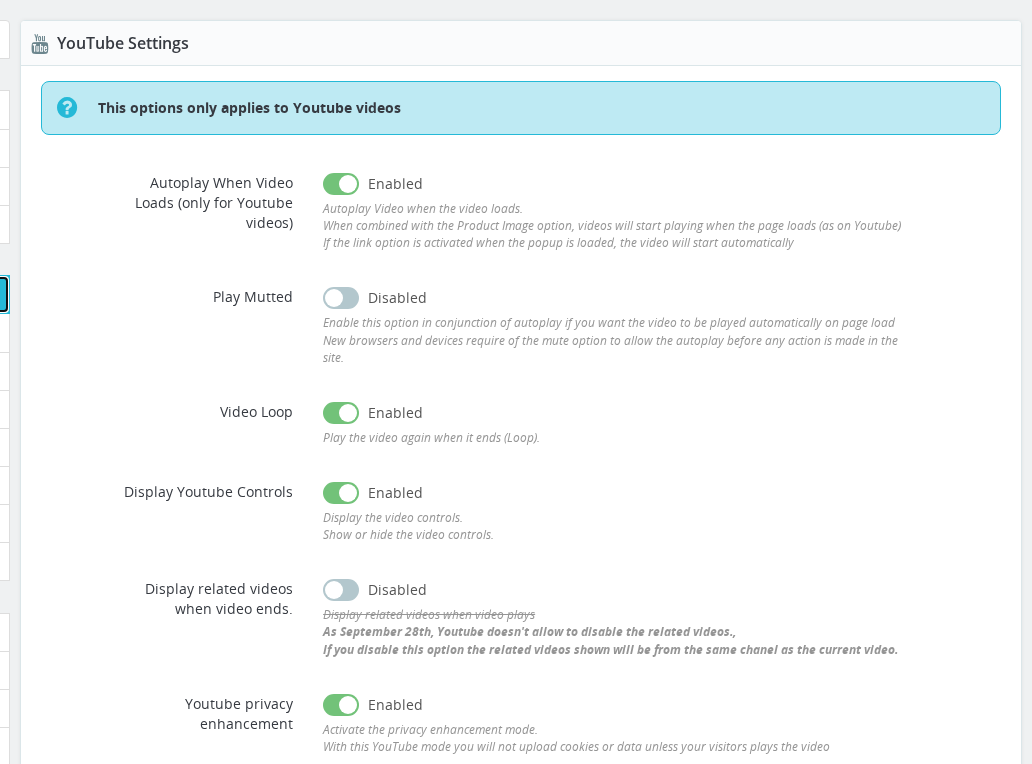
| Field | Config key | Default | Description |
|---|---|---|---|
| Autoplay When Video Loads | PV_YT_AUTO | On | Starts playback as soon as the video loads. In the Image Gallery with a video cover, the video plays on page load. In popup or link mode, it plays the moment the popup opens. |
| Play Muted | PV_YT_MUTE | Off | Starts playback with the sound off. Modern browsers (Chrome, Safari, Firefox) block autoplaying videos that have audio — enable this alongside Autoplay to make autoplay work reliably. |
| Video Loop | PV_YT_LOOP | On | Restarts the video from the beginning when it ends. |
| Display YouTube Controls | PV_YT_CONT | On | Shows the YouTube player bar (play/pause, progress, volume, fullscreen). Disable for a cleaner, control-free embed. |
| Display related videos when video ends | PV_YT_REL | Off | When disabled, related videos shown after playback are limited to the same YouTube channel as the embedded video. When enabled, YouTube may show videos from any channel. Full suppression of related videos is no longer possible (YouTube policy change, September 2018). |
| Better privacy from YouTube | PV_YT_PRIV | On | Loads videos and thumbnails from youtube-nocookie.com. YouTube does not place cookies or track the visitor until they actively press play. Recommended for EU stores. |
Enabling Autoplay without also enabling Play Muted will silently fail in most modern browsers. If videos do not autoplay, turn on Play Muted first.
How It Works
When the module renders a YouTube video, it constructs an iframe URL of this form:
https://www.youtube-nocookie.com/embed/<video-id>?autoplay=1&mute=1&loop=1&playlist=<video-id>&controls=1&rel=0
Each segment corresponds to one setting:
| Your setting | URL parameter added |
|---|---|
| Autoplay on | autoplay=1 |
| Play Muted on | mute=1 |
| Loop on | loop=1&playlist=<video-id> (YouTube requires playlist for single-video loops) |
| Controls off | controls=0 |
| Related videos off | rel=0 |
| Better privacy on | Domain changes to youtube-nocookie.com |
The same parameter logic applies to thumbnail generation: when Better privacy is on, thumbnail requests also route through youtube-nocookie.com.
Autoplay Behavior by Display Mode
- Image Gallery (replace thumbnail): With Autoplay on, the video starts playing on page load, inline in the image area.
- Popup / video link: With Autoplay on, the video starts playing the moment the popup opens.
- Side Panel / Tabs: Autoplay behavior follows the same rules — the video starts when the element becomes visible and the browser permits it.
Related Videos After September 2018
YouTube removed the ability to hide related videos entirely. The rel=0 parameter now means "show related videos from the same channel only." With rel=1 (the toggle enabled), YouTube shows videos from any channel. You cannot suppress the related-videos panel completely — this is a YouTube platform restriction, not a module limitation.
Usage Examples
Example: Silent background loop in the Image Gallery
You sell a product with a short demonstration clip and want it to play automatically and loop without distracting audio. Enable Autoplay, enable Play Muted, enable Video Loop, and disable Display YouTube Controls for a clean, self-running experience. Set the video as the product's cover image in the Image Gallery display mode.
Example: Manual playback with privacy compliance for EU customers
Your store serves EU customers and you want to avoid YouTube cookies until the visitor actively chooses to watch. Leave Autoplay off, leave Play Muted off, and make sure Better privacy from YouTube is on. Videos load from youtube-nocookie.com — no cookies are set until the visitor presses play.
Example: Keeping related videos on-brand
You run a brand YouTube channel and you are comfortable showing related videos after playback — but only your own content. Disable Display related videos when video ends (the rel=0 state). YouTube will limit the recommendations panel to videos from your channel.
Important Notes
- All settings are global. There is no per-product or per-video YouTube setting override — every YouTube video on the store uses these values.
- Autoplay requires muted audio in modern browsers. Chrome, Safari, and Firefox all enforce autoplay policies. If you need silent autoplay, enable both Autoplay and Play Muted. If you need audible autoplay, that requires a prior user gesture on the page and is generally not achievable on first load.
- Loop requires the
playlistparameter. The module adds this automatically — you do not need to configure anything extra. - Better privacy does not remove the YouTube player branding. It only changes where the embed loads from and prevents cookie placement before play.
- GDPR / cookie consent: If your store uses a cookie consent banner, enabling Better privacy means YouTube does not drop cookies until the visitor plays the video, which may reduce the consent scope required for YouTube embeds. Consult your legal adviser for your specific situation.
- Multi-shop: YouTube settings are configured per shop. If you manage multiple shops, set these values in each shop context or use the "All shops" context to apply them globally.
Troubleshooting
| Problem | Solution |
|---|---|
| Video does not autoplay | Enable Play Muted alongside Autoplay. Browsers block audio autoplay. |
| Video autoplays but has no sound | This is expected when Play Muted is on. Disable Play Muted if you want audio, but note that browsers will then block autoplay on page load. |
| Related videos from competitor channels appear after playback | Disable Display related videos when video ends — this limits the panel to your own channel. |
| Loop plays but there is a brief black pause between repetitions | This is YouTube API behavior. The module cannot eliminate the gap between loop cycles. |
| Controls still appear even though the setting is disabled | Some browser extensions or ad blockers override the controls=0 parameter. This is a browser-side behavior outside the module's control. |
| Thumbnails still load from youtube.com | Clear your browser cache and confirm Better privacy from YouTube is saved as On. |
Frequently Asked Questions
Can I disable related videos entirely so nothing appears after playback?
No. YouTube removed this capability in September 2018. Disabling the Display related videos toggle limits related videos to the same channel as the embedded video, but the panel still appears at the end.
Do these settings affect Vimeo or HTML5 videos?
No. The YouTube Settings panel only controls YouTube embeds. Vimeo has its own settings tab, and HTML5 videos have separate options.
Why does my video play silently even though I have Play Muted turned off?
Your browser is likely overriding the autoplay policy. With Autoplay on and Play Muted off, the browser will still mute or block the video on page load if no user interaction has occurred. This is a browser restriction, not a module bug.
Does Better privacy from YouTube affect my video analytics in YouTube Studio?
Views played via youtube-nocookie.com are still counted in YouTube Studio analytics. The difference is only in whether cookies are placed on the visitor's device before they press play.
If I disable YouTube Controls, can visitors still pause or seek the video?
No. Disabling controls hides the entire player bar including play/pause, progress scrubber, volume, and fullscreen. Visitors can only watch from start to finish (or wait for a loop) unless they right-click the video for browser-level controls.
Can I set autoplay for some products and not others?
No. Autoplay and all YouTube settings are store-wide. Per-product playback behavior is not configurable.