Product Listings
Shows a video indicator, button, or inline player on every product card in category pages, search results, and any other product grid — without requiring the customer to go to the product page first.
Available since v3.0.0
Overview
The Product Listings feature injects video playback into your product grids. When a product has a video assigned, customers can watch it without ever leaving the listing page. This works on category pages, search results, best-sellers, new arrivals, and any third-party listing module you configure.
There are three display modes, and you can set them independently for desktop and mobile:
- Thumbnail Icon + Video Popup — a play icon overlays the product image; hovering or clicking opens the video in a popup.
- Clickable Button + Popup — a "Watch Video" button appears on the product card; clicking opens the popup.
- Replace Image for video — the product image is swapped for an inline embedded player directly in the card.
All modes are driven by CSS selectors so the module can adapt to any theme structure. The module loads video data for every product on the page in a single database query, keeping the performance impact minimal.
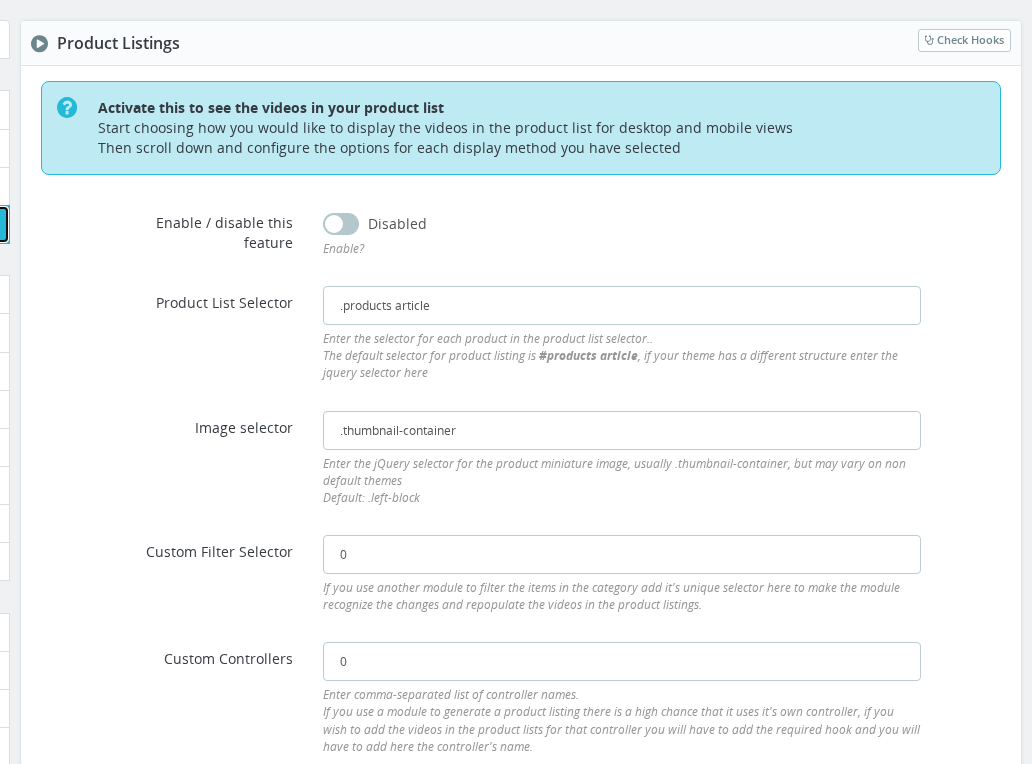
Configuration
Go to Modules > Module Manager > Product Video > Configure, then open the Product Listings tab.
Enable
| Setting | Values | Default | Description |
|---|---|---|---|
| Enable / disable this feature | On / Off | Off | Master switch. Nothing appears on listing pages while this is off. |
Selectors
These tell the module how your theme's product grid is built. The defaults match PrestaShop's Classic theme. Custom or third-party themes almost always require adjustments here.
| Setting | Values | Default (PS 1.7+) | Description |
|---|---|---|---|
| Product List Selector | jQuery selector | #products article | Targets each individual product card in the grid. |
| Image selector | jQuery selector | .thumbnail-container | Targets the image area inside each product card where the icon or video will be injected. |
| Custom Filter Selector | jQuery selector | — | If you use a filtering module (e.g. Faceted Search), enter that module's unique wrapper selector. The module re-applies video injection after the list refreshes via AJAX. |
| Custom Controllers | Comma-separated controller names | — | Add controller names for any third-party listing modules you want videos to appear in (e.g. BestSales,NewProducts). |
| Load FontAwesome Font | On / Off | Off | Forces the module to load the FontAwesome icon font. Enable this if play icons are missing and your theme does not already include FontAwesome. |
To find the correct selector for your theme, open a category page in your browser, right-click a product card, and use your browser's element inspector to identify the relevant CSS classes.
Display Modes
Set the mode separately for desktop and for mobile. After selecting a mode, scroll down to configure that mode's specific options.
Desktop (PV_LISTINGS_DESK):
| Option | Description |
|---|---|
| Thumbnail Icon + Video Popup (default) | Play icon overlays the product image. Hovering reveals the popup; clicking opens it. |
| Clickable Button + Popup | A "Watch Video" button appears on each video-enabled card. |
| Replace Image for video | The product image is replaced by an inline video embed in the card. |
Mobile (PV_LISTINGS_MOBILE):
| Option | Description |
|---|---|
| Clickable Button + Popup (default) | A button appears on each video-enabled card. |
| Replace Image for video | The product image is replaced by an inline video embed. |
The Thumbnail Icon + Video Popup mode is not available for mobile because hover events are not reliable on touch devices.
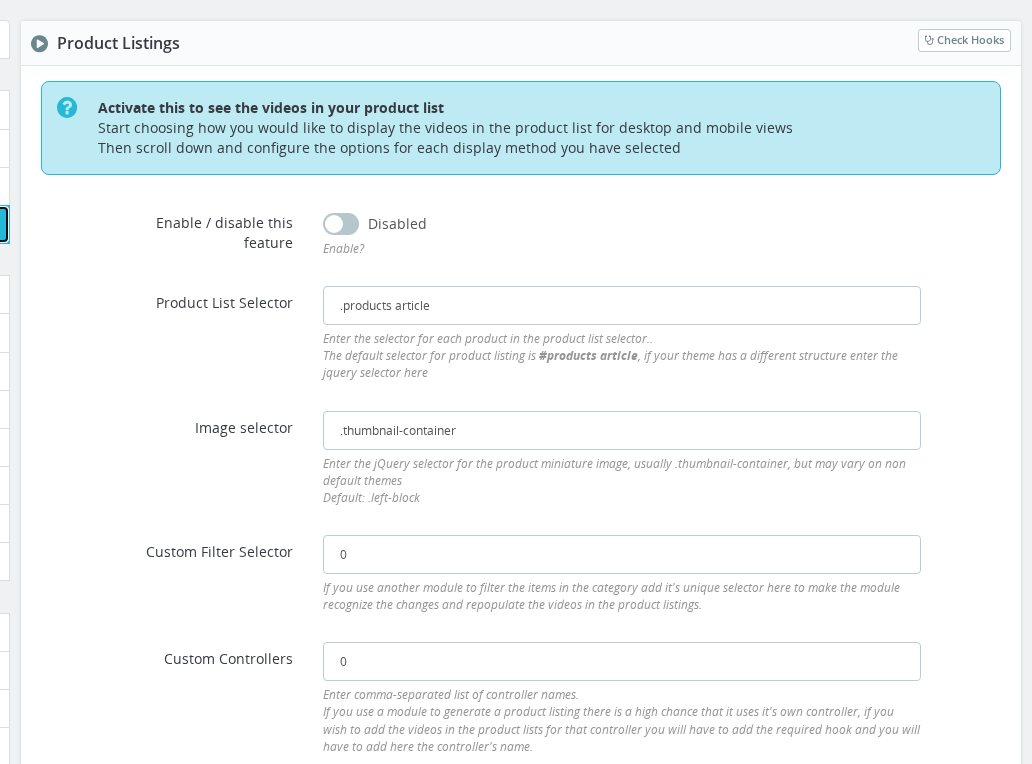
Thumbnail Icon options
These settings apply when the desktop mode is Thumbnail Icon + Video Popup.
| Setting | Values | Default | Description |
|---|---|---|---|
| Icon to show | play, play-circle, play-circle-o, video-camera, eye, flash, info | play | The FontAwesome icon displayed over the product image. |
| Icon Position | Vertically Centered, Top-left, Top-right, Bottom-right, Bottom-left | Vertically Centered | Where the icon appears on the product image. |
| Icon Size | Pixels | 40 | Size of the icon when using the Vertically Centered position. |
| Icon opacity | 0–100 | 60 | Transparency of the icon. 0 is invisible; 100 is fully opaque. |
| Icon background | Triangle, Circular | Triangle | Background shape behind the icon when using a corner position. |
| Enable controls in videos | On / Off | Off | Shows playback controls inside the popup player (applies to Thumbnail Icon mode only). |
| Force close button in video previews | On / Off | Off | By default, the popup closes when the mouse leaves the card. Enable this to show an explicit × close button instead. |
Clickable Button options
These settings apply when the mode is Clickable Button + Popup on either desktop or mobile.
| Setting | Values | Default | Description |
|---|---|---|---|
| Button Position | Hook position, Thumbnail, Title, Price, Quick view button | Hook position | Where the button appears on the product card. Options other than Hook position may have limited compatibility depending on your theme's structure. |
| Advanced Placement | jQuery selector | — | Overrides Button Position with a custom selector if none of the presets match your theme layout. |
| Insertion Method | Before, At the beginning, At the end, After | Before | Controls whether the button is placed before, inside (start), inside (end), or after the target element. |
| Button class | CSS classes (space-separated) | — | Custom CSS classes for the button element. Leave empty to use the default btn btn-default styling. |
| Show icon with the button | None, Before the Text, After the Text | Before the Text | Whether an icon appears alongside the button label, and on which side. |
| Choose the icon | Same icon set as Thumbnail Icon | play | The icon displayed inside the button. |
| Enable controls in videos | On / Off | Off | Shows playback controls in the popup for button mode. Can cause issues if Force close button is disabled. |
| Autoplay when popup opens | On / Off | Off | Starts playing the video as soon as the customer opens the popup. |
Button Position options other than Hook position are partially implemented. For reliable cross-theme placement, use Hook position and fine-tune with Advanced Placement if you need to move the button.
Replace Image options
These settings apply when the mode is Replace Image for video on desktop or mobile.
| Setting | Values | Default | Description |
|---|---|---|---|
| Background color | Color picker | #FFFFFF | Background color shown behind the video iframe if the video doesn't completely fill the card area. |
| Autoplay Videos | None, When Over the Product, Always | None | When to start playing automatically. Always forces mute on all videos. Always may not work on mobile browsers. |
| Autoplay Muted | On / Off | On | Plays without sound when autoplaying. Required by most browsers for autoplay to work at all. |
| Play in loop | On / Off | On | Restarts the video when it ends. |
| Enable click to open | On / Off | On | Clicking the embedded video redirects the customer to the product page. Disable this if you want customers to interact with the video player directly. Does not apply to custom iframe providers. |
| Show Controls | On / Off | Off | Shows the video player's native controls inside the card. |
How It Works
When the Product Listings feature is enabled, the module loads all video data for the products displayed on the page in a single query and passes it to the front-end JavaScript.
On page load, the JavaScript scans the product grid using the Product List Selector, identifies each card's image area with the Image selector, then injects either the icon overlay, the "Watch Video" button, or the inline video embed — depending on the selected mode and whether the visitor is on desktop or mobile.
When a customer filters or sorts products (via Faceted Search or another filter module that refreshes the list via AJAX), the module detects the refresh using the Custom Filter Selector and re-applies the video injection to the new set of product cards.
Icon Popup Mode (desktop)
The JavaScript adds a play icon on top of the product image. On hover, a popup player appears over the card and the video loads. The popup closes when the mouse leaves the card, unless Force close button is enabled — in which case the customer must click × to dismiss it.
Button Mode (desktop and mobile)
The button is placed on each product card that has an assigned video. Clicking the button opens a popup. If Autoplay when popup opens is enabled, the video starts automatically. The button does not appear on products without videos.
Replace Image Mode (desktop and mobile)
For each product card that has a video, the product image is replaced by an embedded video player. Customers never need to click anything to see the video. If Autoplay Videos is set to When Over the Product, the video starts playing as soon as the cursor enters the card (on desktop); on mobile, this hover trigger is unavailable and the customer must interact with the player directly.
Usage Examples
Example: Category page with hover-preview icons
You run a furniture store and want customers to see short product videos without leaving the category page. Enable the feature, keep the desktop mode as Thumbnail Icon + Video Popup, set Icon opacity to 80, and set Icon Position to Vertically Centered. Set Force close button to on so customers can control when the popup closes. On mobile, keep the default Clickable Button + Popup so the experience is clean on small screens.
Example: Auto-playing embedded videos on a fashion store
You sell clothing and want videos to play automatically as customers browse. Enable the feature, set the desktop mode to Replace Image for video, set Autoplay Videos to When Over the Product, and enable Autoplay Muted. Enable Play in loop so short clips repeat seamlessly. Keep Enable click to open enabled so clicking still takes the customer to the product page.
Example: Third-party listing module integration
You use a "Featured Products" module that has its own controller named FeaturedProducts. Videos are not appearing in that module's output. Go to the Custom Controllers field and add FeaturedProducts. Save. Videos will now appear on that controller's listing pages.
Important Notes
- The feature only shows videos on product cards where a video has been assigned. Cards without videos are not affected.
- On PS 1.6, the default Product List Selector is
.product-list > liand the Image selector is.left-block. These are pre-filled correctly for PS 1.6 installs. - The Custom Controllers field requires the technical controller name (the PHP class name without the
Controllersuffix), not the module display name. - Autoplay Videos: Always forces mute automatically and is explicitly marked "not recommended" in the Back Office because most mobile browsers block it regardless.
- Multi-shop: all Product Listings settings are saved per shop. You can configure different display modes for different shops in a multi-shop setup.
- The Load FontAwesome Font setting was renamed from
PV_LISTINGS_LOAD_FAin older versions toPV_LIST_LOAD_FAin 3.0.0. If upgrading from before 3.0.0, the value is migrated automatically.
Troubleshooting
| Problem | Solution |
|---|---|
| Play icons are invisible or show as boxes | Enable Load FontAwesome Font in the Selectors section. Your theme is not loading the FontAwesome icon library. |
| Videos appear in the wrong position on a custom theme | Open a category page in your browser, inspect a product card element, and update Product List Selector and Image selector to match your theme's actual CSS classes. |
| Videos disappear after applying a filter | Add your filter module's unique wrapper selector to Custom Filter Selector (e.g. .faceted-overlay for Faceted Search). |
| Videos do not appear on a third-party listing page | Add that module's controller name to Custom Controllers (e.g. BestSales,NewProducts). |
| Autoplay does not work on mobile | Mobile browsers block autoplay with sound. Enable Autoplay Muted, or avoid autoplay for mobile entirely by keeping the mobile mode as Clickable Button + Popup. |
| The "Watch Video" button appears in the wrong place | The preset Button Position options have limited theme compatibility. Use Advanced Placement with a custom jQuery selector to target the exact element in your theme, and set the Insertion Method to match where you want the button to land. |
| Button popup controls cause issues | If you enable Enable controls in videos in button mode but leave Force close button off, the popup may be difficult to close. Either enable Force close button or disable Enable controls in videos. |
Frequently Asked Questions
Does the video appear on every product card, or only on products that have a video assigned?
Only products with an assigned video are affected. Product cards without a video are left completely unchanged.
Can I use a different display mode for desktop and mobile?
Yes. Desktop and mobile are configured separately. A common setup is Thumbnail Icon + Video Popup for desktop and Clickable Button + Popup for mobile.
My theme is not PrestaShop Classic. Will this feature work?
Yes, but you will likely need to adjust the Product List Selector and Image selector fields to match your theme's CSS structure. Use your browser's element inspector on a category page to find the correct selectors.
Why does autoplay not work on my mobile device?
Mobile browsers (iOS Safari, Android Chrome) enforce a policy that blocks autoplay with sound. Enable Autoplay Muted so the video can start silently, or avoid the Always autoplay option for mobile and use the Clickable Button + Popup mode instead.
Can I show videos from a third-party listing module on the same site?
Yes. Add the technical controller name of that module to the Custom Controllers field. The module will then inject videos into product grids rendered by that controller.
Does the Autoplay When Popup Opens option work for all video providers?
This option is available for button mode and works for YouTube and Vimeo. Support may vary for custom iframe-based providers depending on their embed parameters.
What happens if I set Enable click to open to Off in Replace Image mode?
Clicking the video no longer redirects to the product page. Customers can interact with the video player directly — pause, seek, adjust volume. Note this does not work for custom iframe providers.
Will this feature slow down my category pages?
No. The module retrieves all video data for every product on the page in a single database query, not one query per product. The impact on page load time is minimal.
Related Features
- Image Gallery Placement — Videos embedded inside the product page image gallery
- Category Videos — Add a banner video to the category page header
- Side Panel — Display a video in a floating panel beside the product image