Vimeo Settings
Control how every Vimeo video on your store plays and looks — autoplay behavior, player controls visibility, branding elements, looping, muting, and background mode.
Available since v3.0.0
Overview
The Vimeo Settings tab gives you fine-grained control over the Vimeo embed player across all placements in your store — whether that is the product image gallery, a side panel, a dedicated tab, or the product listing grid. Every setting here applies globally to all Vimeo videos on your store.
The module translates your choices into Vimeo's standard embed API parameters and appends them to the player iframe URL. This means your settings are enforced at the embed level, not via JavaScript, so they apply consistently even when JavaScript loads slowly.
Muting and autoplay are tightly coupled: most browsers block audio autoplay for any media that starts without user interaction. If you want Vimeo videos to start playing automatically on page load, you must enable both Autoplay When Video Loads and Mute Video together.
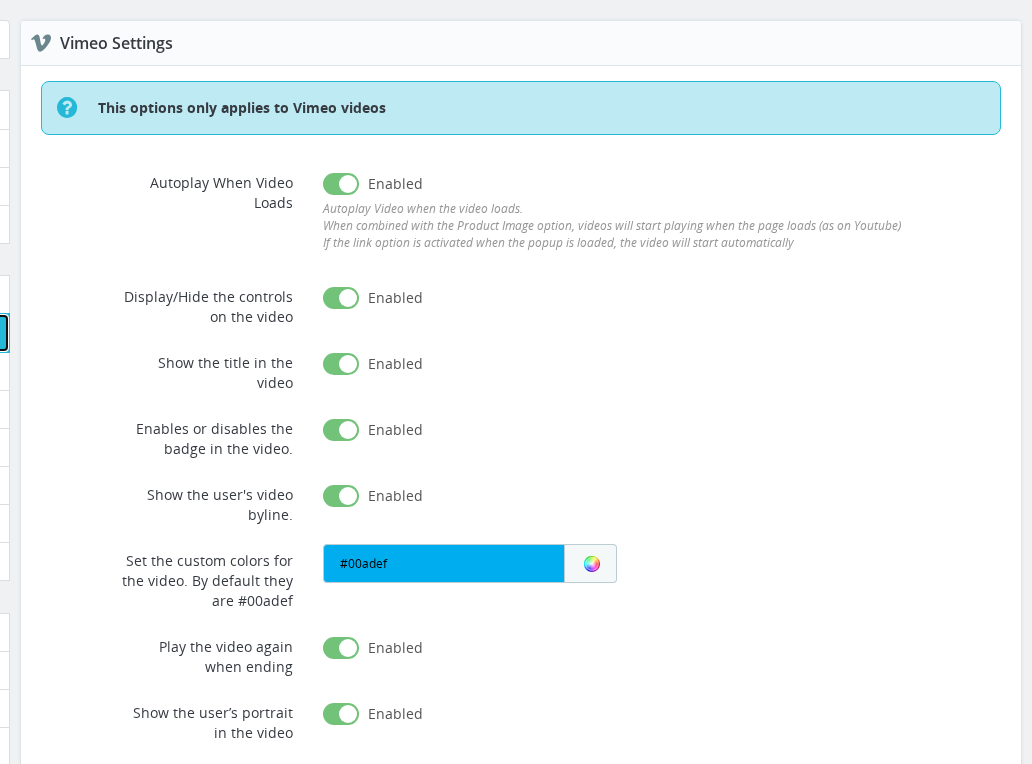
Configuration
- Go to Modules > Module Manager, find Product Video, and click Configure.
- Open the Vimeo Settings tab in the module configuration.
- Adjust the settings below and click Save.
| Field | Values | Default | Description |
|---|---|---|---|
| Autoplay When Video Loads | Yes / No | Yes | Starts playback automatically when the video loads. In popup placements, playback begins when the popup opens. In gallery placements, it starts when the product page loads. |
| Display/Hide the controls on the video | Yes / No | Yes | Shows or hides the Vimeo player control bar (play/pause, timeline, volume). Hiding controls is useful for ambient or background videos. |
| Show the title on the video | Yes / No | Yes | Displays the video's title as an overlay on the player. Disable this for a cleaner look on product pages. |
| Enables or disables the badge on the video | Yes / No | Yes | Shows the Vimeo badge (such as the "Staff Pick" ribbon) on the player. |
| Show the user's byline on the video | Yes / No | Yes | Displays the Vimeo account owner's name on the player. Disable this if you do not want your agency or production house name shown to customers. |
| Set up the video controls colours | Hex color | #00adef | Sets the color of the player's progress bar and control elements. Enter a hex value including the # symbol (e.g. #ff6600). Only honored on Vimeo Plus, Pro, and Business plans. |
| Play the video again when it reaches the end | Yes / No | Yes | Loops the video automatically after it finishes. |
| Show the user's portrait on the video | Yes / No | Yes | Displays the Vimeo account owner's profile picture on the player. |
| Mute Video | Yes / No | Yes | Plays the video without sound. Required for autoplay on page load — most browsers silently block audio autoplay. When muted, Vimeo displays a "tap to unmute" message on the player. |
| Background Video | Yes / No | No | Loads the video with autoplay, muting, no controls, and no UI overlays. Ideal for a looping ambient background. Requires a paid Vimeo account. |
Autoplay without muting will not work on most browsers. To get autoplay on page load, you must enable both Autoplay When Video Loads and Mute Video. This is a browser-level restriction, not a module limitation.
Background Video requires a paid Vimeo plan. Enabling it on a free-account video will fail silently — the video will not load as a background embed.
How It Works
Vimeo videos on your store are embedded as iframes pointing to player.vimeo.com/video/<video-id>. When the module builds the iframe URL it appends query parameters based on your saved settings:
| Setting | Embed parameter added |
|---|---|
| Autoplay on | autoplay=1 |
| Controls off | controls=0 |
| Title off | title=0 |
| Byline off | byline=0 |
| Badge off | badge=0 |
| Portrait off | portrait=0 |
| Custom color | color=ff6600 (hex without #) |
| Loop on | loop=1 |
| Muted on | muted=1 |
| Background on | background=1 |
Parameters are only added when the corresponding setting is active (or inactive, for "off" values). Settings that remain at their default are still included to guarantee consistent behavior across Vimeo player versions.
Autoplay and Popup Placements
When a video is shown as a popup (triggered by clicking a button or thumbnail), autoplay fires at the moment the popup opens, not on page load. Browser autoplay restrictions are generally lifted for popups because the popup itself counts as a user interaction. This means autoplay works in popups even without muting, though keeping Mute Video enabled is still recommended for consistency.
Background Mode
Background mode is designed for videos used as ambient visuals — a looping product showcase, a hero background, or a lifestyle clip. When enabled, Vimeo enforces its own set of overrides regardless of your individual settings: the video autoplays, is muted, and shows no controls or title. Your individual Controls, Title, Byline, and Portrait switches are ignored by the Vimeo player when Background mode is active.
Background mode requires a paid Vimeo plan (Plus, Pro, or Business). If the video owner's account is on a free plan, the background embed will not load.
Usage Examples
Example: Clean product showcase with silent autoplay
You sell furniture and want Vimeo videos to play automatically and silently as customers browse product pages, without any Vimeo branding visible.
Enable Autoplay When Video Loads, enable Mute Video, disable Show the user's byline, disable Show the user's portrait, and disable Enables or disables the badge on the video. Leave controls visible so customers can unmute if they want audio. Save. Every Vimeo video on your store will now start playing silently when the product page loads, with minimal Vimeo chrome.
Example: Looping ambient hero video on the product page
You want a Vimeo video to play silently on loop with no controls at all, giving a "lifestyle brand" feel on your product detail pages.
Enable Background Video, enable Loop, and disable Display/Hide the controls on the video. Note that your Vimeo account must be on a paid plan. The video will autoplay, mute, loop, and show nothing but the video itself.
Example: Branded player matching your store's color scheme
Your store uses an orange accent color #e85d04 and you want the Vimeo player progress bar to match.
Set Set up the video controls colours to #e85d04. This requires a Vimeo paid account. On save, the progress bar and interactive elements of all Vimeo embeds will use that color.
Important Notes
- Settings apply to all Vimeo videos store-wide. There is no per-video or per-product override for these embed parameters.
- Background mode requires a paid Vimeo account. Free Vimeo accounts cannot use the
background=1embed parameter. The video will fail to load silently on free accounts. - Color customization requires a paid Vimeo plan. The
colorparameter is honored on Plus, Pro, and Business accounts. Free accounts ignore it and display the default blue. - Muting is a browser requirement for page-load autoplay, not a Vimeo restriction. Even with autoplay enabled, Chrome, Firefox, Safari, and Edge all block audio autoplay on page load. Enable Mute Video alongside Autoplay or autoplay will be silently ignored by the browser.
- Background mode overrides individual settings. When Background mode is on, Vimeo ignores your Controls, Title, Byline, Portrait, and Mute switches — background mode forces its own values for all of these.
- The "tap to unmute" notice cannot be suppressed. When a video is muted and autoplaying, Vimeo displays a "tap to unmute" overlay. This is Vimeo's behavior and cannot be removed by the module.
- Multi-shop: Vimeo settings are saved per shop. If you run multiple shops, configure the Vimeo tab separately for each shop context.
Troubleshooting
| Problem | Solution |
|---|---|
| Vimeo video does not autoplay on page load | Enable Mute Video — browsers block audio autoplay. Both Autoplay and Mute must be on. |
| Player color does not change to my chosen color | Color customization requires a Vimeo Plus, Pro, or Business plan. Free accounts ignore the color parameter. |
| Background mode video does not load | Your Vimeo account must be on a paid plan. Free accounts cannot use background embeds. |
| Vimeo username appears on the player | Disable Show the user's byline and Show the user's portrait and save. |
| "Tap to unmute" message appears on autoplaying video | This is Vimeo's built-in behavior when a video is muted. It cannot be suppressed. Consider using an HTML5 video file if you need a fully silent embed without any overlay. |
| Video loops but the loop setting is disabled | Check whether Background Video is enabled — background mode forces looping regardless of your Loop switch. |
| Autoplay works in popups but not on the product page | This is expected browser behavior. Popups count as user interactions, so autoplay with audio is allowed. On page load, audio autoplay is blocked; enable Mute to allow autoplay. |
Frequently Asked Questions
Do these settings apply to YouTube videos too?
No. The Vimeo Settings tab only controls Vimeo embeds. YouTube videos have their own separate settings tab with different options.
Can I have autoplay enabled for some products but not others?
No. Vimeo embed settings are global and apply to every Vimeo video across your entire store. Per-product overrides are not available in this tab.
My Vimeo video shows the Vimeo logo and branding — how do I remove it?
Disable Show the user's byline, Show the user's portrait, and Enables or disables the badge on the video. Note that removing all Vimeo branding from the player itself (the Vimeo logo in the lower right) is controlled by your Vimeo account plan, not by these embed parameters.
Does Background Video mode work on mobile?
Background mode behavior on mobile depends on the device and browser. Some mobile browsers override background autoplay with their own policies. If you need reliable background video on mobile, test on real devices before deploying.
The "tap to unmute" overlay appears on my muted autoplay video. Can I remove it?
No. This overlay is added by Vimeo's player and cannot be disabled via embed parameters. If a completely overlay-free silent video is important, use an HTML5 video file (.mp4) instead — the HTML5 player does not have this restriction.
How do I revert to Vimeo's default player color?
Set the Set up the video controls colours field to #00adef — that is the Vimeo default blue — and save.
If I enable Background Video, do I still need to enable Autoplay and Mute separately?
No. Background mode forces autoplay and muting on its own. You do not need to enable those switches separately, though leaving them enabled does not cause any conflict.