Preview & Execute
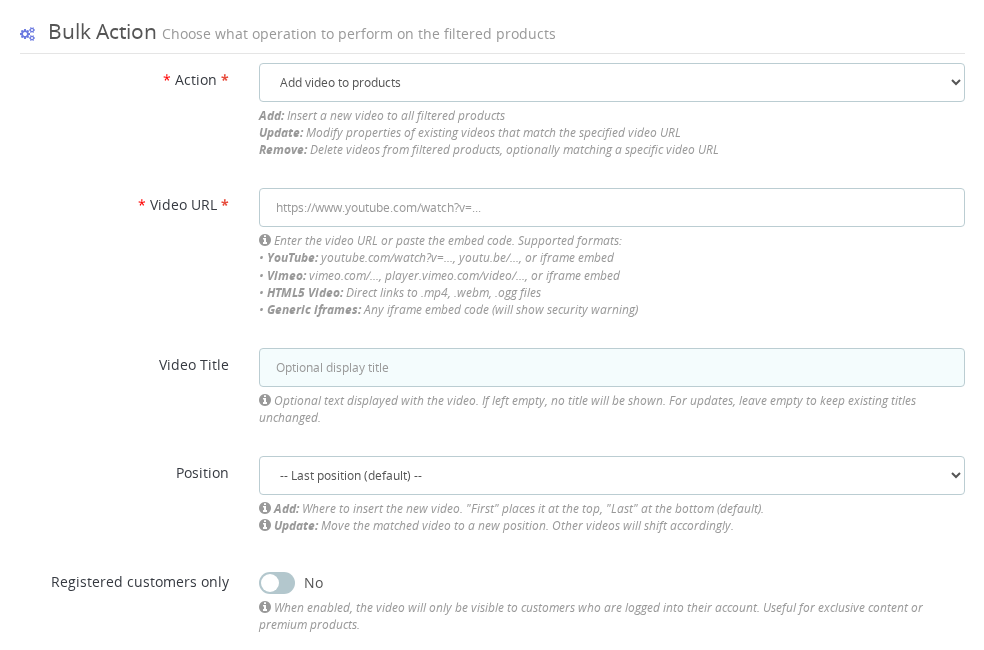
Before any bulk operation runs, the preview step shows you exactly which products will be affected. Review the list carefully, then confirm to execute — especially for Remove operations, which cannot be undone.
Overview
After setting filters and selecting an action, you must preview before executing. This shows exactly which products will be affected.
Preview is your only chance to verify the selection before making changes!
Step 1: Preview
Click "Preview Affected Products" to see which products match your filters.
What you'll see:
- Total number of affected products
- Product list with ID, reference, and name
- First 100 products (all will be affected even if more)
Check for:
- ✅ Correct number of products
- ✅ Expected products in the list
- ✅ No unexpected products
If the preview shows wrong products, adjust your filters and preview again.
Use the Reference column to quickly verify you're affecting the correct products. References are often easier to identify than product IDs.
Step 2: Execute
Once preview looks correct, click "Execute Bulk Operation".
Confirmation Dialog
For Add and Update:
- Standard confirmation: "Are you sure?"
- Click OK to proceed
For Remove:
- Extra warning about permanent deletion
- Confirms you understand it cannot be undone
- Read carefully before confirming
Processing
- Operation starts immediately
- Progress message appears
- Don't close the browser during processing
- Wait for success or error message
Processing time:
- Small operations (10-50 products): seconds
- Medium (50-200 products): 10-30 seconds
- Large (200+ products): 30-60+ seconds
After Execution
Success Message
Shows:
- Operation completed successfully
- Number of products affected
- Action performed
What to do:
- Verify 2-3 products manually to confirm changes
- Check frontend if needed
- Note what you did for future reference
Error Message
If something fails:
- Read the error message carefully
- Common errors: invalid URL, missing provider, permission issues
- Fix the issue and try again
- Preview again before re-executing
Best Practices
- Always preview first - even for basic operations
- Start small - test with 2-3 products when learning
- Double-check Remove operations - they're permanent
- Don't close browser during execution
- Verify results after execution
Common Issues
Preview shows no products
Reasons:
- Filters too restrictive
- No products match criteria
- Category empty
Solution: Adjust filters and try again
Execution fails
Common causes:
- Invalid video URL
- Missing provider configuration
- Network timeout
- Permission issues
Solution: Check error message and fix the specific issue
Closed browser during execution
What happens:
- Operation may be partially complete
- Some products affected, others not
Solution: Check products manually, re-run if needed with adjusted filters
Quick Workflow
1. Set filters
   ↓
2. Choose action
   ↓
3. Click Preview
   ↓
4. Check product list
   ↓
5. Adjust if needed → Back to step 1
   ↓
6. Click Execute
   ↓
7. Confirm
   ↓
8. Wait for completion
   ↓
9. Verify results
What does the preview show me before I execute a bulk operation?
The preview shows the total number of products that match your filters and a list of up to 100 of them with their ID, reference, and name. All matching products will be affected when you execute, not just the 100 shown in the preview.
Can I go back and change the filters after previewing?
Yes. If the preview shows unexpected products, adjust your filters and click Preview again before executing. Nothing is changed until you confirm the Execute step.
What should I do if the browser closes during execution?
The operation may be partially complete with some products affected and others not. Check your products manually to assess the state, then re-run the operation with adjusted filters if necessary.
How long does a bulk operation take to complete?
Small operations on 10 to 50 products take a few seconds. Medium operations on 50 to 200 products take 10 to 30 seconds. Large operations on more than 200 products can take 30 to 60 seconds or more. Do not close the browser until you see the success message.
You now understand the execution workflow. See practical examples in the use cases guide.
Last updated: 2025-12-16