Global Configuration
The Global Configuration panel is where you control the module's core behavior: which payment methods trigger reminders, how the email wrapper looks, how test mode works, when unpaid orders are automatically cancelled, and who receives the daily admin digest.
Available since v1.2.0
Overview
Order Payment Reminders Pro separates what you say (the individual reminder messages you create) from how the system behaves (the global rules that govern all of them). The settings in this guide govern the second part.
Most of these settings only need to be configured once during initial setup and rarely change afterwards. The main exception is Test Mode, which you will toggle on and off whenever you want to verify your reminder sequence without affecting real customers.
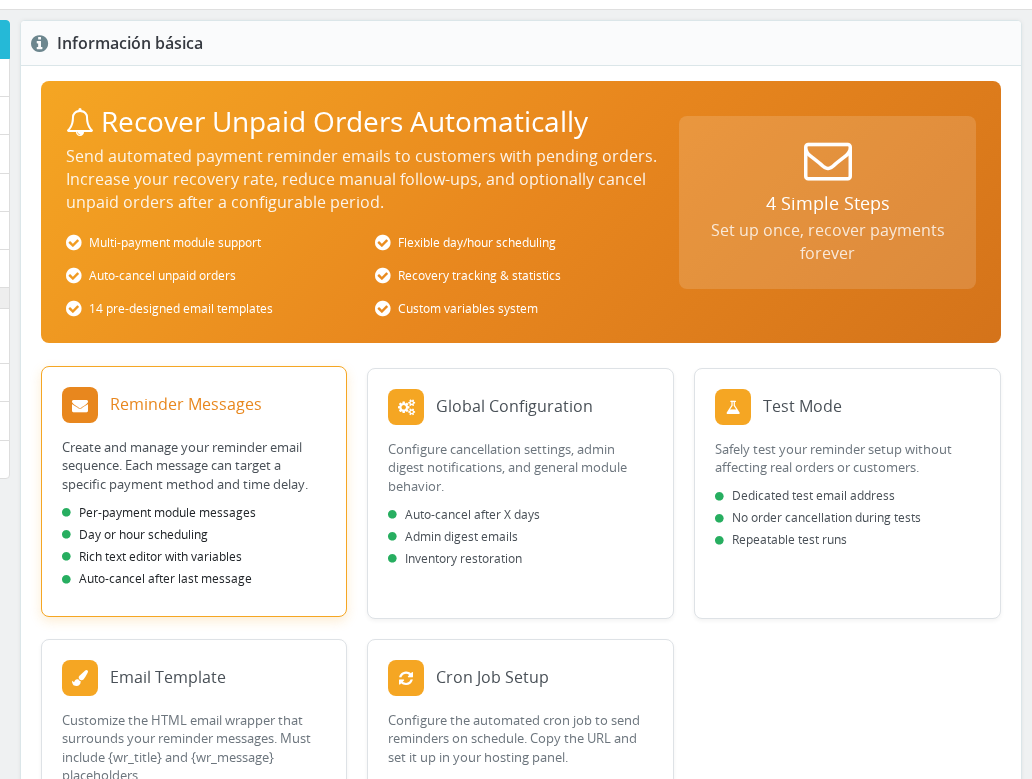
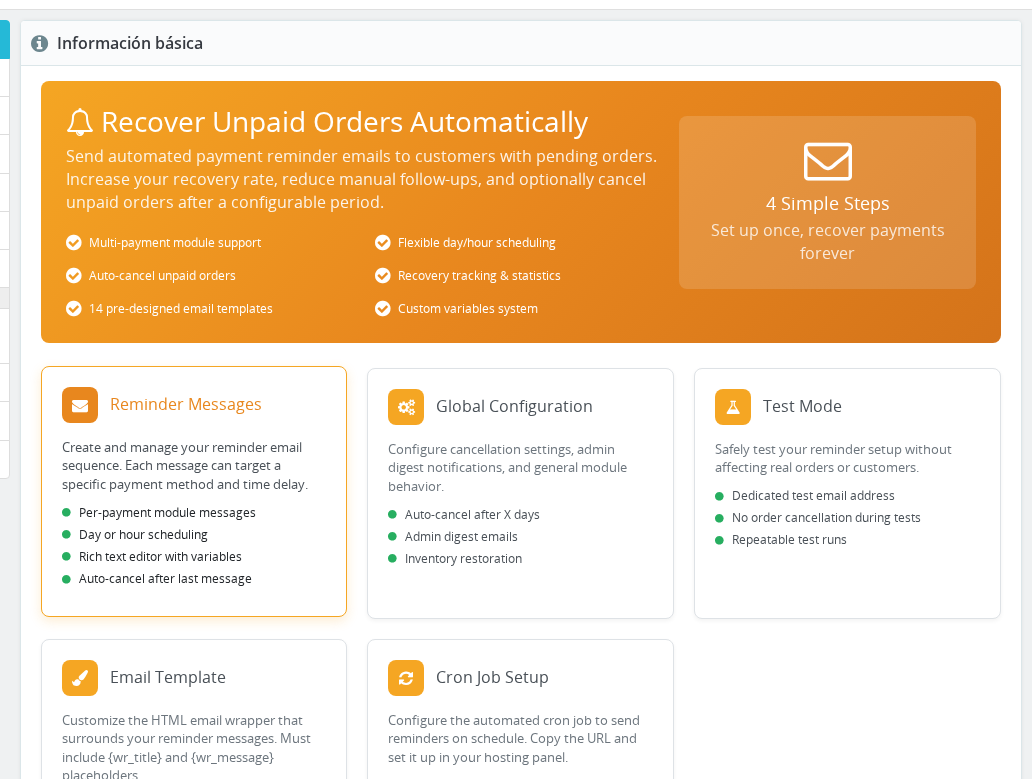
The configuration page is organized into the following sections: Module Setup (the setup checklist), Test Mode, Global Settings, Email Template, and Cron Job Setup. Each section with editable fields has its own Save button.
Configuration
- Log in to your Back Office.
- Go to Modules > Module Manager.
- Find Order Payment Reminders Pro and click Configure.
- The page opens on the Module Setup tab when setup is incomplete, or on the main configuration view once the checklist is fully complete.
- Scroll through each section or use the left-hand navigation tabs to move between Module Setup, Test Mode, Global Settings, Email Template, and Cron Job Setup.
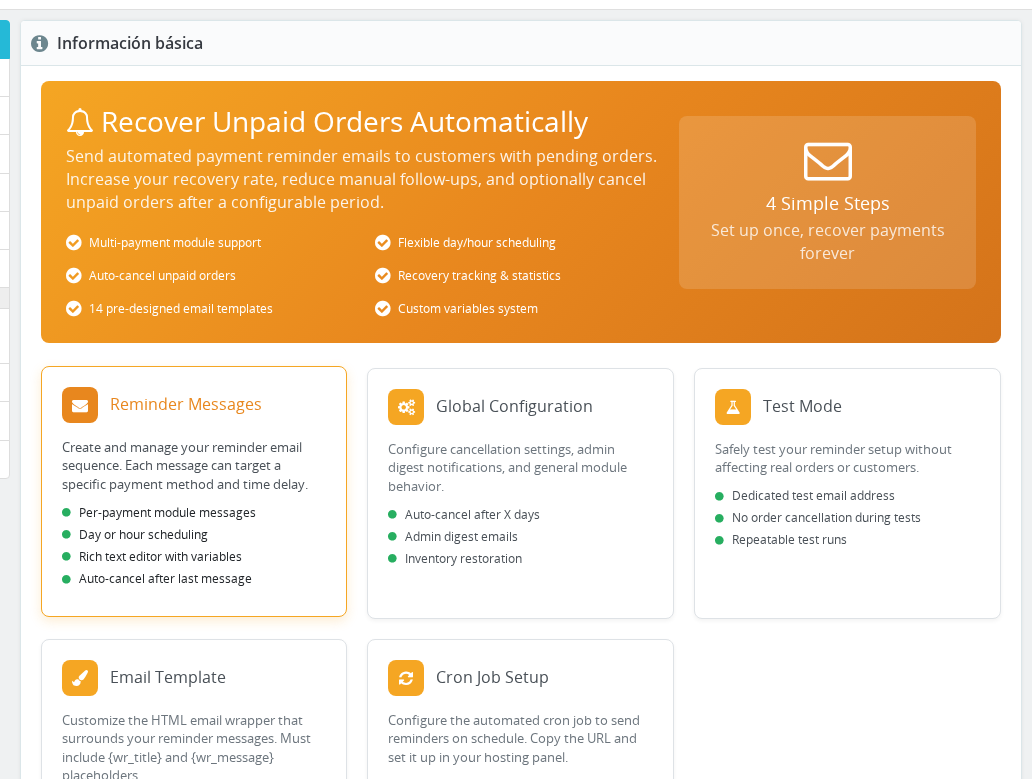
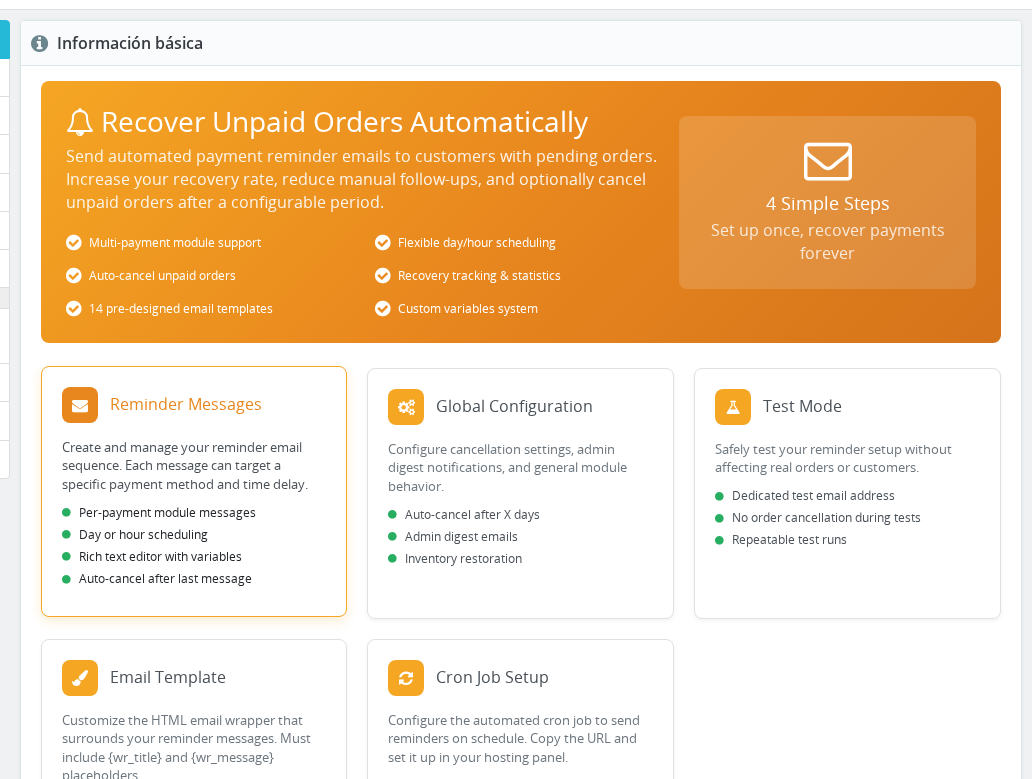
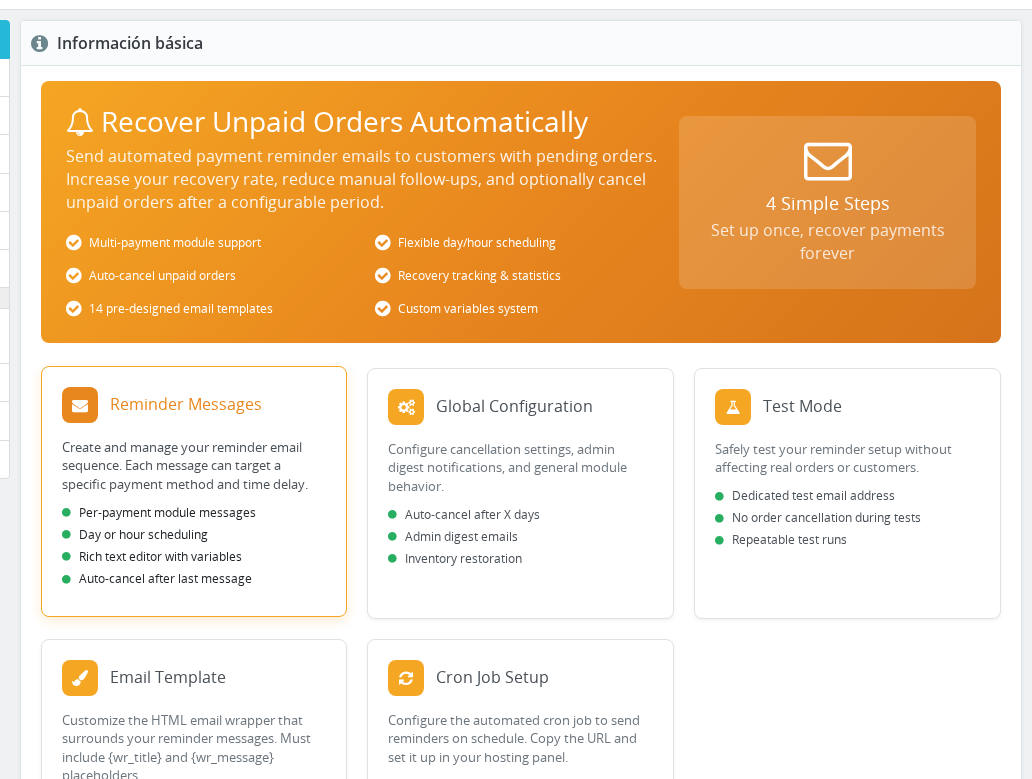
Module Setup — Setup Checklist
The Module Setup panel is a guided checklist that tracks your initial configuration. The progress bar at the top shows how many of the four required steps have been completed. The module does not send any reminders until all four steps show a green "Configured" badge.
Step 1 — Email Template
Select the HTML wrapper that surrounds all reminder emails. You can choose from pre-designed templates or write your own.
After selecting a template, a text area appears where you can edit the HTML directly. The template must contain both {wr_title} and {wr_message} placeholders — the module will not mark this step as complete without them.
The
{wr_title}placeholder is automatically replaced with the subject line of each individual reminder message. You do not need to type a subject directly into the template.
Click Save Template to store your changes. The step badge turns green once a valid template is saved.
Step 2 — Payment Modules
Choose which payment methods should trigger reminder emails. Only orders paid through a selected method will enter the reminder queue.
A checkbox list shows all payment modules currently installed on your store. Tick every method where you want reminders to fire — for example, Bank Wire for bank transfer orders or a custom offline payment module.
If you want different reminder sequences for different payment methods, you can assign a specific payment module to each reminder message when you create it. The global selection here acts as a filter — if a payment module is not ticked, its orders will never receive reminders regardless of individual message settings.
Click Save Payment Modules to confirm. The step badge turns green once at least one module is selected.
Step 3 — Create Messages
Create at least one reminder message to define what gets sent and when. Pre-written message templates are available in three tone categories:
- Gentle Nudge — friendly first reminders sent a few days after the order
- Persistent Follow-up — second and third contact for unresponsive customers
- Urgent / Final — last-chance notices sent close to the cancellation deadline
Use the dropdowns to pre-fill a new message with one of these templates, then click Create New Message to open the message editor. See Reminder Messages for a full guide.
Step 4 — Test and Verify
Before going live, send a test email to confirm your server can deliver messages correctly. Enter any email address in the field and click Send Test Email. A verification link is included in the email — clicking it marks your setup as verified and turns this step green.
Step 4 is locked until Steps 1–3 are complete.
See Email Verification for a detailed explanation of how the verification system works.
Test Mode
The Test Mode section lets you safely validate your reminder sequence without affecting real customers or real orders.
| Field | Values | Default | Description |
|---|---|---|---|
| Enable Test Mode | Yes / No | Yes (on install) | When on, all reminder emails go to the test address below instead of real customers. Orders are not cancelled, and sent-message status is not updated — so the same messages are sent on each run. |
| Test Email Address | Any valid email | Shop admin email | The address that receives all emails while test mode is active. |
| Test Output | Email / Screen | Email sends the reminder to the test address. Screen prints the processing output directly in the browser instead of sending any email. |
When test mode is active, a blue information banner appears across every section of the module to remind you. Always confirm you have disabled test mode before expecting real customers to receive reminders.
Click Save at the bottom of the Test Mode form to apply changes.
Global Settings
The Global Settings section controls order cancellation behavior and the admin digest notification.
| Field | Values | Default | Description |
|---|---|---|---|
| Activate Cancel Orders Feature | Yes / No | No | When enabled, unpaid orders are automatically cancelled once the number of days set below has elapsed since the order was placed. Cancelled orders have their products returned to stock. |
| Cancel Order after | Number of days | — | The number of days after which an unpaid order is automatically cancelled. The field description shows the value currently set in the native Bank Wire module (if installed) as a recommended reference. If any individual reminder message has the "cancel order" option enabled and is scheduled before this value, the message-level cancellation takes priority. |
| Admin Digest Email | Yes / No | No | When enabled, the module sends you a daily summary of orders approaching the cancellation deadline. The digest is sent once per day and only when at least one qualifying order exists. |
| Digest Email | Any valid email | Shop email | The address that receives the admin digest. Leave blank to use the shop's main email address. |
| Alert Before Cancellation | Number of hours | 24 | How many hours before the cancellation deadline an order must be to appear in the digest. For example, 24 means you receive a warning one day before the deadline. |
The auto-cancel feature respects Test Mode. If test mode is active, no orders will be cancelled even if the cancellation deadline has passed.
The admin digest requires both Activate Cancel Orders Feature and Admin Digest Email to be enabled, and Cancel Order after must be set to a value greater than zero.
Click Save at the bottom of the Global Settings form to apply changes.
Email Template
The Email Template section provides a full rich-text (TinyMCE) editor where you can customize the HTML wrapper that surrounds every reminder email.
This section only appears after the Module Setup checklist has been completed at least once. Finish all four setup steps first.
The template must contain two mandatory placeholders:
| Placeholder | Replaced with |
|---|---|
{wr_title} | The subject line of the individual reminder message being sent |
{wr_message} | The body content of the individual reminder message being sent |
Any other supported variables ({shop_name}, {shop_logo}, {completename}, etc.) can also appear in the template.
Click Save to apply changes. See Email Templates and Designs for the full template reference.
Cron Job Setup
The Cron Job Setup section provides the URL you need to add in your hosting panel so the module runs automatically every day.
The cron URL contains a security key (?key=...) that prevents unauthorized parties from triggering the reminder process. This key is generated automatically when the module is installed and stored permanently — it does not change when you save other settings or reinstall the module over an existing installation.
Copy the full URL displayed in this section and add it as a cron job in your hosting control panel or server. The recommended frequency is once per day, though hourly is also supported if you use hour-based reminder schedules.
Never share the cron URL publicly. If you suspect it has been exposed, contact support to reset the key.
See Cron Job Setup for step-by-step hosting panel instructions.
How It Works
Test Mode Behavior
When Test Mode is enabled, the module intercepts every outgoing reminder email and redirects it to the test email address you configured. No customer ever receives an email in this state. In addition, the module skips updating the "sent" status for each message, so running the cron multiple times sends the same messages each time — allowing you to test iteratively without resetting data.
Order cancellation is also completely disabled during test mode, even if the cancellation deadline has already passed for one or more orders.
Global Cancellation vs. Per-Message Cancellation
You have two ways to cancel unpaid orders automatically:
- Global setting: Enable Activate Cancel Orders Feature and set Cancel Order after to a number of days. Every unpaid order matching your selected payment methods will be cancelled after that many days.
- Per-message cancellation: Enable the "cancel order" option on an individual reminder message. The cancellation fires when that specific message is sent, regardless of the global days setting.
If both are configured and the per-message cancellation fires first, the global setting is bypassed for that order. This lets you apply different effective deadlines to different payment methods or reminder sequences.
Admin Digest Logic
The admin digest runs during the same cron execution that processes reminders. It checks for unpaid orders whose cancellation deadline falls within the Alert Before Cancellation window (for example, within the next 24 hours). If at least one such order exists, it sends a summary email to the configured digest address.
The digest is throttled: once sent on a given day, it will not send again until the next day, even if you run the cron manually multiple times.
Payment Module Filter
The payment module selection in Step 2 of the setup checklist acts as a global allow-list. Only orders from payment methods you have ticked will ever receive reminders. You can further narrow the audience at the individual message level by assigning a specific payment method to each reminder, but you cannot add a payment method at the message level that was not first enabled globally.
Usage Examples
Example: Wire transfer store going live for the first time
A store using only bank wire payments wants to send a reminder at 3 days, a follow-up at 7 days, and cancel all unpaid orders after 14 days.
- In Module Setup, select an email template and tick the Bank Wire payment module.
- Create three reminder messages (3 days, 7 days, 14 days) and set the 14-day message to "cancel order."
- In Global Settings, leave Activate Cancel Orders Feature off — the per-message cancel at day 14 handles it.
- Enable Admin Digest Email with Alert Before Cancellation set to
48hours so you have two days' notice before any order is cancelled. - Disable Test Mode once you have verified email delivery via the setup checklist.
Example: Multi-payment store with different cancellation deadlines
A store accepts both bank wire and a cash-on-pickup method. Wire orders should cancel after 10 days; cash orders after 3 days.
- Tick both payment modules in Module Setup.
- Create a separate reminder sequence for each payment module (assigned per message using the Payment Module field in each message).
- In Global Settings, set Cancel Order after to
10days and enable the cancel feature. For the cash method, add a message at day 3 with "cancel order" enabled — this overrides the global 10-day limit for those orders.
Example: Testing a new message without emailing customers
You add a new urgent follow-up message and want to verify it renders correctly before it reaches real customers.
- In Test Mode, set Enable Test Mode to Yes and enter your own email address.
- Run the cron URL manually from your browser once.
- Check your inbox for the test email and confirm the layout, variables, and subject line are correct.
- Set Enable Test Mode back to No and click Save once satisfied.
Important Notes
- Test mode is enabled by default on a fresh install. You must manually disable it before the module will send emails to real customers.
- The admin digest is throttled to one email per calendar day. If it was already sent today, it will not send again until tomorrow even if you run the cron manually.
- The Cancel Order after days field is a fallback. If a reminder message has "cancel order" enabled and is scheduled earlier than the global days limit, the message-level cancellation runs first and the global limit is ignored for that order.
- The cron key is stored at global scope (not per shop) and is preserved across module reinstalls as long as the database row exists. It will regenerate only after a full uninstall that clears the module's configuration.
- In a multi-shop setup, payment module selection and most global settings are per-shop. The cron security key (
wr_cron_key) is global across all shops. - The Email Template editor is hidden until the Module Setup checklist has been completed at least once. It appears automatically once you finish all four steps.
Troubleshooting
| Problem | Solution |
|---|---|
| The module shows "Module is not active yet" even after saving settings | Complete all four steps in the Module Setup checklist. Each step must show a green "Configured" badge. The most common missing step is email verification (Step 4). |
| Emails are going to customers while Test Mode appears to be on | Confirm that you clicked Save in the Test Mode form after enabling it. Check that the blue test-mode banner is visible across the module's sections. |
| Admin digest is never received | Confirm Activate Cancel Orders Feature is enabled, Cancel Order after is a positive number, and Admin Digest Email is set to Yes. The digest only sends when at least one order is within the alert window. Check your spam folder. |
| Admin digest sent once and then stopped | Expected behavior — the digest is throttled to once per day. It will resume tomorrow when the cron runs again. |
| The cron URL changed after reinstalling the module | The key is preserved as long as the database row exists. A full uninstall (which removes configuration) causes the key to regenerate. Update the cron URL in your hosting panel after a full reinstall. |
| The Email Template form is not visible | The editor only appears after the Module Setup checklist has been completed at least once. Finish all four setup steps first. |
| Test Output set to "Screen" shows nothing | Screen output is printed as plain text when the cron URL is called directly in a browser. Make sure you are opening the cron URL directly in your browser, not triggering it from the Back Office interface. |
| Orders are not being cancelled automatically | Confirm that Activate Cancel Orders Feature is enabled and Cancel Order after is a positive number. Also confirm that test mode is disabled — auto-cancel is suppressed while test mode is on. |
Frequently Asked Questions
Do I need to configure Global Settings before creating reminder messages?
No. You can create reminder messages at any point. However, the module will not send any emails until all four steps in the Module Setup checklist are complete, including email verification.
What happens to products when an order is automatically cancelled?
Cancelled orders have their product quantities restored to your stock. The cancellation uses PrestaShop's standard order cancellation process, so stock levels, order history, and statistics are all updated correctly.
Can I set a different cancellation deadline for different payment methods?
Yes. The global Cancel Order after value applies to all payment methods by default. To override it for a specific method, create a reminder message assigned to that payment method and enable the "cancel order" option on that message. The message-level cancellation fires first and bypasses the global limit for orders from that payment method.
Does the admin digest email show all pending orders or only those close to cancellation?
Only orders that are within the configured Alert Before Cancellation window (default: 24 hours). Orders that still have plenty of time before their deadline are not included.
Can I use a different email address for the admin digest and the shop's contact email?
Yes. Fill in the Digest Email field with any address. Leave it blank if you want the digest to go to the shop's main email address configured in PrestaShop.
What is the Test Output "Screen" option for?
It is a diagnostic tool for server environments where email delivery is unreliable or not configured. Instead of sending emails, it prints a text summary of every order processed and every message that would have been sent. This is useful for initial server-side debugging.
Will the module send emails to customers if I forget to disable Test Mode?
No. While Test Mode is active, all reminder emails are redirected to the test email address you set. No customer will receive a reminder until you explicitly disable Test Mode and save.
How do I reset the cron security key?
The key cannot be reset from the Back Office. Contact the module support team if you need to rotate the key after a security incident.
If I select multiple payment modules in the setup checklist, will all orders from those methods get the same reminders?
By default, yes — all selected payment methods share the same reminder messages. If you want a different sequence per method, assign a specific payment module to each individual reminder message using the Payment Module field when editing that message.