Test Mode
Test mode lets you run your entire reminder sequence against real pending orders without touching your customers or live data.
Available since v1.0.3
All emails go to a single address you control, orders are never cancelled, and the sent-status counter is intentionally frozen so you can repeat the same test as many times as you need.
Overview
When you first install Order Payment Reminders Pro, test mode is enabled by default. This is intentional: the module is ready to process orders, but nothing reaches your customers until you review every step and explicitly switch to live operation.
While test mode is active, the cron job processes orders exactly as it would in production — it evaluates schedules, builds email content, and applies all your custom variables — but with three key differences:
- Every outgoing reminder email is redirected to your configured test address instead of the customer's address.
- Orders that would otherwise be cancelled (due to auto-cancel rules) are not cancelled. The cron run logs what it would have done, but takes no action.
- The "last message sent" record for each order is not updated. This means the same reminder message will be sent on every cron run during testing, so you can inspect each message multiple times without needing new unpaid orders.
The admin digest email (the daily summary of orders near cancellation) is an internal report addressed to you, not to customers. It always goes to the digest recipient address you set, regardless of whether test mode is on or off.
Configuration
Enable test mode and set your test address
- Go to Modules > Module Manager, find Order Payment Reminders Pro, and click Configure.
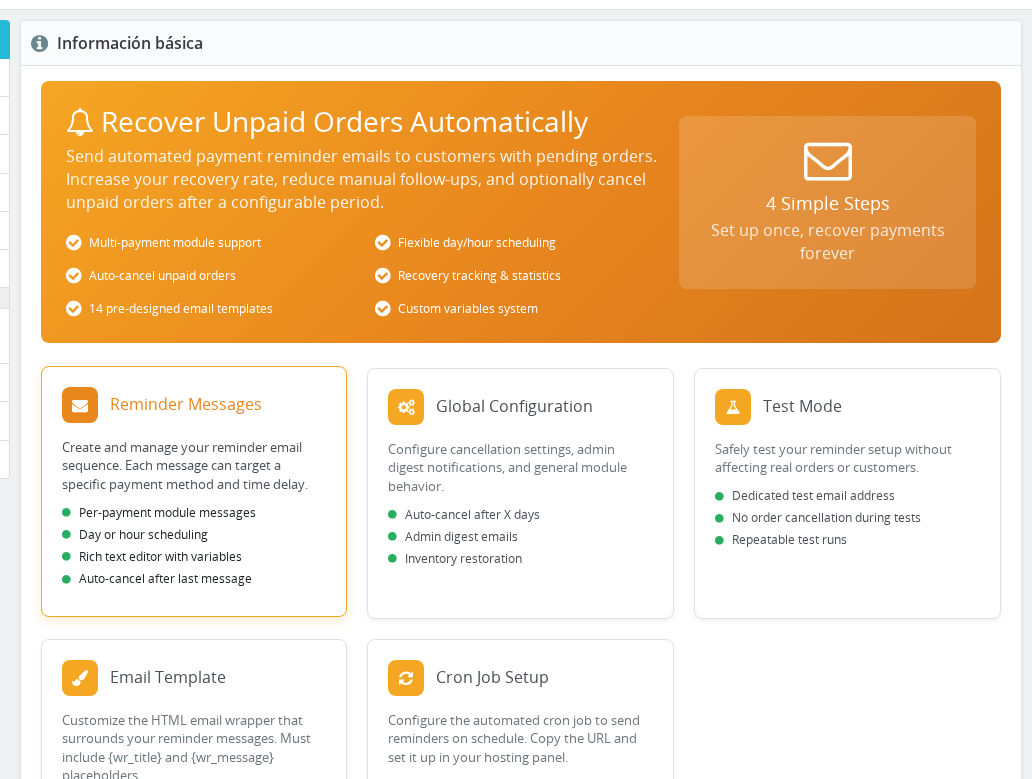
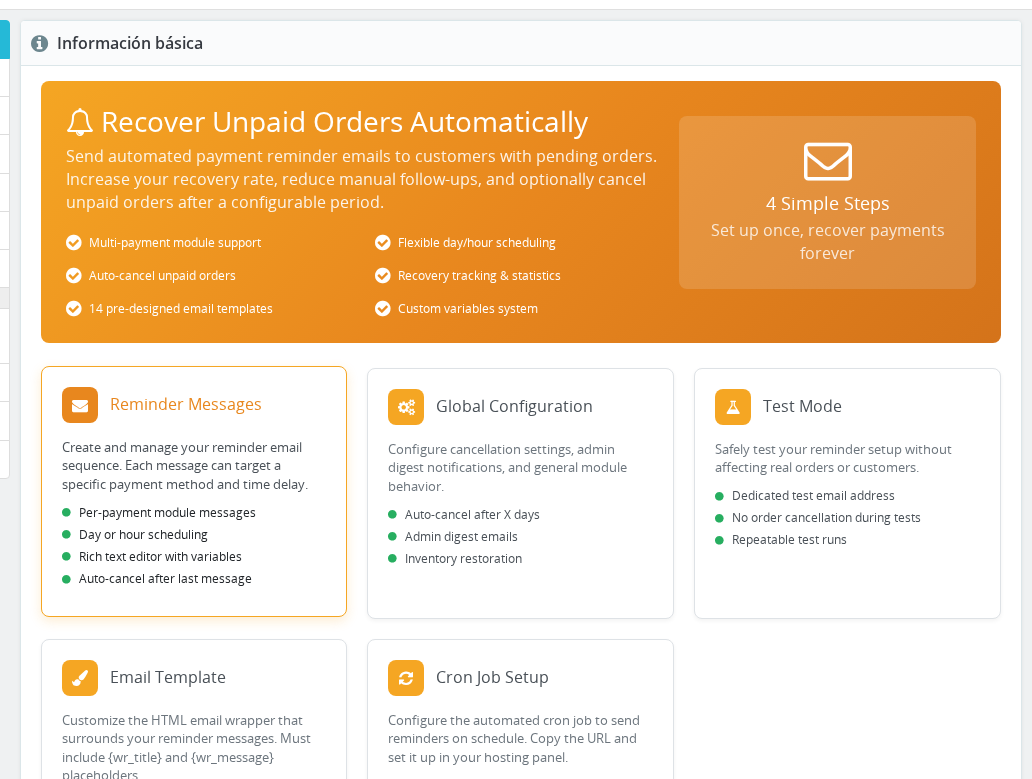
- Scroll to the Test Mode section (or click the Test Mode card from the overview).
- Confirm Enable Test Mode is set to Yes. This is the default after installation.
- Enter your own email address in Test Email Address. All reminder emails will be delivered here instead of to customers. The field defaults to your shop's admin email.
- Choose a Test Output mode:
- Email (default) — the cron run sends actual emails to the test address. Use this to verify delivery and formatting.
- Screen — the cron run prints a detailed processing log to the browser instead of sending emails. Use this to trace which orders are picked up, which messages would be sent, and which orders would be cancelled.
- Click Save.
A blue information banner appears at the top of the module configuration page whenever test mode is active, confirming that live customers are not being contacted.
Send a one-off verification email
The setup dashboard includes a dedicated Send Test Email button (Step 4 — Test and Verify) that is separate from the cron-based test flow described above. Use it to confirm that PrestaShop can send email at all before you run the full cron test.
- In the Back Office, go to Modules > Module Manager > Order Payment Reminders Pro > Configure.
- The dashboard opens by default. Expand Step 4 — Test & Verify (it opens automatically once steps 1–3 are complete).
- Enter the email address you want to receive the test delivery.
- Click Send Test Email.
- Check your inbox. The email contains a Verify Email Delivery link. Click it to mark your setup as verified.
This button sends a single verification email through PrestaShop's mail system. It does not interact with the cron reminder logic and does not require any unpaid orders to be present in your store.
Switch to live operation
When you are satisfied with your setup:
- Return to Modules > Module Manager > Order Payment Reminders Pro > Configure.
- Scroll to the Test Mode section.
- Set Enable Test Mode to No.
- Click Save.
From the next cron run onwards, reminder emails go to the actual customer addresses, orders are cancelled according to your auto-cancel rules, and the sent-status for each order is updated so each message is only sent once.
After disabling test mode, orders that were processed during testing will be treated as if no reminders have been sent yet — because the sent-status was never updated during testing. The first live cron run will evaluate each order fresh and send the appropriate reminder based on your schedule.
Settings reference
| Setting | Values | Default | Description |
|---|---|---|---|
| Enable Test Mode | Yes / No | Yes (on install) | When Yes, activates all test-mode protections: email redirection, cancellation suppression, and frozen sent-status. |
| Test Email Address | Any valid email | Shop admin email | All reminder emails are delivered to this address while test mode is active. Does not affect the admin digest email. |
| Test Output | Email / Screen | Controls where test results appear. Email sends to the test address. Screen prints the processing log to the browser when the cron URL is opened directly. |
How It Works
When the cron job runs with test mode active, it reads the wr_test_mode setting at the start of each processing cycle. From that point every order is handled with the following changes:
Email redirection — Instead of looking up the customer's email address, the module uses the address stored in wr_test_email. The email is fully rendered with all variables substituted exactly as it would be in production, so what you receive in your test inbox is an accurate preview of what the customer would see.
Cancellation suppression — When an order passes the auto-cancel deadline, the module skips the actual cancellation. If you have Test Output set to Screen, it prints a Direct Cancel Order line for each order that would have been cancelled, so you can verify the logic is correct.
Frozen sent-status — After a test email is sent, the updateLastMessageSent() call is skipped. The order's reminder record in the database is not updated. This means the same order will re-qualify on the very next cron run, which is exactly what you want during testing.
Screen output mode — When Test Output is set to Screen and you open the cron URL in your browser, the controller prints a line-by-line log: how many orders were found, the processing result for each order (message sent, order would be cancelled, order already at latest message), and a separator between orders. No emails are sent in this mode.
How it interacts with each email type
| Email type | Test mode ON | Test mode OFF |
|---|---|---|
| Reminder emails (customer-facing) | Redirected to test address | Sent to customer |
| Auto-cancel notification (per-message cancel) | Suppressed — cron logs the cancellation in Screen mode | Order cancelled, customer notified |
| Global auto-cancel (cancel days setting) | Suppressed — cron logs the cancellation in Screen mode | Order cancelled |
| Admin digest email | Always sent to digest recipient — not affected by test mode | Always sent to digest recipient |
Running the cron in test mode
Once test mode is configured, trigger the cron URL manually from your browser or via a terminal to see it in action:
- Copy the cron URL from the Cron Setup section of the module configuration.
- Open the URL in your browser (or run it with
curl). - If Test Output is set to Screen, you will see a line-by-line log: how many orders were found, which message each order would receive, and which orders would be cancelled.
- If Test Output is set to Email, check the test inbox you configured. Each qualifying order generates one reminder email delivered to that address.
See Cron Setup for instructions on finding and scheduling the cron URL.
Usage Examples
Example: First-time setup verification
You have just installed the module and created two reminder messages: one sent after 2 days and a follow-up sent after 5 days. Test mode is on. You open the cron URL in your browser with Test Output set to Email. Three unpaid orders are found. You receive six test emails in your inbox — two per order, since both messages are evaluated each time. The subject lines and variable substitution look correct. You click the verification link in the Step 4 dashboard, which marks your setup as verified. You then set Enable Test Mode to No and the module enters live operation.
Example: Debugging a formatting issue
A custom variable {shop_phone} is displaying the raw configuration key instead of its value in one of your reminder messages. You switch Test Output to Screen and open the cron URL. The processing log shows the exact message content being sent for each order, making the missing substitution immediately visible. You correct the variable definition, switch back to Email output, and confirm the fix looks right before saving.
Example: Previewing a new template without disturbing customers
You want to switch from your current email template to one of the 14 pre-designed templates. You enable test mode (if it was off), apply the new template, and trigger a cron run. The test email arrives in your inbox with the full rendered output including order-specific variables. Once you approve the layout, you disable test mode.
Important Notes
- Test mode is global — it applies to all shops in a multi-shop setup. There is no per-shop test mode.
- The sent-status freeze is intentional. Because status is not updated during testing, the same orders will produce the same emails on every test run. This lets you repeat tests without needing fresh unpaid orders each time.
- If you have orders with a "last message sent" record from a previous live run, those orders will not re-receive that same message during testing. Test mode only freezes new updates; it does not reset existing records.
- The admin digest ignores test mode. If you want to suppress the digest during testing, disable it separately in the Admin Digest section.
- The Send Test Email button in Step 4 is independent of test mode. It always delivers to whichever address you type in the Step 4 input — it is not redirected through the test email address setting and does not interact with the cron logic.
Troubleshooting
| Problem | Solution |
|---|---|
| Test emails are not arriving | Verify your PrestaShop email configuration via Advanced Parameters > Email. Use the Send Test Email button in Step 4 to confirm basic delivery before running the cron. |
| Screen output is blank when opening the cron URL | Confirm the cron URL includes the correct key= or token= parameter. An invalid or missing token causes the controller to exit silently. If the URL is valid but no orders exist in the awaiting-payment status, the cron outputs "No unpaid bankwire orders" and stops. |
| Emails are going to real customers even though test mode appears enabled | Confirm you saved after enabling test mode — click Save and look for the blue info banner at the top of the page, which confirms test mode is active. |
| The same orders keep appearing on every cron run | This is expected during testing. The sent-status is frozen intentionally. After switching to live mode, the status updates normally and each message is sent only once. |
| Admin digest is still sending during testing | This is correct behavior. The digest is an internal admin report and is not suppressed by test mode. To stop it during testing, disable it in the Admin Digest section. |
| Test mode was on for several cron runs — will orders receive duplicate messages when going live? | No. Because sent-status was frozen, the module evaluates each order as if no messages were sent. The first live cron run sends the correct message based on the order's age and your schedule. |
Frequently Asked Questions
Does enabling test mode affect orders that were already reminded before I turned it on?
No. Test mode only changes what happens during a cron run — emails are redirected and status updates are suppressed. Any records written before you enabled test mode remain unchanged.
Can I set a different test email per shop in a multi-shop setup?
No. The test email address and the test mode toggle are global settings that apply across all shops. There is no per-shop override.
Why does the admin digest email always reach the real recipient even in test mode?
The digest is an admin-facing report, not a customer communication. It is intentionally excluded from test-mode redirection so you can verify it works correctly during your setup.
What happens to auto-cancel rules when test mode is on?
Orders that have passed the cancellation deadline are not cancelled. In Screen output mode, the cron prints a "Direct Cancel Order" line for each order it would have cancelled, so you can verify the logic is correct without modifying any orders.
The "Screen" output shows nothing — is that normal?
If no unpaid orders exist in your store for the configured payment modules, the cron outputs a short message and stops. You need at least one order in the awaiting-payment status for the module to process anything.
I disabled test mode but the blue banner is still showing.
The banner reads the saved configuration value. Make sure you clicked Save after toggling the switch. Refresh the page after saving and the banner should disappear.
Does the "Send Test Email" button in Step 4 use the test email address I configured?
No. The Send Test Email button delivers to whichever address you type directly into the Step 4 input field. It is independent of the test mode email address setting and the test mode toggle.
If I leave test mode on by mistake and the cron runs overnight, what do I need to do?
Simply disable test mode and save. Because the sent-status was never updated during the test runs, the module will evaluate every order fresh on the next live cron run and send the correct reminder for each order's current age and schedule.