Setup Wizard and Dashboard Checklist
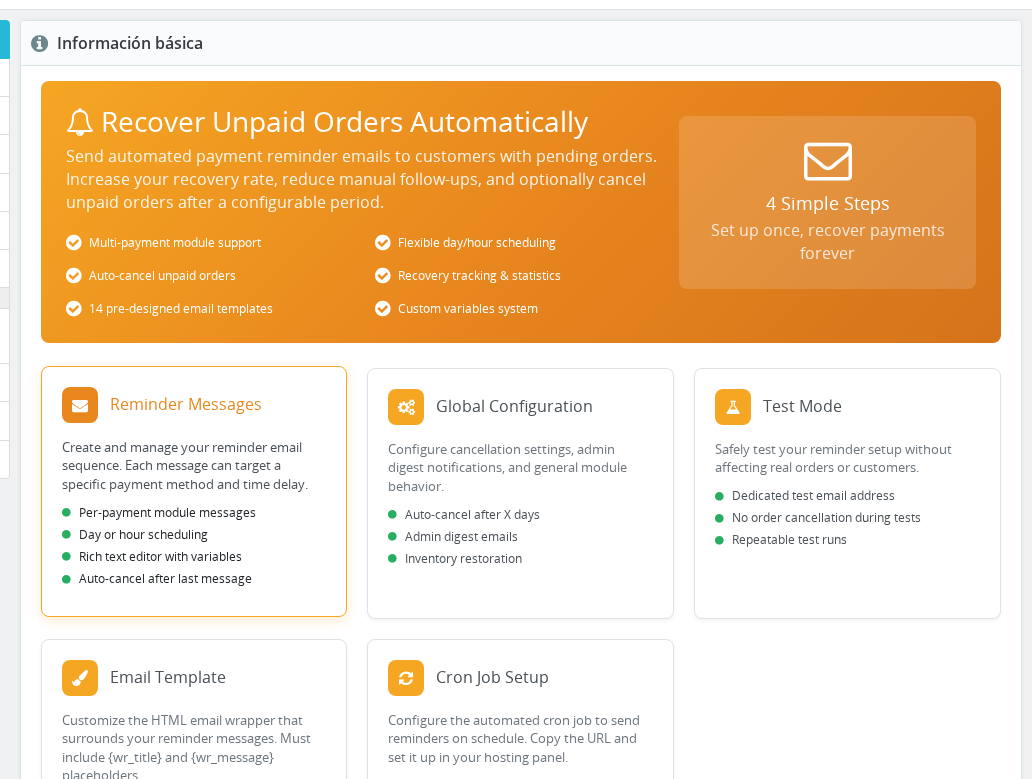
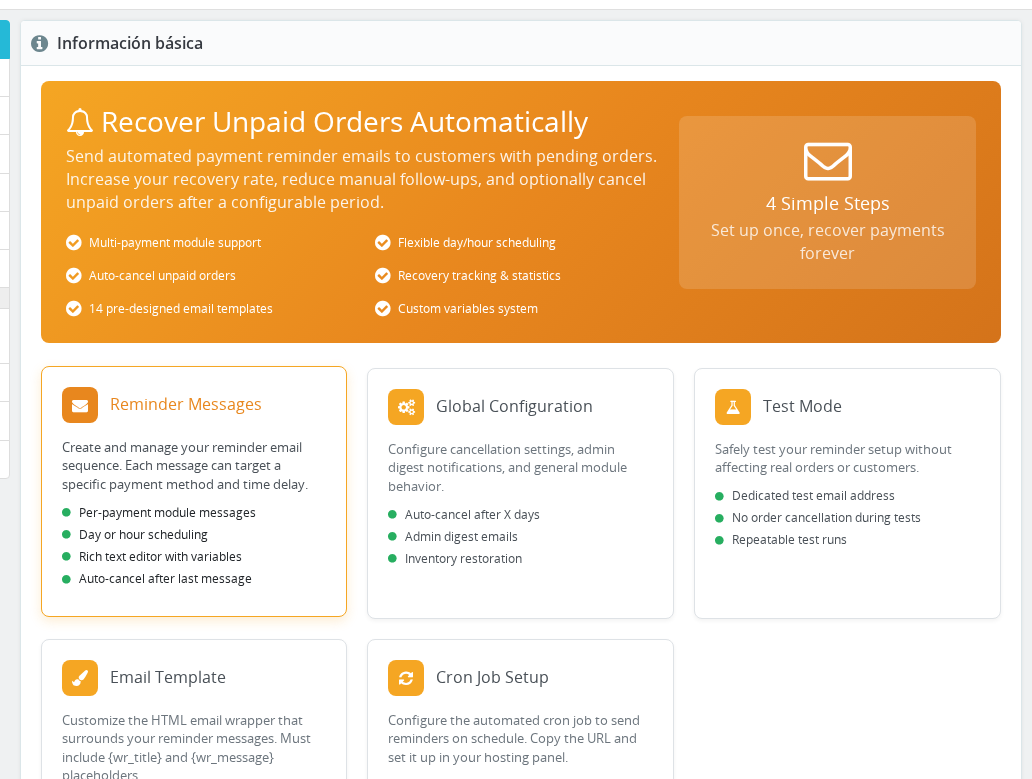
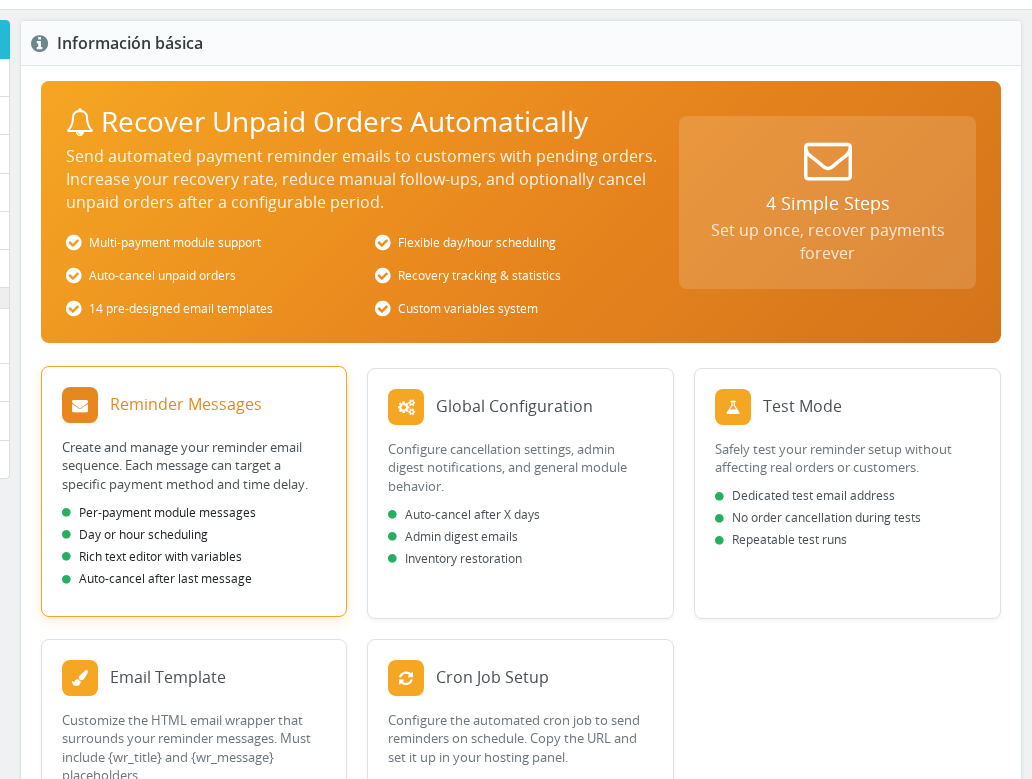
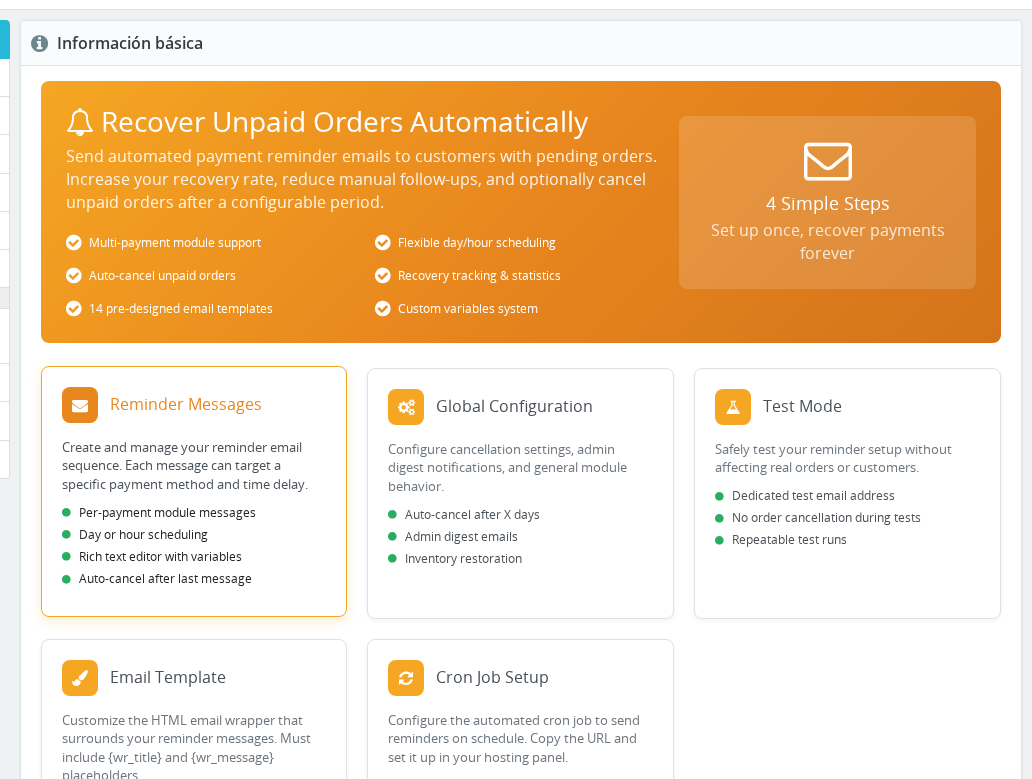
When you first install Order Payment Reminders Pro, a four-step checklist guides you through everything the module needs before it can start sending emails.
Available since v1.2.0
Overview
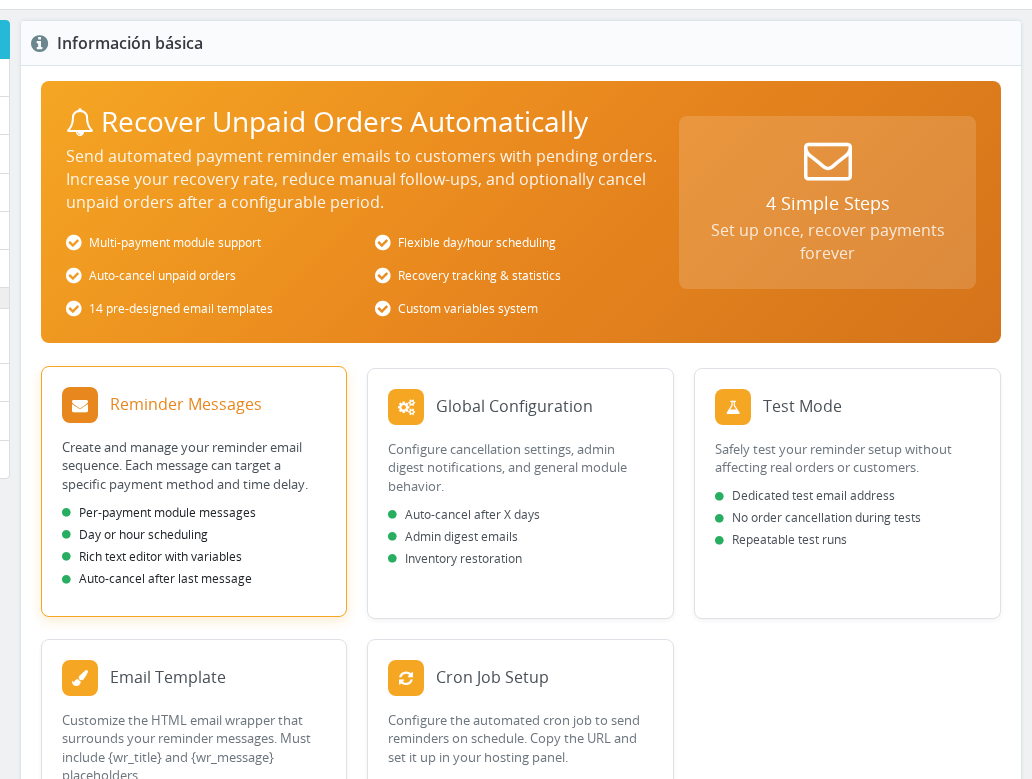
The Module Setup dashboard is the first screen you see when you open the module configuration. It shows a progress bar and a badge counting how many of the four required steps you have completed — for example, "2/4 Steps Complete". Until all four steps are done, the module is inactive and sends no reminders to your customers.
Once all steps are complete, the badge turns green and a status banner confirms "Module is active and ready to send payment reminders!" From that point on, the dashboard stays accessible as a quick reference. You can reopen any step at any time to adjust settings.
The original setup wizard (v1.1.0) was replaced by this checklist dashboard in v1.2.0. If you are upgrading from a version before 1.2.0, the dashboard appears automatically the next time you open the module configuration.
When to Use This Screen
- First install: Complete all four steps before scheduling the cron job. The module will not send emails until Step 4 (Test and Verify) is done.
- After changing your email host or SMTP settings: Redo Step 4 to confirm emails are still reaching your inbox.
- After adding a new payment method to your store: Reopen Step 2, tick the new payment module, and save.
- After switching email template style: Reopen Step 1, select a different preset, and save.
Configuration
The setup checklist has no global configuration toggle — it is the configuration. Work through each step below.
Step 1 — Email Template
This step sets the HTML wrapper that surrounds every payment reminder email. Think of it as the envelope design — your per-message subject and body are inserted inside it.
Status badge: "Required" (orange) until a valid template file is saved; "Configured" (green) after saving.
- Click the Step 1: Email Template header to expand it.
- Choose one of the four options from the Select a pre-designed template or customize your own dropdown:
| Option | Description |
|---|---|
| Minimal — Clean and simple | Plain table layout, no decoration. Works with all email clients. |
| Professional — Business style | Bordered layout with a grey header bar and footer. Good for formal stores. |
| Friendly — Warm and personal | Cream background, serif font, warm footer line. |
| Custom — Start from scratch | Opens a blank editor so you can write your own HTML. |
- After selecting a preset, the editor loads the HTML for that style. Review and edit colors, fonts, or layout as you wish.
- The template must contain
{wr_title}and{wr_message}exactly as written. Saving fails with an alert if either placeholder is missing. - Click Save Template. The page reloads and Step 1 shows the green "Configured" badge.
{wr_title}is replaced at send time with the subject of that specific reminder.{wr_message}is replaced with the body you write when creating a message in Step 3.
If you choose Custom, the editor opens empty. Paste your own HTML and include both required placeholders before saving.
Step 2 — Payment Modules
This step tells the module which payment methods should trigger reminders. Only orders placed using one of the selected payment modules will receive emails.
Status badge: "Required" (orange) until at least one module is saved; "Configured" (green) after saving.
- Click the Step 2: Payment Modules header to expand it.
- You see a checkbox for every payment module currently installed in your store.
- Tick every payment method whose unpaid orders should receive reminders. For most stores, this is the Bank Wire module. If you also use a custom invoice payment module, tick that one too.
- Click Save Payment Modules. The page reloads and Step 2 shows the green "Configured" badge.
You can select more than one payment module. Each individual reminder message you create later can be filtered further to apply to one specific payment module or to all selected ones.
If a payment module is installed but not ticked here, orders from that module are completely ignored — no reminders, no auto-cancellation.
Step 3 — Create Messages
This step creates at least one reminder message. A message defines the timing (how many days or hours after the order), the subject, the body, and whether the order should be cancelled after this message is sent.
Status badge: "Required" (orange) until at least one message exists; shows the message count in green once at least one is saved.
You have two paths:
Option A — Use a pre-written template
The step shows three categories of ready-made message templates:
| Category | Purpose |
|---|---|
| Gentle Nudge | Friendly first reminders, low pressure. |
| Persistent Follow-up | Second or third reminders for orders that have not responded. |
| Urgent / Final | Last-chance messages sent shortly before automatic cancellation. |
Select a template from the dropdown in any category to load it into the message creation form automatically.
Option B — Create from scratch
Click Create New Message. This takes you to the message form where you set the timing, subject, body, and cancellation flag for that specific reminder.
Once at least one message exists, the page reloads and Step 3 shows the message count badge (for example, "3 messages").
You can add more messages at any time after setup. A typical sequence is three messages: one at 2 days, one at 5 days, and a final warning at 8 days with auto-cancellation enabled.
Step 4 — Test and Verify
This step sends a real email through your store's mail system to confirm delivery is working. You click a verification link inside that email, and the module marks itself as verified and active.
Status badge: "Locked" (grey) while Steps 1–3 are incomplete; "Required" (orange) once Steps 1–3 are done; "Verified" (green) after you click the link in the test email.
- Complete Steps 1, 2, and 3 first — Step 4 is locked until all three are done.
- Click the Step 4: Test and Verify header to expand it.
- In the Email address field, enter an email address you can check immediately. Your shop admin email is pre-filled.
- Click Send Test Email. The button disables itself while sending.
- Check your inbox for the subject line "Test Email - Order Payment Reminders". Open the email.
- Click the Verify Email Delivery button inside the email. This takes you to a confirmation page on your store's front end.
- Return to the Back Office and refresh the module configuration page. Step 4 now shows the green "Verified" badge, and the overall status alert reads "Module is active and ready to send payment reminders!"
The verification link expires after 24 hours. If you do not click it in time, return to Step 4 and send a new test email to generate a fresh link.
If the test email never arrives, check your store's mail settings under Advanced Parameters > Email. The module uses the same mail configuration as all other PrestaShop transactional emails.
How It Works
Setup Completion Logic
The module checks all four conditions in real time. Each time you open the configuration page, it reads whether the template file exists and contains both required placeholders, whether at least one payment module is saved, whether at least one reminder message exists in the database, and whether the verification flag is set. All four must be true before the dashboard shows the "Module is active" status.
The dashboard appears automatically whenever any of these conditions is unmet — regardless of whether you have visited the configuration before. If you delete all your reminder messages, for example, the dashboard reappears the next time you open the module.
After Setup Is Complete
Once all four steps are verified, two things change:
- The progress badge at the top reads "4/4 Steps Complete" with a green background.
- The status alert changes to "Module is active and ready to send payment reminders!"
The Recovery Statistics panel appears below the setup checklist once the module has processed orders. Before any data is available, the panel shows a placeholder message. When statistics are available, you will see:
| Statistic | Description |
|---|---|
| Orders Reminded | Unique orders that received at least one reminder in the last 6 months. |
| Orders Recovered | Orders that were later paid after receiving a reminder. |
| Revenue Recovered | Total value of those recovered orders, in your shop currency. |
| Recovery Rate | Orders Recovered ÷ Orders Reminded × 100. Shown in green above 20%, orange below. |
A monthly breakdown table shows the same figures per calendar month.
Legacy Wizard Compatibility
If the wr_first flag is still set to 1 (stores that were set up before v1.2.0 and never completed the old wizard), the module continues to show the legacy wizard for backward compatibility. Clicking Skip Wizard sets wr_first to 0 and reloads the page, which then displays the modern dashboard.
Usage Examples
Example: Brand-new store with bank wire payments
Install the module and open its configuration. The dashboard shows 0/4 Steps Complete. Select the "Professional" template in Step 1 and click Save Template. In Step 2, tick Bank Wire (ps_wirepayment) and click Save Payment Modules. In Step 3, select the "Gentle Nudge" template from the dropdown to create your first reminder at 3 days. Click Create New Message and save it. In Step 4, enter your email address and send the test email. Click the verification link. The dashboard shows 4/4 Steps Complete and you are ready to schedule the cron job.
Example: Adding a second payment method later
After adding a new invoice payment plugin to your store, you notice it does not trigger reminders. Return to the module configuration — the dashboard is still showing 4/4 because your existing payment module is still selected. Click the Step 2 header, tick the new invoice payment module in addition to the existing ones, and click Save Payment Modules. No other steps need to change.
Example: Recovering after an email server migration
After migrating to a new mail server, you want to confirm reminders still deliver. Open the module configuration. Even though the dashboard shows 4/4, click the Step 4 header, enter your email, and click Send Test Email. Click the new verification link. The verified state is refreshed and you can be confident emails are reaching customers.
Important Notes
- Steps must be completed roughly in order — Step 4 is gated and cannot be clicked until Steps 1–3 are all showing green.
- The dashboard is per-shop in a multi-shop setup. Each shop's configuration must be completed independently when using multi-shop mode.
- Deleting all reminder messages causes the dashboard to reappear on the next page load, as Step 3 is no longer satisfied.
- The
wr_firstflag (the old wizard flag) and thewr_setup_completekey coexist. On fresh installs after v1.2.0, the dashboard is the only flow you will see. On upgrades, both flags may be present but the dashboard logic takes precedence.
Troubleshooting
| Problem | Solution |
|---|---|
| Step 4 shows "Locked" even though I finished Steps 1–3 | Reload the page. All three prior steps must show the green badge. If Step 2 still shows "Required", click Save Payment Modules again with at least one module ticked. |
| Test email never arrives | Go to Advanced Parameters > Email in your Back Office and send a test from there. If that also fails, your SMTP or hosting configuration is blocking outgoing mail. Fix the mail settings before returning to Step 4. |
| Clicked the verification link but Step 4 still shows "Required" | The link may have expired (valid for 24 hours). Return to Step 4, send a new test email, and click the fresh link. |
"Template must contain {wr_title} and {wr_message} placeholders" alert when saving | The template text area is missing one or both required placeholders. Search for {wr_title} and {wr_message} in the editor and add them if absent. |
| Saved the template but badge still shows "Required" after reload | The template file could not be written to disk. Check that modules/wiretransferreminder/mails/template/ is writable by the web server user. |
| Verification link gives a "page not found" error | The link uses your store's friendly URL system. Make sure .htaccess is in place and front-office friendly URLs are enabled under Preferences > SEO and URLs. If your store is in maintenance mode, temporarily disable it while clicking the link. |
| Recovery statistics show zero even though reminders were sent | Statistics count only orders where the payment status changed to a paid state after a reminder was sent. Orders paid before the reminder was delivered are not counted as recoveries. |
Frequently Asked Questions
Can I change the email template after setup is complete?
Yes. Open the module configuration, click the Step 1: Email Template header, select a new preset or edit the existing HTML, and click Save Template. The change applies to all future reminder emails immediately and does not affect messages you have already created.
What happens if I skip Step 4 and activate the cron job anyway?
The cron endpoint does not block on the verification flag — it will attempt to send reminders regardless. If no messages exist yet, nothing is sent. Complete all four steps before scheduling the cron to avoid sending misconfigured emails.
Does changing the email template affect messages I have already created?
No. The template is only the outer visual wrapper. Existing messages keep their own subject and body. Only the design container around them changes.
Can I use a completely custom HTML design for the template?
Yes. Choose Custom — Start from scratch from the template dropdown, paste your own HTML into the editor, and save. The only requirement is that your HTML includes {wr_title} and {wr_message} somewhere in the body.
I selected the Professional template but want to change the header color. Is that possible?
Yes. After selecting Professional from the dropdown, the HTML loads into the editor. Find the background color in the style attributes and replace it with any valid CSS color value. Save as usual.
How do I reset the verification state if something went wrong during first setup?
Open the module configuration and redo Step 4 — click the Step 4 header, send a new test email, and click the fresh verification link. Each save in any step overwrites the previous value, so there is no need to uninstall and reinstall the module.
The dashboard keeps reappearing even though I completed all four steps before.
The module checks all four conditions live each time the configuration page loads. The most common cause is that all reminder messages were deleted (Step 3 fails) or the template file was removed or corrupted (Step 1 fails). Check each step's badge to find which condition is no longer met.