Creating and Editing Reminder Messages
Reminder messages are the individual emails your store sends to customers who have not yet paid for their order.
Available since v1.0.0
Each message has its own schedule, content, and optional cancellation trigger.
Overview
Order Payment Reminders Pro works by running a daily process (via cron) that scans your unpaid orders and matches each one to the appropriate reminder based on how much time has passed since the order was placed. You define as many messages as you need — a gentle nudge at day 2, a follow-up at day 5, a final warning at day 9, and so on.
Each reminder message is independent. You control:
- When it fires — a number of hours or days after the order is created.
- Which payment method it applies to — so customers who paid by bank transfer receive different emails than those who used another offline method.
- What it says — a translatable subject and rich-text body, with variables pulled from the order.
- Whether it cancels the order — optionally, the cron run that sends this message also cancels the unpaid order at the same moment.
Messages are stored in the database and listed in chronological order in the Back Office, so you can always see your full sending sequence at a glance.
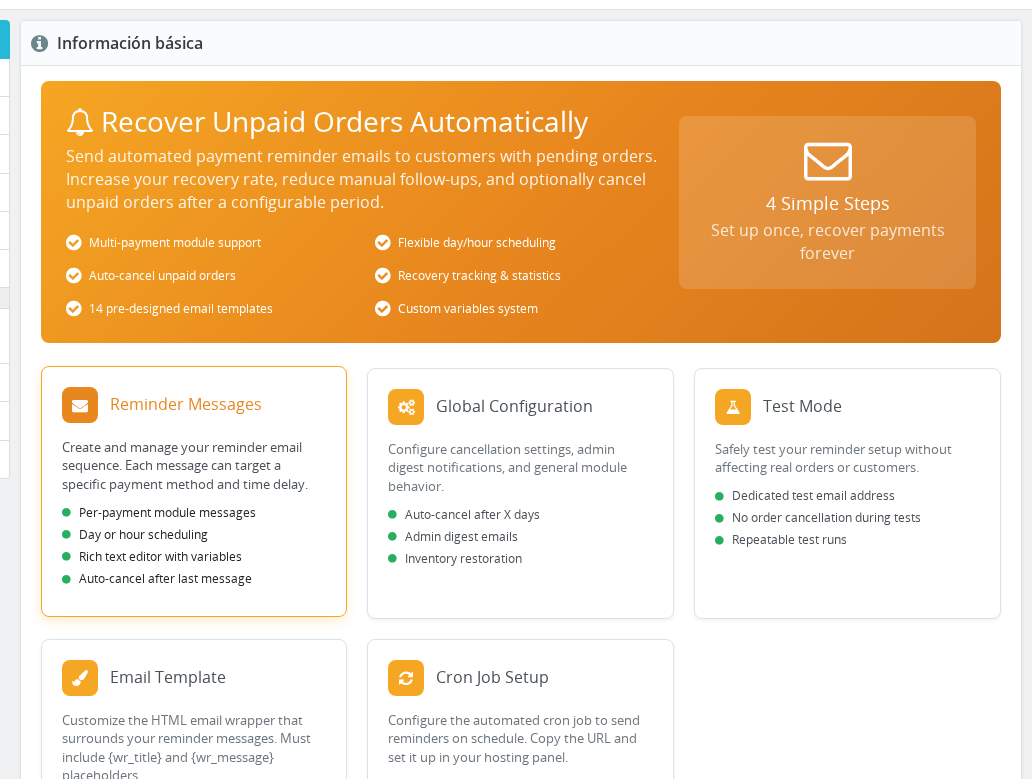
Configuration
Add a new message
- Go to Modules > Module Manager, find Order Payment Reminders Pro, and click Configure.
- Scroll to the Messages panel and click Add new Message.
- The message form opens with three sections: Scheduling, Email Content, and Advanced Options.
Scheduling section:
| Field | Values | Required | Description |
|---|---|---|---|
| Payment Module | Dropdown | Yes | Which payment method this message applies to. Populated from orders in your store. If no orders exist yet, defaults to bankwire and ps_wirepayment. Each message targets exactly one payment method. |
| Time unit | Days / Hours | Yes | Whether the number below is in calendar days or hours. |
| Time after the order is created | Whole positive number | Yes | How long after the order is placed before this reminder fires. Must be 1 or more. Decimals are not accepted. |
Email Content section:
| Field | Values | Required | Description |
|---|---|---|---|
| Use a template | Dropdown (14 options) | No | Pre-fills the subject and body from a pre-written template. Only shown when creating a new message — not available when editing. Grouped into: Gentle Nudge, Persistent Follow-up, and Urgent / Final. |
| Email subject | Plain text, per language | Yes (active languages) | Subject line of the reminder email. Must be filled for every active language. Supports variables — see Email Template Variables. |
| Message to send | Rich-text editor, per language | Yes (active languages) | HTML body of the reminder email. The TinyMCE editor loads automatically. Must be filled for every active language. Supports variables. |
Advanced Options section:
| Field | Values | Default | Description |
|---|---|---|---|
| Cancel the order after this message | On / Off | Off | When enabled, the cron run that sends this message will also change the order status to Cancelled and restore stock. |
- Click Save. You are returned to the Messages list and a confirmation is shown.
If you try to save a message with the same payment module, time unit, and schedule as an existing one, the module will show a duplicate-schedule error. Each combination must be unique per payment method.
Edit an existing message
- In the Messages list, click the Edit (pencil) icon on the row you want to change.
- The same form opens, pre-filled with the current values.
- Make your changes and click Save.
The subject and body are stored per language and per shop. If your store has multiple active languages, the form shows a language tab for each one. You must fill in the subject and body for every active language before saving.
Toggle "Cancel Order" without opening the form
Click the toggle in the Cancel Order column directly from the list. The page reloads and confirms the change. No need to open the edit form.
Delete a message
Click the Delete (trash) icon on the row and confirm when prompted. You can also select multiple messages with the checkboxes and use Delete selected from the bulk-actions menu at the bottom of the list.
Deleting a message is permanent. The cron job stops sending it immediately on the next run. Historical data about which orders received that message is not affected.
How It Works
How the cron engine picks the next message to send
When the cron runs, it calculates how many hours have elapsed since each unpaid order was created. For each order it then finds the message with the highest time threshold that does not exceed the elapsed time and has not yet been sent to that order.
For example: if you have messages at day 2, day 5, and day 9, and an order is now 6 days old with no messages sent, the cron sends the day-5 message. The day-2 message is skipped — it does not back-fill.
Once a message is sent, the order's record is updated so the same message is not sent again. On the next cron run, the engine moves on to the next threshold.
How "Days" vs "Hours" works
When you choose Days, the schedule number is multiplied internally by 24 to convert to hours before comparison. When you choose Hours, the number is used as-is. This means "2 days" is treated identically to "48 hours" — both resolve to a 48-hour threshold.
Per-payment-method sequences
Each message is linked to exactly one payment method. The cron engine reads the payment method recorded on the order and only sends messages belonging to that method. If you have bank wire customers and cash-on-delivery customers, create separate message sequences for each.
The dropdown for payment method is built from the module column of your existing orders. If you have just installed the module and have no orders yet, two default options appear: bankwire and ps_wirepayment. As real orders flow in, the list expands to include every payment method that has processed an order in your store.
What happens when cancel order is enabled
When the cron sends a message that has Cancel the order after this message turned on, it immediately cancels the order and restores stock in the same run. This is separate from the global auto-cancel setting, which cancels orders independently of whether a reminder was sent. Both mechanisms can coexist.
Usage Examples
Example: A 3-step sequence for bank wire
This setup sends a friendly reminder on day 2, a firmer follow-up on day 5, and a final cancellation notice on day 9 that automatically closes the order.
| # | Payment module | Time unit | Schedule | Cancel order |
|---|---|---|---|---|
| 1 | bankwire | Days | 2 | No |
| 2 | bankwire | Days | 5 | No |
| 3 | bankwire | Days | 9 | Yes |
For the third message, use {daysleft} and {hoursleft} in the subject to make the urgency concrete: "Your order will be cancelled in {daysleft} days". Add the {urgency_banner} variable to the body for a color-coded countdown block that changes color as the deadline approaches.
Example: A single reminder just before global auto-cancel
If your global auto-cancel is set to 7 days and you want one warning at the 6-day mark:
| # | Payment module | Time unit | Schedule | Cancel order |
|---|---|---|---|---|
| 1 | bankwire | Days | 6 | No |
Leave Cancel the order after this message off — the global auto-cancel handles cancellation at day 7. This message is purely informational and gives the customer one last chance to act.
Example: Tight hour-based reminders for a 48-hour payment window
Some stores accept offline payments with a 48-hour deadline. Hour-based scheduling gives finer control:
| # | Payment module | Time unit | Schedule | Cancel order |
|---|---|---|---|---|
| 1 | bankwire | Hours | 12 | No |
| 2 | bankwire | Hours | 36 | No |
| 3 | bankwire | Hours | 48 | Yes |
The cron runs once per day by default. If you use hour-based scheduling, the resolution is still one check per day unless you configure your cron to run more frequently — for example every hour.
Important Notes
-
Unique schedule constraint. The combination of payment module, time unit (days/hours), and schedule number must be unique per payment method. You cannot have two messages for
bankwireboth set to "2 days". The module shows a duplicate-schedule error if you try. -
Chronological display. The Messages list sorts by total hours, so your sequence always appears in sending order regardless of the order you created the messages.
-
Multi-language. Subject and body are stored per language and per shop. If you add a new active language to your store later, edit each message to fill in the new language fields. Inactive languages may have blank content.
-
Multi-shop. In a multi-shop setup, language content (subject and body) is saved for the active shop context. Scheduling settings (timing, payment module, cancel flag) are shared across all shops. Switch to the correct shop in the Back Office header before editing message content if you need shop-specific copy.
-
Test mode. When test mode is active, the cron sends all emails to the test address only and does not update the tracking record or cancel any orders. This means you can trigger the cron repeatedly and the same messages fire each time. Disable test mode before going live.
-
Template selector. The pre-written template chooser only appears on the new-message form. On an existing message's edit form it is not shown. To apply a different template to an existing message, paste the template content manually or delete and recreate the message.
-
Cron frequency. The cron processes each order once per run and advances it to the next threshold. For hour-based schedules to behave as intended, your cron should run at least as often as your smallest hour interval.
Troubleshooting
| Problem | Solution |
|---|---|
| "Time unit and time after order creation matches with the message id X" error when saving | You already have a message with the same payment module, time unit, and schedule. Change the schedule number, or edit the conflicting message instead. |
| Subject or message field shows an error about an empty language | All active languages must have a subject and body. Click each language tab in the form and fill in the missing fields. |
| Payment module I need is not in the dropdown | The dropdown is built from real orders. Place a test order using that payment method (it can be cancelled afterwards) to make it appear in the list. |
| A message is not being sent by the cron | Confirm the schedule is correct and that you are not in test mode. Also verify the cron job is actually running — see Cron Setup. |
| Edited message is not picked up for orders that already received earlier messages | This is expected. The engine skips a threshold if the order's tracking record already shows a message at or beyond that threshold. The updated content will be used the next time the order advances to a new threshold. |
| "Only HTML and CSS is allowed" error when saving the message body | The TinyMCE editor has accepted content with disallowed tags (script, iframe, etc.). Switch to source view in the editor and remove those tags. |
| Deleted a message but orders still seem to be skipping it | The engine skips deleted thresholds and moves straight to the next one that exists. Confirm the deletion by checking the Messages list — deleted messages disappear immediately. |
Frequently Asked Questions
Can I have different reminder sequences for different payment methods?
Yes. Each message is linked to exactly one payment method. Create a separate set of messages for each payment method you accept — the cron engine sends the correct sequence based on how the customer paid.
What happens to a sequence if I delete one of the messages in the middle?
The cron engine picks the message with the highest elapsed-time threshold that has not yet been sent. If you delete the day-5 message, an order waiting for it will receive the day-9 message when that time arrives. The deleted step is skipped entirely — no back-filling occurs.
Does the "Cancel the order after this message" flag replace the global auto-cancel setting?
They are independent. The global auto-cancel (in General Settings) cancels orders after a fixed number of days regardless of which reminder was last sent. The per-message cancel flag cancels the order at the same moment this specific message is dispatched. You can use one, both, or neither.
Can I set a message to fire at 0 days or 0 hours?
No. The schedule must be a whole positive number greater than zero. The earliest a message can fire is 1 hour after order creation.
How does the module decide which message to send if the cron runs less often than every hour?
The engine calculates total elapsed hours since the order was created and finds the highest-threshold message that has not yet been sent. If the cron runs daily and you have messages at day 2 and day 5, an order that is now 6 days old with no messages sent will receive the day-5 message. For hour-based schedules, configure your cron to run hourly for best results.
I have two active languages. Do I need to create separate message records for each language?
No. One record covers all languages. The form shows a language tab for each active language, and you fill in the subject and body for each. The module sends the email in the customer's own language automatically.
Will changes to an existing message affect orders that already received earlier messages in the sequence?
Yes. The module looks up the current content of the next message at send time. If you update the body of message 3 today, any order that receives message 3 tomorrow gets the updated version.
Can I use the same schedule number with Days and Hours for the same payment module?
Yes. "5 days" and "5 hours" are treated as different entries because the time unit differs, so both can exist for the same payment method. What you cannot have is two "5 days" records for the same payment method.
Related Features
- Email Templates — Customize the outer HTML wrapper that wraps every reminder email.
- Email Template Variables — Full reference of all
{variables}you can use in subjects and message bodies. - Auto-Cancel Orders — Global setting that cancels unpaid orders after a fixed number of days, independent of individual message cancel flags.
- Test Mode — Send all reminders to a test address before going live.
- Cron Setup — Configure the daily (or hourly) cron job that triggers the sending process.