Multi-shop and Multi-language Setup
Order Payment Reminders Pro stores reminder content, custom variables, and email templates separately for each shop and each language, so your customers always receive a reminder written in their own language from the correct shop.
Available since v1.0.0
Overview
Every reminder message you create has a subject line and a body for each active language in your PrestaShop installation. When the daily cron job runs, it looks up the language the customer used at checkout and sends the matching version of the message. If no translation exists for that language, the reminder is skipped for that order — so it is important to fill in every active language before going live.
Custom variables follow the same per-shop pattern: a variable named {bank_details} in your Spanish shop can hold different content from the same variable in your French shop. This lets each shop include its own bank account numbers, contact addresses, or any other shop-specific text without creating separate reminder messages.
Global settings — such as test mode, auto-cancel rules, the cron security key, and the email template wrapper — are shared across all shops in your installation. You configure them once and they apply everywhere.
The shop context you are working in when you open the module configuration page determines which shop's data you see and edit. Working in the wrong shop context is the most common source of confusion in multi-shop setups.
Configuration
Switch to the correct shop context
Before configuring messages or variables for a single shop, make sure you are in that shop's context:
- Log in to your Back Office.
- Use the shop selector in the top bar (the dropdown labelled with your shop name or "All Shops").
- Select the specific shop you want to configure — not a shop group, and not All Shops.
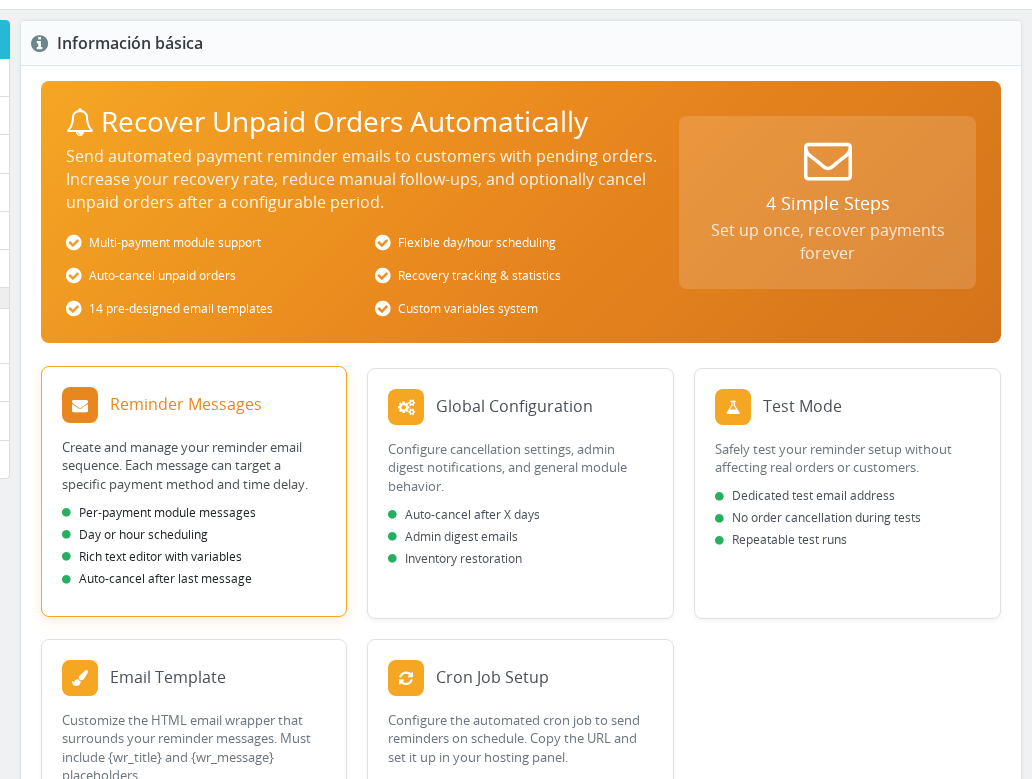
- Go to Modules > Module Manager and click Configure on Order Payment Reminders Pro.
Any reminder messages you create or edit, and any custom variables you add, are stored against the shop that is active when you save. If you are in "All Shops" context, message content is written to all shops in the current shop group. Always check the shop selector before saving.
Translate a reminder message
Each reminder message form contains a language tab bar above the Subject and Message fields. Clicking a language flag or name switches the field to that language without losing content you have already entered for other languages.
- Open the module configuration page in the correct shop context.
- Click Add new message or click the Edit icon on an existing reminder.
- The form opens with the default Back Office language selected.
- Fill in Subject and Message for that language.
- Click a different language tab — for example, ES for Spanish.
- Fill in the Spanish Subject and Message.
- Repeat for every other active language shown in the tab bar.
- Click Save.
The module requires a non-empty subject and a non-empty message body for every active language. If you leave either field blank for an active language, saving is blocked with the error: "Can't save. The email subject for [language] is empty." Inactive languages may have blank content.
Translate the email template
The HTML email wrapper — the outer layout that surrounds every message — is also per-language and is configured in the Email Template tab of the configuration panel.
- Go to Modules > Module Manager > Order Payment Reminders Pro > Configure.
- Click the Email Template tab.
- A language tab bar appears above the editor area. Select the first language tab and edit the template.
- Switch to each additional language tab and provide the translated wrapper.
- Click Save.
The template is saved as an HTML file on disk at mails/{iso_code}/wiretransferreminder.html — for example, mails/en/wiretransferreminder.html for English and mails/es/wiretransferreminder.html for Spanish.
Always keep the placeholders
{wr_title}and{wr_message}in every language version of the template. Removing them causes the subject and body of the reminder to disappear from the sent email.
Configure custom variables per shop
Custom variables are stored with the shop ID, so each shop maintains its own set. To set up per-shop variables:
- Confirm the shop selector shows the correct shop.
- Go to the Custom Variables section of the module configuration.
- Add or edit variables. Each save writes to the currently active shop.
- Switch to a different shop in the shop selector and repeat for any variables that differ between shops.
If two shops share identical variable values you still need to add the variable separately for each shop. Variables are never automatically copied between shops.
Settings: global vs per-shop
| Setting | Config key | Scope | Notes |
|---|---|---|---|
| Cron security key | wr_cron_key | Global | One key for the entire installation. Changing it invalidates all existing cron URLs across all shops. |
| Admin directory cache | wr_admin_dir | Global | Cached automatically. Used by the cron controller to generate correct Back Office URLs in cron context. |
| Cancel orders | wr_cancel_orders | Global | Enables or disables the auto-cancel feature for all shops. |
| Cancel after N days | wr_cancel_days | Global | The number of days before an unpaid order is cancelled. Applies to all shops. |
| Test mode on/off | wr_test_mode | Global | Enabling test mode affects all shops. Disable it before going live. |
| Test mode output | wr_test_mode_output | Global | Whether test output is echoed to screen. |
| Test email address | wr_test_email | Global | Receives all test emails regardless of which shop the order belongs to. |
| Admin digest on/off | wr_admin_digest | Global | The admin digest feature is global — one setting covers all shops. |
| Admin digest email | wr_admin_digest_email | Global | The recipient address for the daily digest. |
| Admin digest hours | wr_admin_digest_hours | Global | Hours before cancellation at which an order is included in the digest. |
| Admin digest last sent | wr_admin_digest_last_sent | Global | Throttle timestamp. Updated globally when any digest is sent. |
| Setup wizard flag | wr_first | Per-shop | Tracks whether the setup wizard has been completed for this specific shop. |
| Email template HTML | wr_email_template | Global (file on disk) | Stored as a file per language ISO code, shared by all shops on the same server. |
| Payment modules list | wr_payment_modules | Global | Which payment methods trigger reminders. Changing this affects all shops. |
| Reminder schedule and type | wr table | Shared across shops | Timing rules (days/hours, payment module, cancel flag) are stored once and apply to all shops. |
| Reminder subject and body | wr_lang table | Per shop + per language | Content is stored per (id_wr, id_lang, id_shop). Each shop and language combination holds its own copy. |
| Custom variables | wr_variables table | Per shop | Variable name, type, and value are each stored with id_shop. |
The reminder structure — when it fires, which payment method, whether it cancels the order — is shared across all shops. What differs per shop is the message content: what the email actually says in each language. Keep this distinction in mind when planning your reminder sequence.
How It Works
How emails are dispatched in a multi-shop setup
When the cron job runs, it fetches pending orders and reads the id_shop and id_lang columns from each order. The email is sent using that shop's ID so that PrestaShop uses the correct sender address, shop name, and logo for that shop.
The message content (subject and body) is retrieved from the wr_lang table where id_wr, id_lang, and id_shop all match the order. If no row exists for the order's language and shop combination, the reminder is skipped for that order.
Email template files are shared on disk
The template file used for a given email is always mails/{iso_code}/wiretransferreminder.html on the server. Because these files are stored on disk and not in the database, all shops on the same PrestaShop installation share the same template files. Editing the template in any shop context overwrites the file for all shops.
One cron job covers all shops
You do not need a separate cron job for each shop. The single cron URL processes pending orders for every shop in the installation. The cron key is global, so one URL works for the entire setup.
Language fallback behavior
There is no automatic fallback to the default language. If a customer places an order in a language for which you have not provided a translation, that reminder is simply not sent for that order. This is intentional — an untranslated email could confuse the customer more than receiving nothing.
Usage Examples
Example: Two shops with different bank details
You run a Spanish shop and a French shop. Both accept bank transfer payments. You want each reminder to include the correct bank account for each country.
- Switch to the Spanish shop in the shop selector.
- Go to Custom Variables and add a variable named
bank_detailswith the Spanish bank account text. - Switch to the French shop.
- Add the same variable name
bank_detailswith the French bank account text. - In the reminder message body for each shop, include
{bank_details}where you want the bank information to appear.
Each shop sends emails with its own bank account details without needing separate reminder messages.
Example: Three languages, one shop
Your single shop serves English, German, and Spanish customers. All three languages are active in PrestaShop.
- Open the reminder message edit form.
- Write the English subject and body under the EN tab.
- Click the DE tab and write the German version.
- Click the ES tab and write the Spanish version.
- Click Save.
When an order comes in, the cron sends the email in whichever language the customer used at checkout. A customer who checked out in German receives the German version automatically.
Example: Updating all shops in a group at once
If you need to apply the same reminder content to every shop in a shop group — for example, after a policy change that affects all stores — you can use the group context:
- Switch the shop selector to the shop group (not All Shops and not a single shop).
- Open the module configuration and edit the reminder message.
- Save. The content is written to every shop in that group.
Use this carefully. Any shop-specific translations already saved for individual shops in the group will be overwritten.
Important Notes
- Reminder timing rules — the
wrtable fields for schedule, payment module, and the cancel flag — are not per-shop. A reminder configured to fire after 3 days fires for all shops on the same schedule. - If a language is active in PrestaShop, you must provide a non-empty subject and body for that language in every reminder message. There is no automatic fallback to the default language.
- The cron URL and security key are global. One cron job processes all shops — you do not need multiple cron jobs.
- The admin digest email is sent in the default language of the shop context at the time the cron runs, based on
PS_LANG_DEFAULT. - On a single-shop installation everything behaves as per-shop, and the multi-shop distinction does not apply in practice.
Troubleshooting
| Problem | Solution |
|---|---|
| Customers of one shop receive reminders, but customers of another shop do not | Check that the reminder messages have subject and body filled in for all active languages in the second shop. Open the module in that shop's context and inspect each reminder's language tabs. |
| Saving a reminder fails with "The email subject for [language] is empty" | Every active language must have a subject. Switch to the flagged language tab and enter the subject text. If you do not need that language, deactivate it in PrestaShop under International > Translations > Languages — this is a store-level change and affects more than just this module. |
Custom variable {my_var} shows up blank in a shop's emails | The variable was likely created in a different shop context. Switch to the correct shop in the selector, go to Custom Variables, and confirm the variable exists there. If not, add it. |
| All shops are sending the wrong email template design | The HTML template files are shared on disk. Editing the template in any shop context overwrites the file for all shops. Edit the template intentionally for the specific language you need to change. |
| Changes to reminder messages are not appearing for one specific shop | You may have saved while in All Shops or a shop group context. Open the module specifically in the individual shop context, then re-edit and re-save the reminder. |
| Cron sends a reminder in English to a French customer | The wr_lang row for that reminder may be missing or empty for French in that shop. Edit the reminder, switch to the French language tab, confirm the content is there, and re-save. |
Frequently Asked Questions
Do I need to install the module separately in each shop?
No. Install the module once and it is available to all shops. The setup dashboard tracks completion per shop using a per-shop flag, so you will see the setup checklist the first time you open the module in a shop that has not been configured yet.
If I create a new reminder message, does it automatically appear in all my shops?
The timing rule is shared across shops, but the message content (subject and body) is not. After creating the reminder, switch to each shop in the shop selector and fill in the translated content for that shop under the language tabs.
Can I use different cancellation periods for different shops?
No. The auto-cancel setting is global and applies the same number of days to all shops. If you need different cancellation windows per shop, you would need to disable auto-cancel globally and handle cancellations manually.
What happens if a customer's order language has no translation for a reminder message?
The email is not sent for that reminder. There is no automatic fallback to the default language — an untranslated email could confuse the customer more than receiving nothing. Always fill in every active language to avoid gaps.
Does changing the shop context affect the cron key?
No. The cron key is stored globally and is the same regardless of which shop you are viewing. One cron URL works for the entire installation.
Can different shops have different payment modules configured for reminders?
Not at this time. The list of payment modules that trigger reminders is global, so all shops share the same list. Filtering happens at the message content level — each shop can have different content — but not at the payment module level.
I have four active languages but one is rarely used. Do I still need to translate every message for it?
Yes, as long as the language is active in PrestaShop. The simplest solution is to copy the default language content into the unused language tab — saving an identical copy satisfies the validation and ensures the cron does not skip orders placed in that language.
Are email template files (the HTML wrapper) stored per shop or globally?
Template files are stored on disk, one file per language ISO code (mails/en/wiretransferreminder.html, mails/es/wiretransferreminder.html, and so on). Because they are files on a shared server, editing the template in any shop context changes it for all shops. Different wrapper designs per shop are not currently supported through the configuration panel.