Catalogue Match Rate: Making Your Pixel and Catalogue Use the Same Product ID
Imagine a shopper looks at a red T-shirt in your shop, leaves, and the next day sees that same T-shirt in an ad on Instagram. That is what catalogue ads do — and they only work if Meta can connect two things: the product the shopper looked at, and the same product in your catalogue.
Meta connects them with a single label: the product ID. Your shop tells Meta "someone looked at product 42", and Meta looks for product 42 in your catalogue. If it finds it, that is a match.
The match rate is simply how often Meta finds it. A high match rate means your ads can show each person the products they were interested in. A low one means Meta knows someone was interested, but not in what — those visits are lost for retargeting, and your catalogue ads have less to work with.
The good news: in most shops a low match rate comes down to a single setting. This guide shows you how to check yours, find where the IDs differ, and make them match. No code needed.
The short answer
- Meta compares the product ID in your events with the
idof each item in your catalogue, character by character.42and42match.42andPS_42do not. - Pixel Plus can build that ID from two values stored in your shop: the product ID or the product reference. On top of either one it can add a fixed prefix, a fixed suffix and the combination ID.
- Your catalogue has to use one of those same values. If it does, there is always a combination of settings that makes the match rate climb.
- If your catalogue uses IDs that exist nowhere in your shop's database — spreadsheet row numbers, codes made up by a feed tool, IDs from a previous platform — no setting can reproduce them. The catalogue has to be rebuilt from real shop data.
Meta recommends a match rate above 75%, and ideally 90% or higher.
How matching works
Every event that involves a product — ViewContent, AddToCart, InitiateCheckout, Purchase and the others — carries a field called content_ids. Your catalogue, whichever way you build it, gives every item an id field. Meta takes the first and looks for it in the second.

The important part is that both IDs come from the same place: your shop's database. Your pixel does not know what is in your catalogue, and your catalogue does not know what your pixel sends. They agree only because both read the same product and format it the same way.
That is also why "nearly the same" does not help. To Meta, every one of these is a different product:
| In the event | In the catalogue | Result |
|---|---|---|
42 | 42 | Match |
42 | PS_42 | No match — prefix on one side only |
42 | 42-7 | No match — the catalogue lists the combination, the event sends the product |
TSHIRT-RED | tshirt-red | Do not rely on it — Meta asks for an exact match, so keep the same capitals on both sides |
42 | 1001 | No match — and nothing can link them |
What Pixel Plus can send
You choose the ID format in Modules > Module Manager > Pixel Plus for Facebook > Configure, in the Product & Combination Options panel.
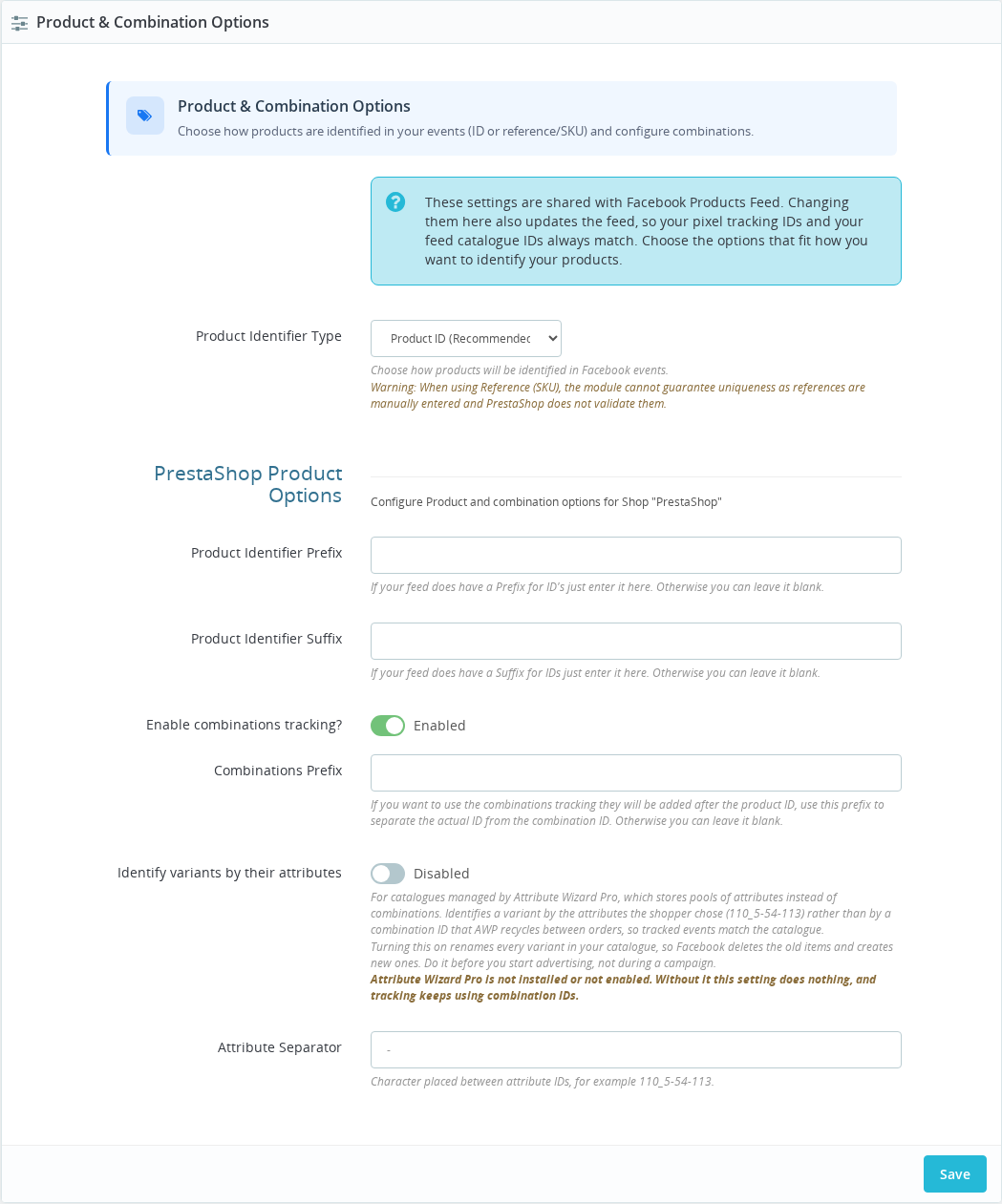
| Setting | What it does |
|---|---|
| Product Identifier Type | Product ID (Recommended) sends PrestaShop's own product number. Product Reference (SKU) sends the Reference field you filled in on the product. |
| Product Identifier Prefix | Fixed text placed before the product ID, for example PS_ turns 42 into PS_42. |
| Product Identifier Suffix | Fixed text placed at the end, for example -FR turns 42 into 42-FR. |
| Enable combinations tracking? | Sends the combination (size, colour…) as its own item instead of the parent product. |
| Combinations Prefix | The separator between the product ID and the combination ID, for example - gives 42-7. |
This is exactly the list of IDs the module can produce for a product with ID 42, reference TSHIRT-RED and combination 7:

How the pieces combine:
| Mode | Simple product | Combination (with combinations tracking on) |
|---|---|---|
| Product ID | prefix + 42 + suffix | prefix + 42 + separator + 7 + suffix |
| Product Reference | TSHIRT-RED + suffix | the combination's own reference + suffix |
If you track combinations, give the separator a value such as -. Without one, product 1 with combination 1 becomes 11 — the same ID as product 11, and Meta cannot tell them apart.
Two details of Reference mode matter when you compare IDs:
- The prefix is not used when a product has a reference. Only the suffix is added.
- A product with an empty reference falls back to the ID format. A combination without its own reference falls back to
prefix+ product ID + separator + combination ID. These fallbacks keep the event valid, but they will not match a catalogue built on references. Reference Diagnostics lists every product and combination in that situation.
From Pixel Plus 2.9.0 and Products Feed 2.7.0, both modules read and save the same identifier settings. Change the identifier type, prefix, suffix or combinations option in either module and the other one follows. The pixel's content_ids and the feed's <g:id> cannot drift apart.
What no setting can fix
This is the most common reason for a match rate that will not move, so it is worth being clear about it.
Pixel Plus can only send values that exist in your shop: the product ID and the product reference, with fixed text added before or after. It cannot send a value that is not stored anywhere in PrestaShop, because there is nothing to read it from.
Catalogues end up with that kind of ID in a few typical ways:
- The catalogue was built by hand in a spreadsheet, and the
idcolumn is the row number (1,2,3…) or a numbering someone typed in. - A feed tool or app generated its own codes for each product instead of using yours.
- The catalogue was created on a previous platform and kept its old IDs after you moved to PrestaShop.
- The IDs were renumbered — for example a product re-created in PrestaShop got a new ID, but the catalogue still has the old one.
In all of these, the ID in the catalogue has no relation to the product in your database, so no prefix, suffix or mode can turn 42 into 1001.
Rebuild the catalogue so that its id column uses your product ID or your product reference — exactly as stored in PrestaShop. Then set Pixel Plus to the same option. The quickest way is to generate the catalogue from your shop with Products Feed, which uses the same settings as the pixel automatically.
Step by step
1. Read your match rate in Commerce Manager
- Open Meta Commerce Manager and select your catalogue.
- Go to the Catalogue tab, then Events.
- Your connected pixel (Meta calls it a dataset) is listed with its match rate. Click View for the details.
- Click each event — ViewContent, AddToCart, Purchase — to see its own rate.
Meta calculates the figure over the last 28 days with a delay of about 48 hours. Under Critical issues and Warnings you will find what Meta thinks is wrong, and Download issues report gives you example content IDs it could not find in your catalogue. Keep that report open: those examples are the quickest way through the next steps.
If the Events screen is empty, your pixel is not connected to the catalogue yet. Click Manage connections, switch on your pixel under Datasets and save. You need full control of both the catalogue and the pixel. The first figures appear after up to 48 hours.
2. Find the ID your catalogue uses
You need the id of one specific product as Meta has it. Pick a product you know well and look it up in either of these places:
- In Commerce Manager: open Catalogue > Items, search for the product and open it. Its ID (labelled Content ID) is the value Meta compares against.
- In your feed file: open the feed URL in your browser, press Ctrl+F (Cmd+F on a Mac) and search for the product's name. The ID is in the
<g:id>line of the same item — or in theidcolumn if your feed is a CSV or a spreadsheet.
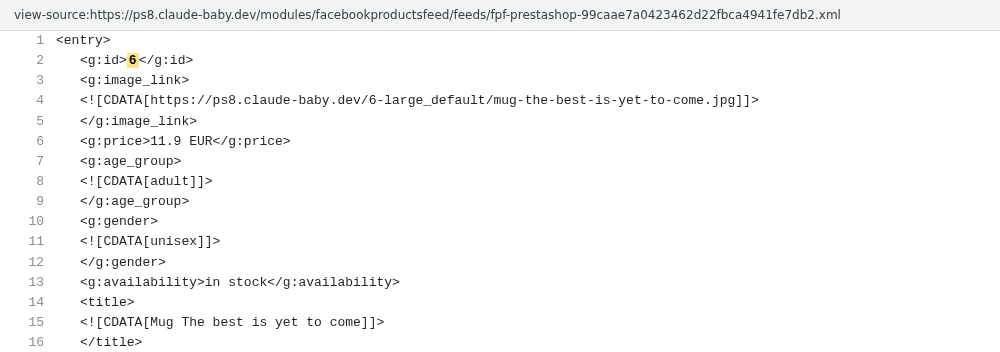
With Products Feed, the feed URL is shown on the module's dashboard. If the item has a <g:item_group_id> line, it is a combination: <g:id> is the combination's ID and <g:item_group_id> is the parent product's.
3. Find the same product in your shop
Now look at what your shop has stored for that product. Go to Catalogue > Products in your back office. The list shows the ID and the Reference of every product.
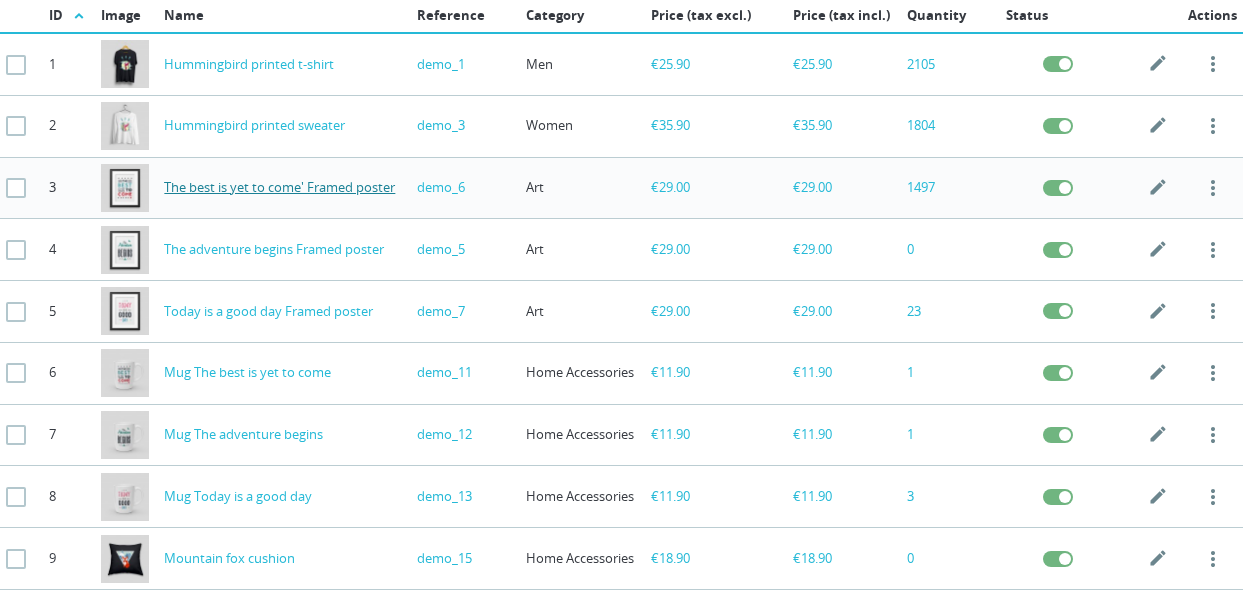
Write down both values for the product you picked in step 2. If it is a combination, open the product and look at the Combinations tab: each combination has its own ID and its own reference field.
4. Find the ID your pixel sends
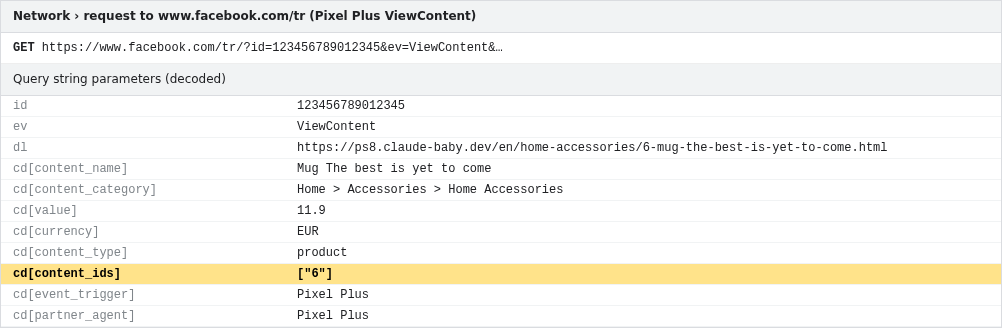
Open the same product page in your shop and check what the ViewContent event carries. Any of these works:
- Meta Ads Data Advisor (the Chrome extension formerly called Meta Pixel Helper): open the product page, open the extension's side panel and click the ViewContent event. The content IDs are listed in the event details.
- Events Manager > Test events: open your pixel in Events Manager > Data sources, go to Test events, and visit the product page while that screen is open. Open the event to see its parameters, including
content_ids. See Testing events in Events Manager. - Your page source: on the product page, press Ctrl+U (Cmd+Option+U on a Mac) and search for
content_ids.
5. Compare the three values
You now have three things side by side: the catalogue id, the shop's ID and reference, and the pixel's content_ids. Find your case below.
The catalogue id is… | What to do |
|---|---|
| Identical to what the pixel sends | This product matches. If your rate is still low, repeat with an example from Meta's issues report — the problem is on other products. |
| The product ID, the pixel sends the reference | Set Product Identifier Type to Product ID (Recommended). |
| The product reference, the pixel sends the ID | Set Product Identifier Type to Product Reference (SKU), then run Reference Diagnostics to find empty or duplicated references. |
The ID with extra text, such as PS_42 or 42-FR | Enter that text in Product Identifier Prefix or Product Identifier Suffix, exactly — capitals, underscores and dashes included. |
A combination ID such as 42-7, the pixel sends 42 | Switch on Enable combinations tracking? and set Combinations Prefix to the separator your catalogue uses (- in this example). |
The product ID 42, the pixel sends 42-7 | Your catalogue lists parent products only. Switch off Enable combinations tracking? |
| A number or code you cannot find in the ID or Reference column | The catalogue was built outside your shop's data. Rebuild it — see What no setting can fix. |
Click Save after changing anything in Pixel Plus, and test the same product page again until step 4 shows exactly the catalogue id.
6. Give Meta time to recalculate
Once a product page sends the right ID, your part is done. Meta warns that the new figure can take up to 48 hours to appear. Because the rate covers the last 28 days, events sent with the old ID stay in the calculation until they age out, so expect the number to climb gradually over the following weeks rather than jump overnight.
When something does not work
| Problem | Solution |
|---|---|
| Match rate is low, but the product you tested matches | Download Meta's issues report and test one of the products it lists. A few products — usually ones with an empty reference, or created recently — can be enough to pull the rate down. |
| Some products match, others never do (Reference mode) | Those products have an empty or duplicated reference. Fix them with Reference Diagnostics; empty references make the module fall back to the ID format. |
| The match rate is split or lower than expected across several catalogues | Meta splits the rate when one pixel is connected to more than one catalogue. Meta recommends connecting a single catalogue. |
| Commerce Manager shows a "paused" notice | Meta stops calculating the rate when the catalogue has not been used in ads for 28 days. Click Resume in the Events tab. |
| Events Manager shows more events than Commerce Manager | Normal. Commerce Manager only counts events that carry product IDs it can try to match. |
| You changed the identifier type and your dynamic ads stopped | The catalogue still uses the old format. Both sides must change together: update the catalogue to the new format, or switch the module back. |
| The IDs in the catalogue cannot be found anywhere in your shop | No module setting can reproduce them. Rebuild the catalogue from your product IDs or references. |
Frequently Asked Questions
Q: What is a good catalogue match rate? A: Meta recommends above 75%, and ideally 90% or higher. A shop where the pixel and the catalogue are built from the same settings usually sits close to the top of that range; the remaining gap is typically products that are not in the catalogue at all, such as ones excluded from the feed.
Q: Should I use the product ID or the product reference? A: Use the product ID unless your catalogue already uses references. PrestaShop creates the ID itself, it is always filled in and it never repeats. References are typed by hand, so PrestaShop does not stop them from being empty or duplicated, and either problem breaks the match for that product.
Q: Can Pixel Plus send the EAN-13 barcode or another field as the ID?
A: No. The module sends the product ID or the product reference, optionally with a fixed prefix, a fixed suffix and the combination ID. If your catalogue uses another field as its id, rebuild it with the product ID or the reference.
Q: My catalogue was made in a spreadsheet with its own numbering. Can I map those numbers to my products in the module?
A: No. The module can only read values that are stored in your shop. A row number or a code typed into a spreadsheet does not exist in PrestaShop, so there is nothing to map it from. Change the spreadsheet's id column to your product IDs or references, or generate the catalogue from your shop with Products Feed.
Q: Do I have to change anything in Products Feed after changing the identifier in Pixel Plus? A: Not from Pixel Plus 2.9.0 and Products Feed 2.7.0 onwards: both modules save the identifier settings in the same place, so a change in one is a change in both. You still need to regenerate the feed and let Meta fetch it again, so that the catalogue picks up the new IDs.
Q: I fixed the settings. How long until the match rate goes up? A: The first update can take up to 48 hours. Because Meta measures the last 28 days, events sent before the fix keep counting until they age out, so the rate rises gradually over the following weeks.
Q: Is the match rate the same thing as Event Match Quality? A: No. The catalogue match rate is about products: does the product ID in the event exist in your catalogue? Event Match Quality is about people: how well Meta can link the event to a Facebook or Instagram user. They are measured in different places and fixed in different ways.
What is a good catalogue match rate?
Meta recommends above 75%, and ideally 90% or higher. A shop where the pixel and the catalogue are built from the same settings usually sits close to the top of that range; the remaining gap is typically products that are not in the catalogue at all, such as ones excluded from the feed.
Should I use the product ID or the product reference?
Use the product ID unless your catalogue already uses references. PrestaShop creates the ID itself, it is always filled in and it never repeats. References are typed by hand, so PrestaShop does not stop them from being empty or duplicated, and either problem breaks the match for that product.
Can Pixel Plus send the EAN-13 barcode or another field as the ID?
No. The module sends the product ID or the product reference, optionally with a fixed prefix, a fixed suffix and the combination ID. If your catalogue uses another field as its `id`, rebuild it with the product ID or the reference.
My catalogue was made in a spreadsheet with its own numbering. Can I map those numbers to my products in the module?
No. The module can only read values that are stored in your shop. A row number or a code typed into a spreadsheet does not exist in PrestaShop, so there is nothing to map it from. Change the spreadsheet's `id` column to your product IDs or references, or generate the catalogue from your shop with Products Feed.
Do I have to change anything in Products Feed after changing the identifier in Pixel Plus?
Not from Pixel Plus 2.9.0 and Products Feed 2.7.0 onwards: both modules save the identifier settings in the same place, so a change in one is a change in both. You still need to regenerate the feed and let Meta fetch it again, so that the catalogue picks up the new IDs.
I fixed the settings. How long until the match rate goes up?
The first update can take up to 48 hours. Because Meta measures the last 28 days, events sent before the fix keep counting until they age out, so the rate rises gradually over the following weeks.
Is the match rate the same thing as Event Match Quality?
No. The catalogue match rate is about products: does the product ID in the event exist in your catalogue? Event Match Quality is about people: how well Meta can link the event to a Facebook or Instagram user. They are measured in different places and fixed in different ways.
Related Features
- Product Options & Catalogue — Every identifier and catalogue setting in detail.
- Reference Diagnostics — Finds empty and duplicated references before they break matching in Reference mode.
- Testing events in Events Manager — How to watch your events, and their
content_ids, arrive in real time. - Is My Event Match Quality Score Good Enough? — The other "match" figure Meta shows, and why it is a different question.