Delayed Delivery Warning: Automatic Late Shipment Alerts
No shop owner wants to find out a delivery deadline was missed after the customer already filed a complaint. The Delayed Delivery Warning gives you a heads-up before that happens — it automatically sends an email to you and to your customer when an order is approaching its estimated delivery date but hasn't shipped yet.
You configure it once, pair it with a cron job, and the module takes care of the rest. Each alert fires exactly once per order so your customers are never spammed.
Where to Find the Settings
Go to Back Office → Modules → Estimated Delivery → Order settings → Delayed Delivery.

Setting It Up
1. Enable the Feature
Toggle Enable the Delayed Delivery Messages to activate monitoring. Once this is on, the module will check for approaching delivery deadlines each time the cron URL is called.
2. Tell the Module What "Shipped" Means
The Shipped Order's state dropdown is where you define which order status means an order has already left your warehouse. This is important: any order that has reached this status (or a later one) will be skipped automatically — the module knows it doesn't need to warn you about those.
Choose the status that your team uses when an order has been physically handed off to the carrier. For most stores, this is something like "Shipped" or "In transit". The module also checks all previous states in an order's history, so if an order ever passed through your chosen status, it's excluded from the warning check.
3. Preprocess Your Existing Orders
When you enable the feature for the first time, click Review past orders to scan your order history. This lets the module catalogue existing orders so it knows which ones to include in future checks. You only need to do this once when you first set things up.
4. Set Up the Cron Job
The warning check runs on a schedule — it doesn't happen automatically by enabling the toggle. You need to call the module's cron URL once per day using a cron job or an external scheduler.
Go to Back Office → Modules → Estimated Delivery → Order settings → Cron Setup to find your personal cron URL with your secret key included.
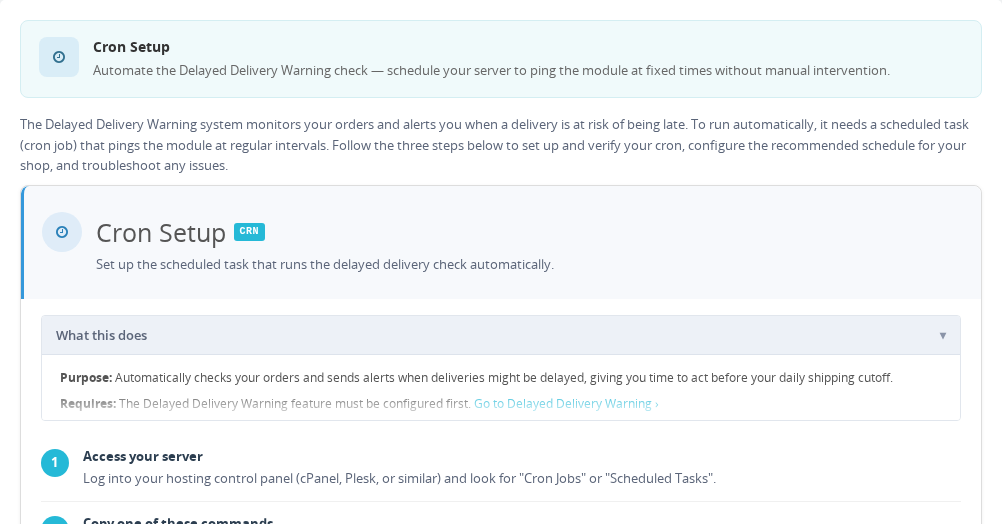
The Cron Job URL field already contains the exact address to call, secret key included. Copy it as-is rather than typing it by hand — the module builds it from your shop's URL settings, so it differs from store to store. With friendly URLs enabled it looks like this:
https://yourstore.com/module/estimateddelivery/DelayedDeliveryWarning?cron_secret_key=YOUR_SECRET
Without friendly URLs, the same address is written as index.php?fc=module&module=estimateddelivery&controller=DelayedDeliveryWarning, followed by your secret key.
Set this URL to be called once a day — most hosting control panels have a cron job tool, or you can use a free service like cron-job.org.
Without an active cron job, no delayed delivery warnings are ever sent. Make sure your cron is running before relying on this feature.
Notification Timing
You control how far in advance each alert is sent:
| Setting | What it controls | Example |
|---|---|---|
| Hours to notify the admin | How many hours before the delivery deadline your admin alert is sent | 48 = two days before the deadline |
| Hours to notify the customer | How many hours before the delivery deadline the customer alert is sent | 24 = one day before the deadline |
Setting the admin notification to fire earlier than the customer notification gives your team time to investigate and potentially ship the order before the customer is even alerted.
Email Templates
The module sends two different emails — one to you and one to your customer. Both can be customized under Back Office → Design → Email Themes:
| Template | Recipient | Purpose |
|---|---|---|
delayed_shipment_admin | You (the admin) | Flags the order so your team can take action |
delayed_shipment | Your customer | Sets expectations and shows you care |
Both templates support order variables like {id_order}, {order_Reference}, {firstname}, {lastname}, {shop_name}, and {shop_url} so the messages feel personal and relevant.
Frequently Asked Questions
How does the module know an order hasn't shipped yet?
It checks whether the order has ever reached the status you defined as 'shipped'. If that status hasn't appeared in the order's history and the estimated delivery deadline is approaching, the order is flagged for notification. Orders that have already been shipped (or that have passed through the shipped status) are skipped automatically.
Will my customers receive multiple warning emails for the same order?
No. The module tracks which orders have already triggered a notification and marks them so they're never alerted twice. Each customer receives at most one delayed shipment email per order, no matter how many times the cron runs.
What happens to orders placed before I enabled this feature?
That's exactly what the 'Review past orders' button is for. Clicking it the first time you enable the feature lets the module scan your existing order history and catalogue them properly. Without that step, older orders may be missed by the daily check.
Can I send the admin alert to a different email address than my main store email?
Yes. By default the module uses your store's main contact email, but you can enter a custom admin address in the settings. This is useful if you want the alerts to go directly to your logistics team or a shared inbox instead of the general store address.