Cache System: Speed Up Your Delivery Dates
Every time a customer visits a product page, the module needs to figure out the estimated delivery date — checking carrier configurations, holiday calendars, zone rules, and more. The cache system stores those results so your store doesn't have to repeat that work on every single page load.
For most stores, the defaults work perfectly out of the box. This guide explains what each cache level does and when you might want to adjust it.
Where to Find the Settings
Go to Back Office → Modules → Estimated Delivery → Advanced → Performance.
You'll also notice a CACHE: ON badge in the module's top header bar — that's a quick visual confirmation that file caching is active.
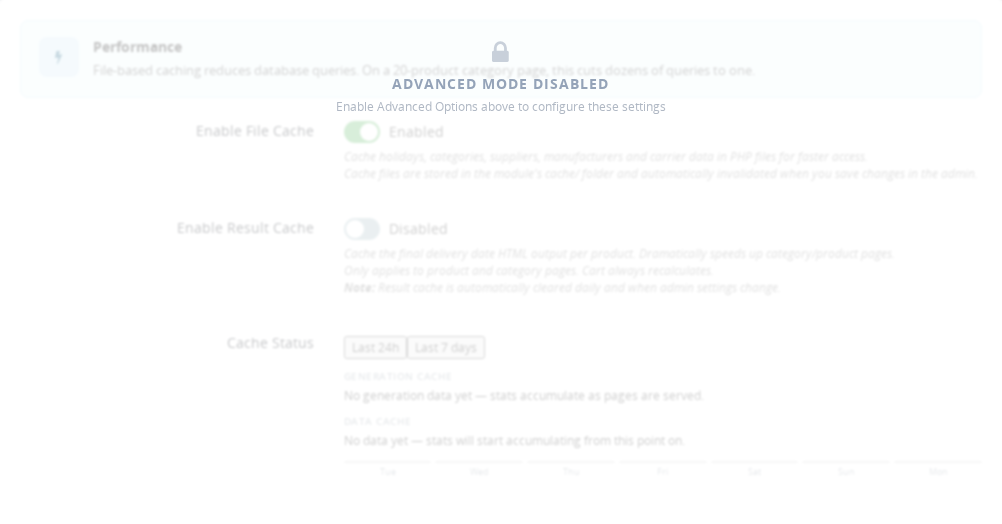
The Two Cache Levels
File Cache (default: On)
The File Cache stores the underlying data that the module reads frequently — carrier configurations, holiday dates, category rules, supplier and manufacturer delivery days. Instead of querying the database on every page load, the module reads from a lightweight PHP file stored in the module's cache/ folder.
This cache is automatically cleared whenever you save changes in the admin, so you never have to worry about stale data after updating your settings. The Cache Status section shows you exactly how many files are stored and how much space they're using (typically a few kilobytes).
You can disable the File Cache temporarily if you're troubleshooting a configuration issue and want to force the module to read directly from the database — but for normal operation, keeping it on is the right call.
Result Cache (default: Off)
The Result Cache is a more aggressive second layer. Instead of caching the raw data, it caches the final delivery date HTML output itself — the finished text and markup that gets shown to your customers. When it's active, returning visitors to a product page get that HTML served instantly, with no PHP processing at all.
This is a meaningful speed boost for busy stores with high product page traffic. The trade-off is that the result cache is less aware of per-session details: it works best when your delivery dates are the same for most visitors regardless of their location or browsing context.
The Result Cache is automatically cleared once a day and whenever you save admin settings, so it stays fresh without any manual work on your part. Keep in mind that the cart page always recalculates live — the Result Cache only applies to product and category pages.
Cache Status and Manual Clearing
The Cache Status panel shows the current file count and total size at a glance. Two buttons let you clear cache manually when needed:
- Clear All Cache — removes both the File Cache and the Result Cache entirely. Use this if you've made multiple changes and want a clean slate.
- Clear Result Cache — removes only the HTML output cache, leaving the underlying file cache intact.
In practice, you rarely need to click either button. The cache invalidates itself automatically when you save settings. If a delivery date ever looks unexpectedly stale, clicking Clear All Cache is the quickest fix.
When to Enable the Result Cache
The Result Cache is worth enabling if:
- Your store gets a high volume of product page visits and you want to reduce server load
- Your estimated delivery dates are consistent across most of your customers (same carrier, same region)
- You have a stable configuration that doesn't change frequently
You may want to leave it off if:
- You update carrier rules or holiday calendars often
- Your delivery dates vary significantly by customer location and you want every visitor to see a freshly calculated result
Frequently Asked Questions
Do I need to clear the cache after saving my settings?
No — the module clears the relevant cache entries automatically whenever you save changes in the admin. The next page load will reflect your updated configuration without any manual action needed.
What does the CACHE: ON badge at the top of the module mean?
It confirms that the File Cache is currently active. This badge is always visible in the module header so you can tell at a glance whether caching is enabled, without having to navigate to the Performance settings.
Should I enable the Result Cache for my store?
It depends on your traffic and how dynamic your delivery rules are. Stores with consistent delivery dates and high product page visits benefit the most. If your dates vary a lot by customer or region, or if you change carrier settings frequently, the default (Off) is the safer choice.
How do I know if the cache is causing a display problem?
Go to Advanced → Performance and click Clear All Cache, then reload the product page in question. If the date now looks correct, the cache was serving an outdated result. If the problem persists after clearing, the issue is in the configuration itself rather than the cache.