Import, Export & Backup
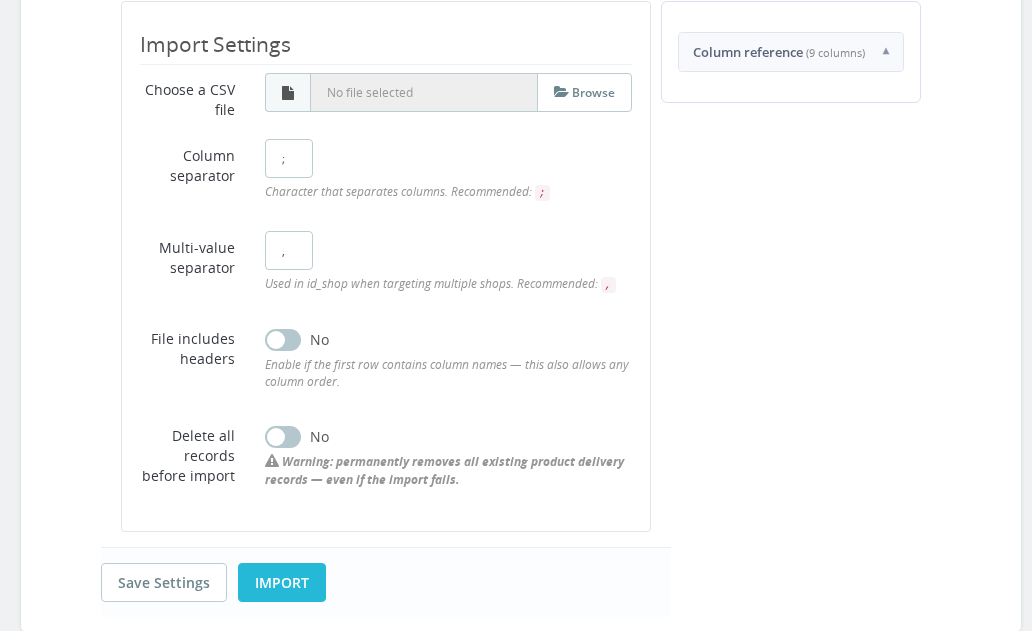
The Estimated Delivery module's Import / Export tab gives you three tools for moving delivery data between stores or editing it in bulk:
- CSV Import — upload a spreadsheet to set delivery data for many products at once
- CSV Export — download your current product delivery data as a CSV for bulk editing
- Backup / Restore — save and restore the complete module configuration as a JSON file
📥 CSV Import
CSV Import lets you set or update delivery settings (available dates, picking days, OOS days, etc.) for many products at once, without editing each product individually.
Preparing the CSV file
The CSV uses 9 columns in this exact order:
id_product; id_product_attribute; id_shop; available_date; out_of_stock_days; picking_days; release_date; customization_days; disabled
| Column | Description |
|---|---|
id_product | PrestaShop product ID |
id_product_attribute | Combination ID (0 for the base product) |
id_shop | Shop ID (0 applies to all shops) |
available_date | Date from which the product is available (YYYY-MM-DD, or empty) |
out_of_stock_days | Extra days added when the product is out of stock |
picking_days | Days needed to pick/prepare the product |
release_date | Pre-order release date (YYYY-MM-DD, or empty) |
customization_days | Extra days for customized products |
disabled | 1 = disable estimated delivery for this product, 0 = enabled |
The easiest way to get a correctly formatted CSV is to export your current data first, edit it in a spreadsheet, then import it back.
Running the import
- Go to Back Office → Estimated Delivery → Import / Export
- Select the CSV Import tab
- Choose your column separator (semicolon by default)
- Upload your CSV file
- Click Import
The module processes rows one by one and reports the result. Rows with errors are skipped and listed so you can fix them.
📤 CSV Export
CSV Export downloads your current product delivery configuration as a spreadsheet — the same 9-column format used for import. Use it to:
- Audit delivery settings across your catalogue
- Bulk-edit values in Excel or Google Sheets and import them back
- Transfer product delivery data to another PrestaShop installation
Export options
| Option | Description |
|---|---|
| Scope | Export all products, or only products with custom delivery settings |
| Include combinations | Include per-combination rows, or only base product rows |
| Identifier format | Use numeric IDs or product references in the exported file |
| All-shops column | Output id_shop = 0 rows for multi-shop compatibility |
- Go to Import / Export → CSV Export tab
- Set your export options
- Click Download CSV
The file downloads immediately. Open it in any spreadsheet application, edit the values, and use CSV Import to upload the changes.
💾 Backup & Restore
Backup creates a complete snapshot of all the module's configuration tables — product settings, category settings, carrier rules, holidays, warehouses, delivery zones, and more — as a JSON file. Restore applies that snapshot to replace the current configuration.
What's included in the backup:
| Table | Contains |
|---|---|
ed_prod | Per-product delivery settings |
ed_prod_combi | Per-combination delivery settings |
ed_cat | Per-category delivery settings |
ed_supplier | Per-supplier settings |
ed_manufacturer | Per-manufacturer settings |
ed_holidays | Holiday definitions |
ed_carriers | Carrier rules |
ed_delivery_zones | Delivery zone configurations |
ed_warehouse | Warehouse definitions |
Order data (ed_orders, ed_order_individual) is excluded — that's runtime data, not configuration. PrestaShop configuration keys (module settings) are also excluded because they are installation-specific.
Creating a backup
- Go to Import / Export → Backup / Restore tab
- Click Download Backup
A .json file downloads with the date, domain, and module version in the metadata.
Restoring a backup
The restore operation truncates all module tables before inserting the backup data. Any configuration added after the backup was taken will be lost. Always create a new backup before restoring an older one.
- Go to Import / Export → Backup / Restore tab
- Click Choose File and select your
.jsonbackup - Click Restore
- Confirm the warning dialog
If the backup was created on a different major version of the module, a compatibility warning appears. The restore will still proceed, but verify the results afterwards.
When to use Backup / Restore
- Migrating to a new server — back up on the old server, restore on the new one
- Cloning a store — use backup/restore to copy delivery configuration to a new shop
- Before major changes — take a backup before a bulk import or large configuration change
- Disaster recovery — restore a known-good state after accidental misconfiguration
✅ Final Checklist
CSV workflow:
- Export current data first to use as a template
- Keep the 9-column order exactly as specified
- Test with a small batch before importing the full catalogue
Backup workflow:
- Download a backup before any bulk import or restore operation
- Verify the backup JSON contains the expected number of rows per table
- After restore, check a few products to confirm data is correct
What is the difference between CSV Export and Backup?
CSV Export contains only product-level delivery settings in a spreadsheet format, designed for bulk editing. Backup is a complete JSON snapshot of all module configuration tables including carrier rules, holidays, warehouse definitions, and zone configurations. Use CSV for editing product data; use Backup for full migration or disaster recovery.
Does the restore operation delete my current configuration?
Yes. Restore truncates all module tables before inserting the backup data. Any configuration you added after the backup was taken will be permanently lost. Always create a fresh backup immediately before running a restore, so you can recover if needed.
Can I use a backup from one PrestaShop store on a different store?
Yes, that is one of the main use cases — migrating or cloning a store. The backup includes all module configuration tables but not PrestaShop configuration keys, which are installation-specific. After restoring, verify that product IDs and carrier IDs match correctly on the target store.
What column separator should I use in my CSV file?
The default separator is a semicolon. You can choose a different separator in the CSV Import settings when uploading. Make sure your spreadsheet application uses the same separator when you save the file.
How do I bulk-disable estimated delivery for a group of products?
Export your product data as CSV, set the disabled column to 1 for all products you want to exclude, then import the file back. The module processes the rows and disables delivery estimates for those products without affecting any other settings.